

Imagine if Claude already knew your brand voice, your code style, or your team's workflow before you typed a single word. That's exactly what custom Claude Skills make possible. Claude Skills are modular instruction sets that extend Claude's capabilities for your specific needs. They range from a few lines of Markdown to full multi-file packages with executable scripts.
In this blog, we walk you through everything you need to know from writing your first skill.md file to packaging, uploading, and testing your custom skill.
What are Claude Skills?
Claude Skills are structured instruction packages that tell Claude how to behave in specific contexts. Each skill lives in its own folder and is built around a core skill.md file. You can think of them as reusable prompt templates — but far more powerful.
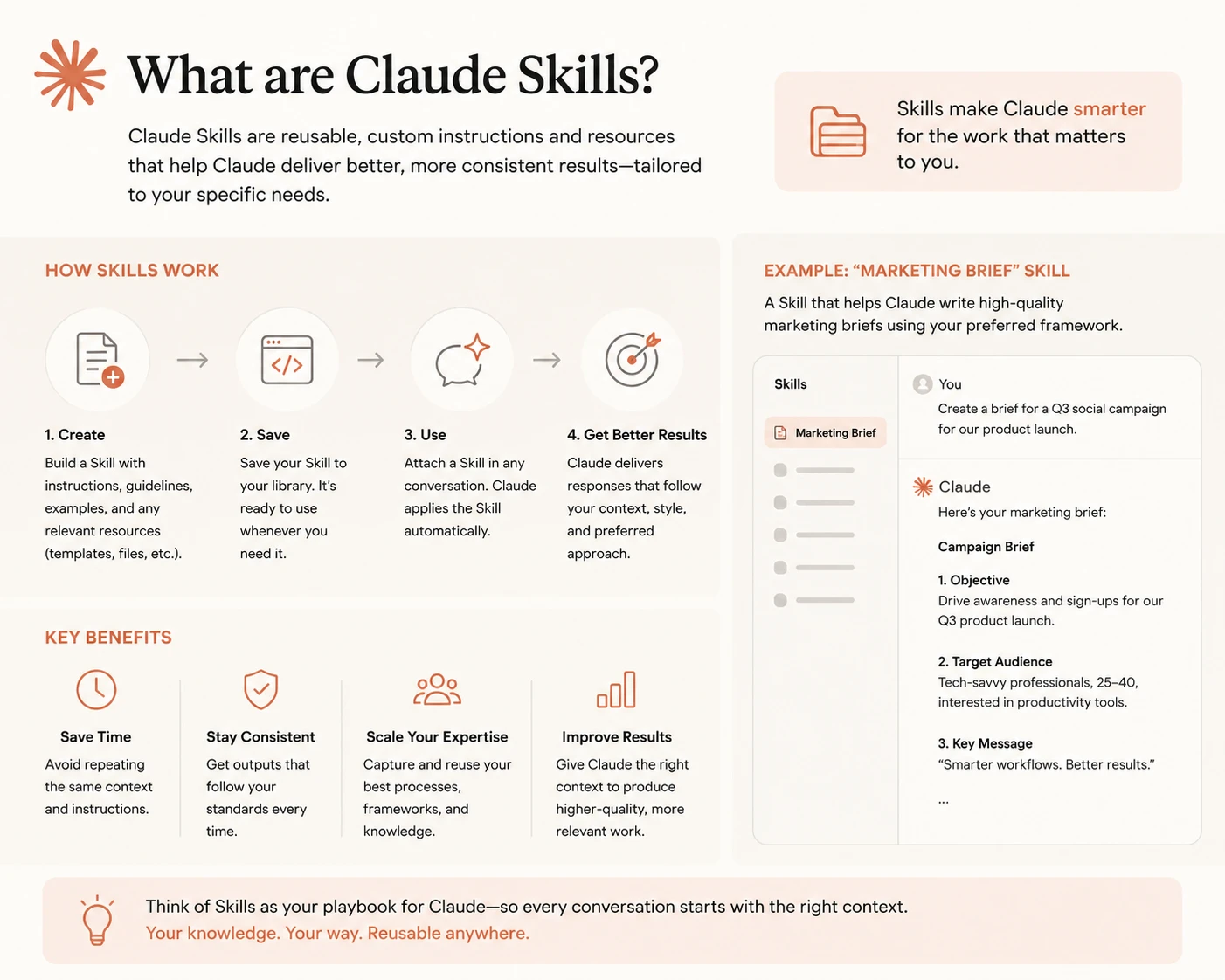
Skills work best when they focus on one repeatable task. A skill for applying brand guidelines is better than a skill that tries to handle brand guidelines, code review, and customer emails all at once. Focused skills compose better and are easier to maintain.
Skills are available on free, Pro, Max, Team, and Enterprise plans. The one requirement is that code execution must be enabled in your Claude settings before you can use them.
Step 1: Create Your skill.md File
Every Claude Skill starts with a single file: skill.md. This file has two main parts a YAML metadata block at the top, and a Markdown body below it.
Required Metadata Fields
The YAML frontmatter must include two fields:
- name: A human-friendly label for your skill (max 64 characters). Example: Brand Guidelines
- description: A clear summary of what the skill does and when Claude should use it (max 200 characters). This is the most important field. Claude reads the description to decide whether to invoke your skill.
Note: Write the description as if you're telling Claude: "Use this skill when someone asks you to do X." Be specific. Vague descriptions lead to Claude missing the skill or using it at the wrong time.
Optional Metadata Fields
You can also include a dependencies field to list any software packages the skill needs. For example:
dependencies: python>=3.8, pandas>=1.5.0
Claude and Claude Code can install packages from PyPI and npm automatically when loading your skill.
Keep in mind: API-based skills need all dependencies pre-installed in the container.
The Markdown Body
Below the frontmatter, write your instructions in plain Markdown. This is where you define the actual behavior. Include an overview, step-by-step guidelines, examples, and any relevant reference material.
Here's what a simple brand guidelines skill looks like:
name: Brand Guidelines

description: Apply Acme Corp brand guidelines to all presentations and documents

Brand Colors
- Primary: #FF6B35 (Coral)
- Secondary: #004E89 (Navy Blue)
Notice how the instructions are direct and specific. Claude doesn't need filler language it needs clear rules it can follow every time.
Step 2: Add Resources and Scripts (Optional)
Adding Resource Files
If your skill.md file grows too long, split it up. Add a REFERENCE.md or other supporting files inside the skill's folder. Reference them inside skill.md so Claude knows to check them when needed.
This layered approach is called progressive disclosure. Claude reads the metadata first, then skill.md, then additional files.
Adding Executable Scripts
For advanced workflows, you can attach runnable code to your skill. Claude supports the following in skill scripts:
- Python (with libraries like
pandas,numpy,matplotlib) JavaScript / Node.js - Visualization and file-editing packages
This makes Skills quite powerful for tasks like data transformation, document generation, or custom formatting pipelines. The skill effectively becomes a mini-application that Claude can run on demand.
Step 3: Package Your Skill as a ZIP
Once your skill folder is ready, you need to compress it correctly. The structure matters.
Correct structure:
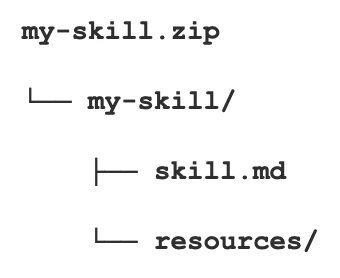
The skill folder must be the root of the ZIP not its contents. If files appear directly at the ZIP root without a parent folder, Claude won't be able to load the skill correctly.
Also make sure the folder name matches your skill's name before you zip it.
Step 4: Upload and Enable Your Skill
With your ZIP ready, head to Claude.ai. Go to Customize > Skills and upload your file. After uploading, toggle the skill on to activate it.
That's all it takes. Claude will now reference your skill whenever it detects a relevant request.
Step 5: Test and Iterate
Before You Upload
- Read through your
skill.mdcarefully. Is every instruction unambiguous? - Check that your description tells Claude exactly when to use the skill.
- Verify that all referenced files exist inside the skill folder.
- Run a few sample prompts mentally to see if Claude would trigger the skill.
After Uploading
- Enable the skill under Customize > Skills.
- Try several prompts that should activate it.
- Check Claude's reasoning to confirm it's loading the skill.
- If Claude misses it, refine the description and re-upload.
You can also edit skills directly inside Claude chat. Highlight text, click "Edit with Claude," and type your request. For multi-file skills, leave edit requests across files and send them together Claude applies all changes in one pass.
Best Practices for Writing Claude Skills
These practices come directly from Anthropic's guidance and are worth building into your workflow from day one:
- Keep it focused: One skill per workflow. Multiple small skills compose better than one large, complicated one.
- Write a clear, specific description: This single field controls when Claude uses your skill. Invest time in getting it right.
- Start simple: Write plain Markdown instructions first. Add scripts and resources only when you need them.
- Include examples: Showing Claude what a good output looks like is often more effective than describing it.
- Test incrementally: Don't build an elaborate skill before verifying the basics work.
- Let skills compose: Claude can use multiple skills together automatically. You don't need to combine them manually.
For advanced skill authoring, Anthropic publishes a detailed guide at Skill authoring best practices. The open Agent Skills specification at agentskills.io is also worth reviewing if you want your skills to work across platforms.
Security Considerations
Skills with executable scripts carry some security responsibility. Keep these rules in mind:
- Never hardcode API keys, passwords, or sensitive credentials inside a skill.
- Review any skills you download from third-party sources before enabling them.
- Use MCP connections for external service access rather than embedding credentials.
- Anthropic maintains an open repository of example skills on GitHub. These make excellent starting templates if you're building your first skill and want a reference to work from.
Conclusion
Custom Claude Skills are a practical way to make Claude more useful for your specific work. Start with a focused skill.md file, write a clear description, and package it correctly as a ZIP. Upload it to Claude, test it with real prompts, and refine from there. The feature rewards iteration your skills will get sharper the more you test and adjust them. If you want to go deeper, explore what skills are and how to use skills in Claude for more context on this powerful feature.
Frequently Asked Questions
What is a Claude Skill?
A Claude Skill is a packaged set of instructions built around a skill.md file that teaches Claude how to handle a specific task or workflow. Skills can include Markdown instructions, reference files, and executable code.
How do I create a custom Claude Skill?
Write a skill.md file with YAML metadata (name and description fields) and Markdown instructions. Place it inside a named folder, compress the folder as a ZIP, and upload it via Customize > Skills in Claude.ai.
What plans support Claude Skills?
Skills are available on free, Pro, Max, Team, and Enterprise plans. Code execution must be enabled in your Claude settings for Skills to work.
Can I share a Claude Skill with my team?
Yes. On Team and Enterprise plans, admins can provision skills for all users in the organization. See Anthropic's guide on provisioning and managing skills for your organization for the full process.
What happens if Claude doesn't use my skill?
The most common cause is a vague or poorly written description field. Claude relies on the description to decide when to invoke a skill. Rewrite it to be more specific about the exact scenario where the skill applies, then re-upload and test again.