

The best AI video generator depends on what you need to make. Runway is a useful starting point for generating and editing footage. Pika suits short visual effects, while HeyGen and Synthesia focus on videos with a presenter. The right choice gets clearer once you know the job.
Below are nine tools worth shortlisting, with direct product links, real website screenshots, and sample prompts. The better-known options come first, followed by more specialized tools.
1. Google Flow for building scenes with Google models
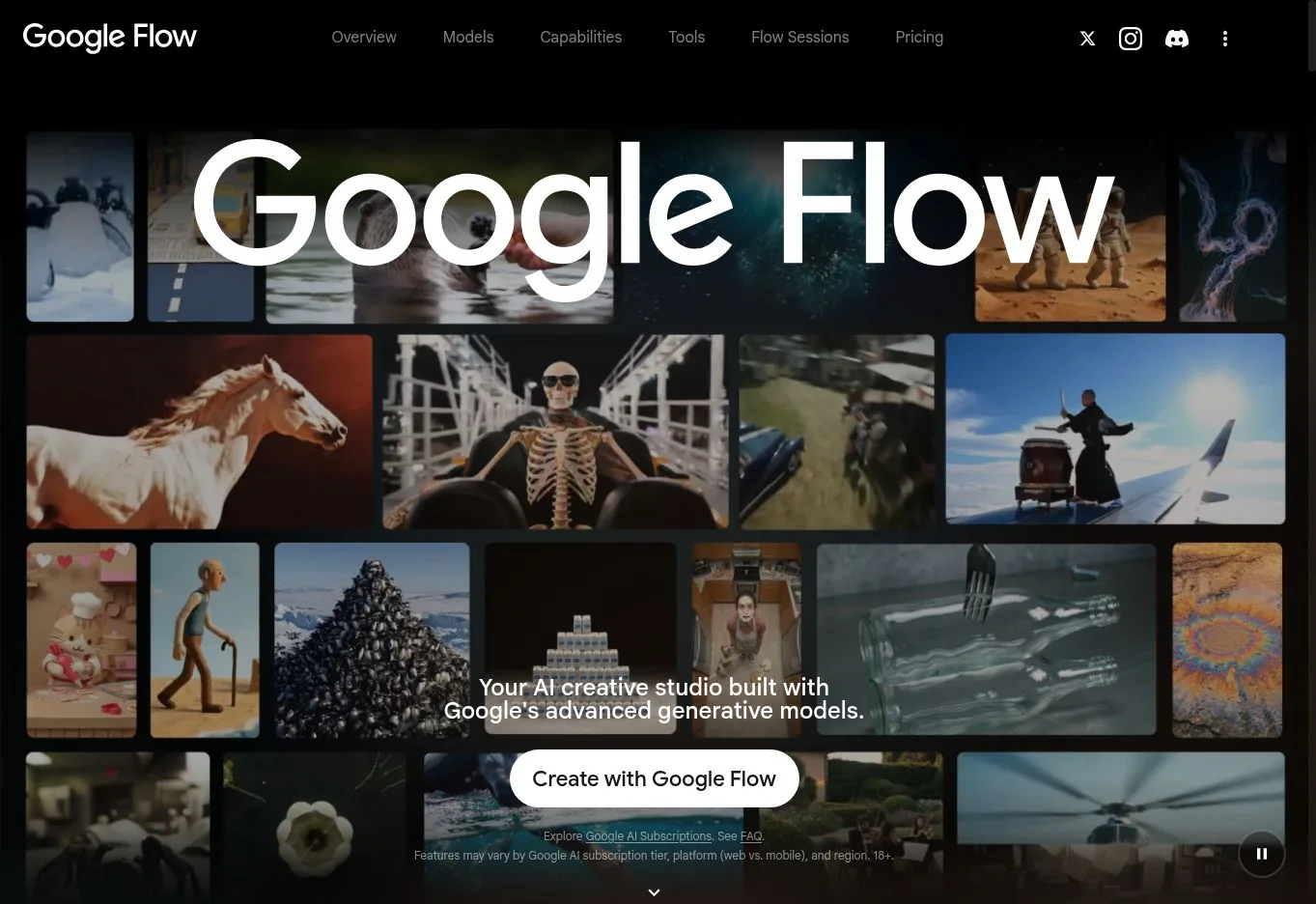
Best for: Visual storytelling built around a scene, reference assets, and follow-up edits.
Google Flow brings Google’s image and video models into a shared creative workspace. Its current lineup includes Gemini Omni for reference-based generation and conversational edits, Veo 3.1 for video with native audio, and Nano Banana for image work.
It is worth a look if you want to develop a scene and keep refining it. You can work from text, images, or video, ask for changes in natural language, and use tools such as Storyboard Studio to plan the cast and sequence before generating.
Try this at: Google Flow
2. Runway for generating and editing footage
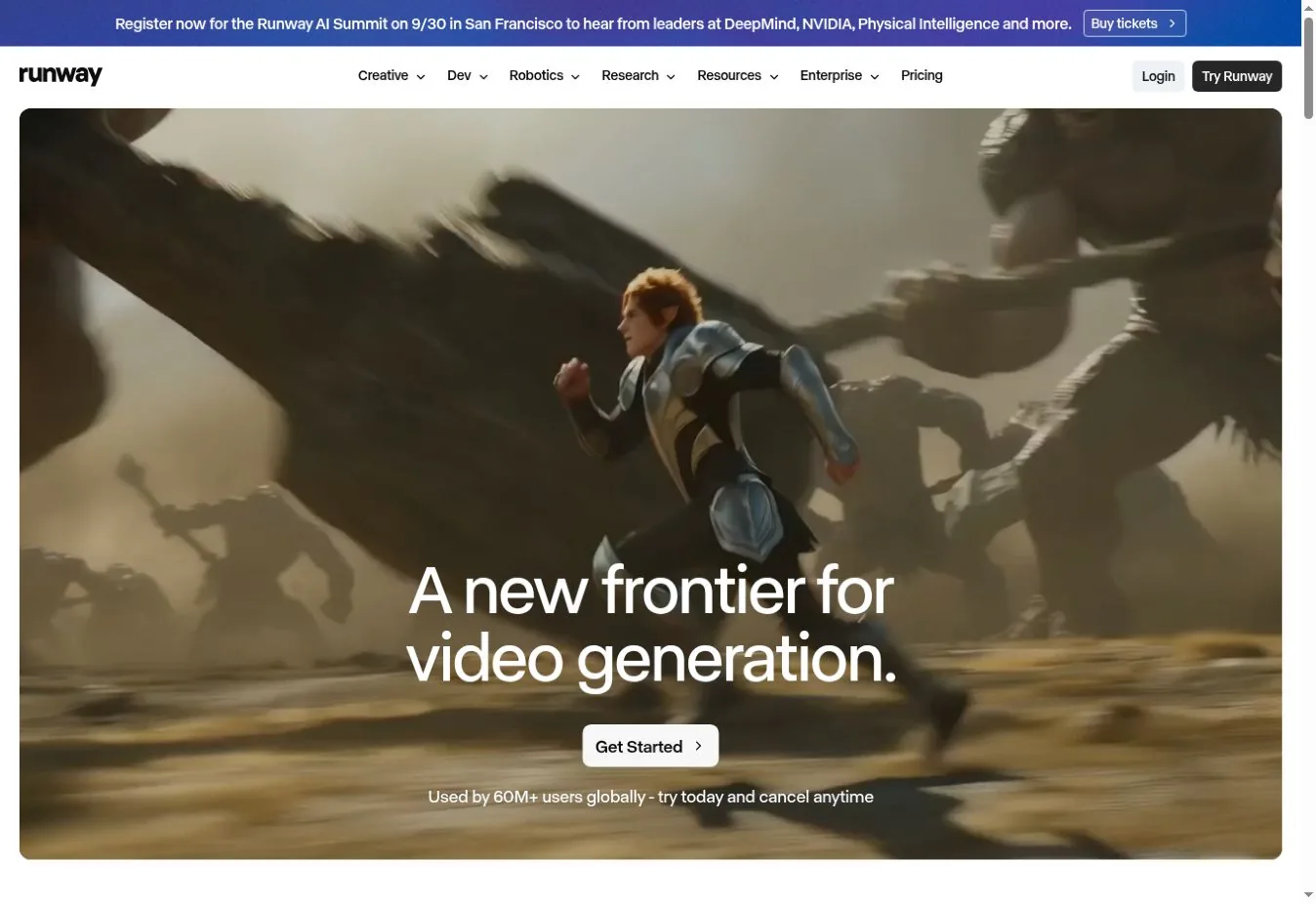
Best for: Creators who want to generate a shot, revise it, and keep working in the same platform.
Runway makes sense when your first generation is the beginning of an edit. Its product suite combines video generation with tools for changing a backdrop, relighting a scene, removing objects, and extending a creative workflow. You can use Runway models alongside selected partner models.
For a product film or short narrative, that gives you room to fix a specific shot instead of repeatedly starting over. The multi-shot video app and reusable workflows are also useful when a project needs more than one isolated clip.
Try this at: Runway
3. Kling AI for reference driven motion
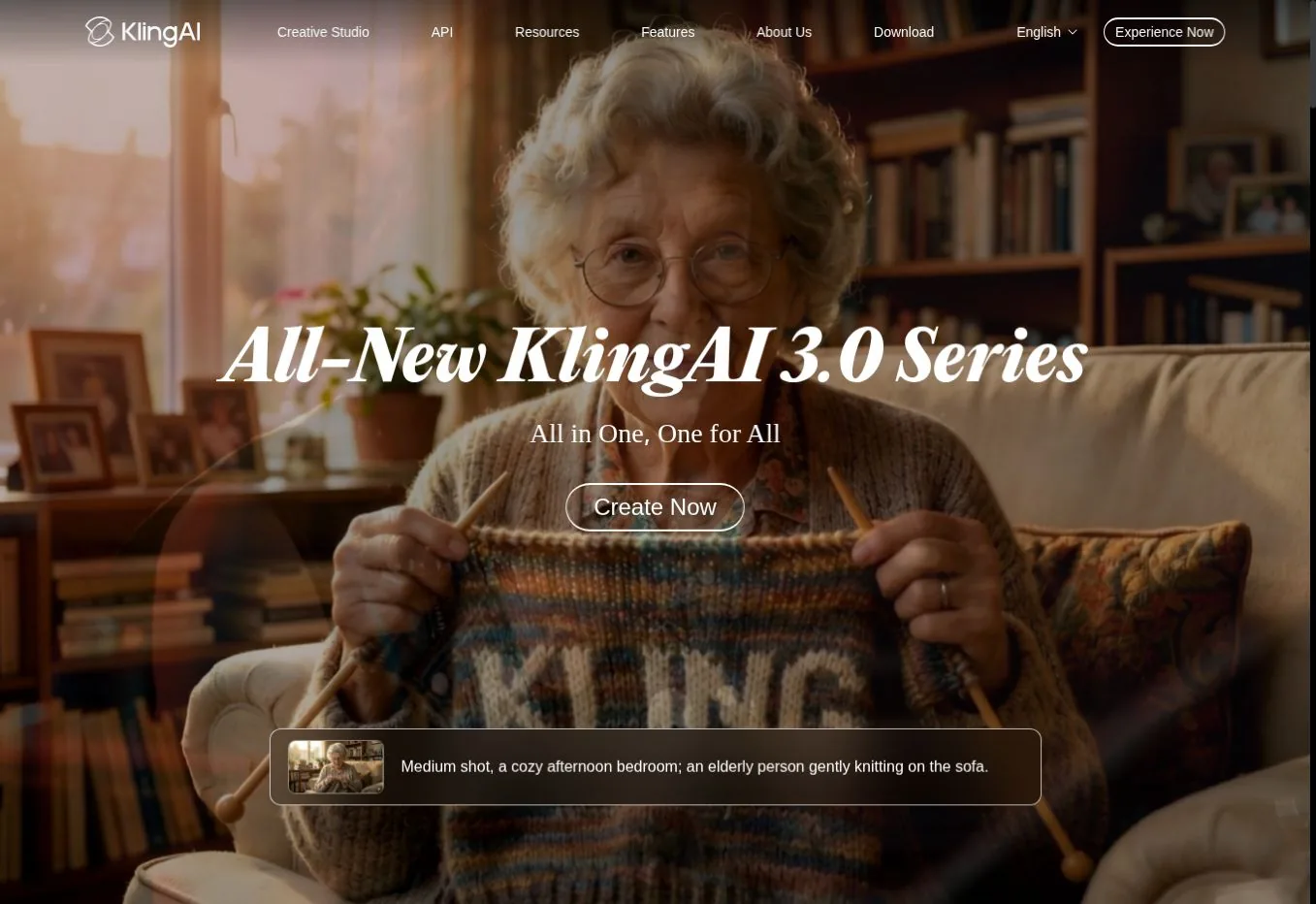
Best for: Scenes where character identity, motion, and shot direction need to work together.
Kling brings text-to-video, image-to-video, motion controls, and video editing into one creative studio. Its 3.0 family adds storyboard controls and native audio, with tools aimed at preserving visual identity and voice across scenes.
That makes it a useful shortlist pick for character scenes and product sequences. Start with a clear reference image, describe one main action, and build out the next shot once the first one looks right. Use the controls available in your chosen model to guide the sequence.
Try this at: Kling AI
4. Adobe Firefly for video work in an Adobe workflow
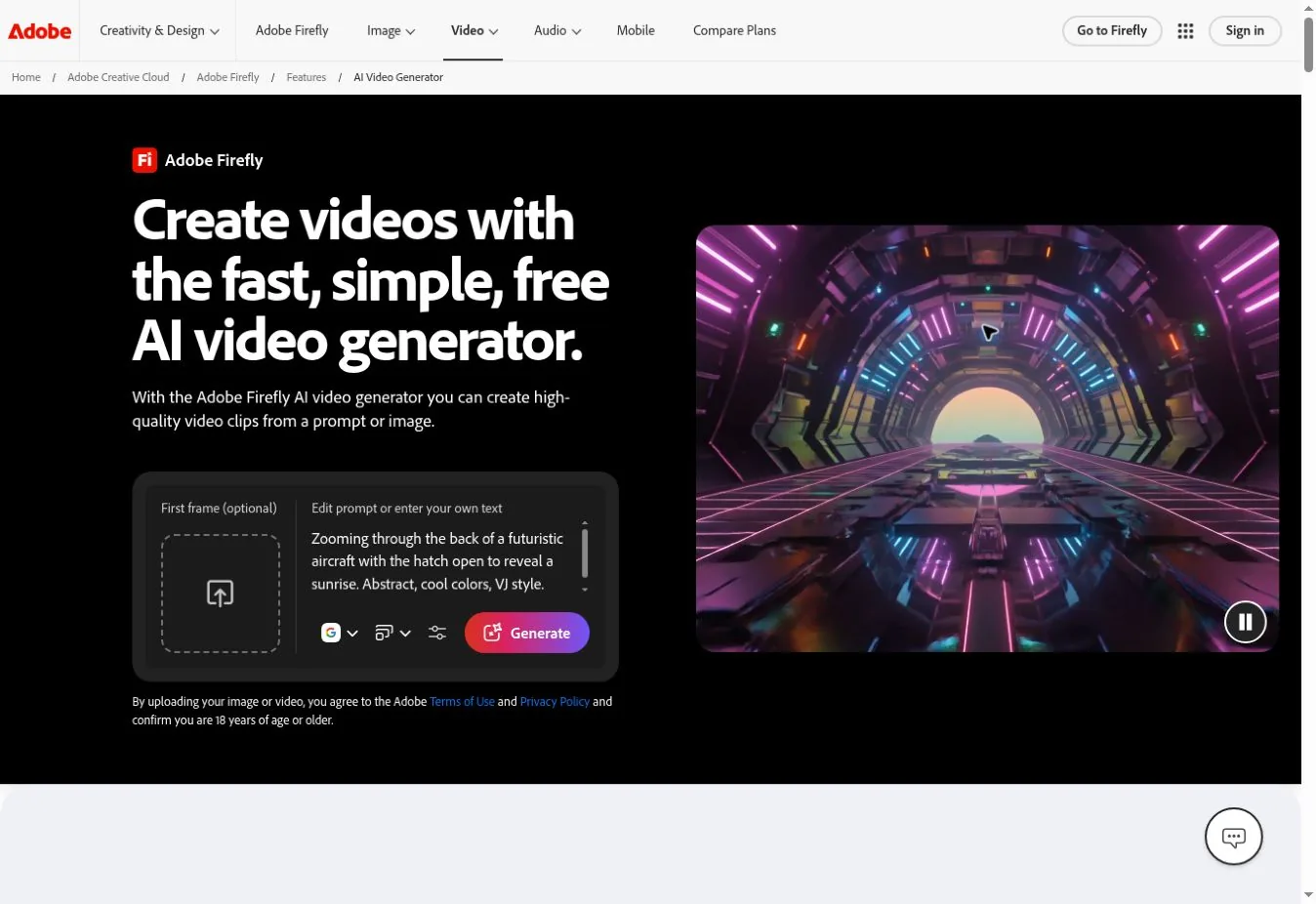
Best for: Designers who want model choice, generation, and video editing in one Adobe workspace.
Firefly lets you generate a video from text or an image, then adjust settings such as camera angle and motion. Its model menu includes Adobe’s own video model and selected models from other providers, so the workspace can stay familiar as you compare approaches.
The video editor adds practical finishing tools: arrange and trim clips, extend footage, and add voiceover, music, or sound effects. It is a sensible starting point for a designer turning a still campaign asset into motion.
Try this at: Adobe Firefly
5. Higgsfield for directed social and campaign visuals
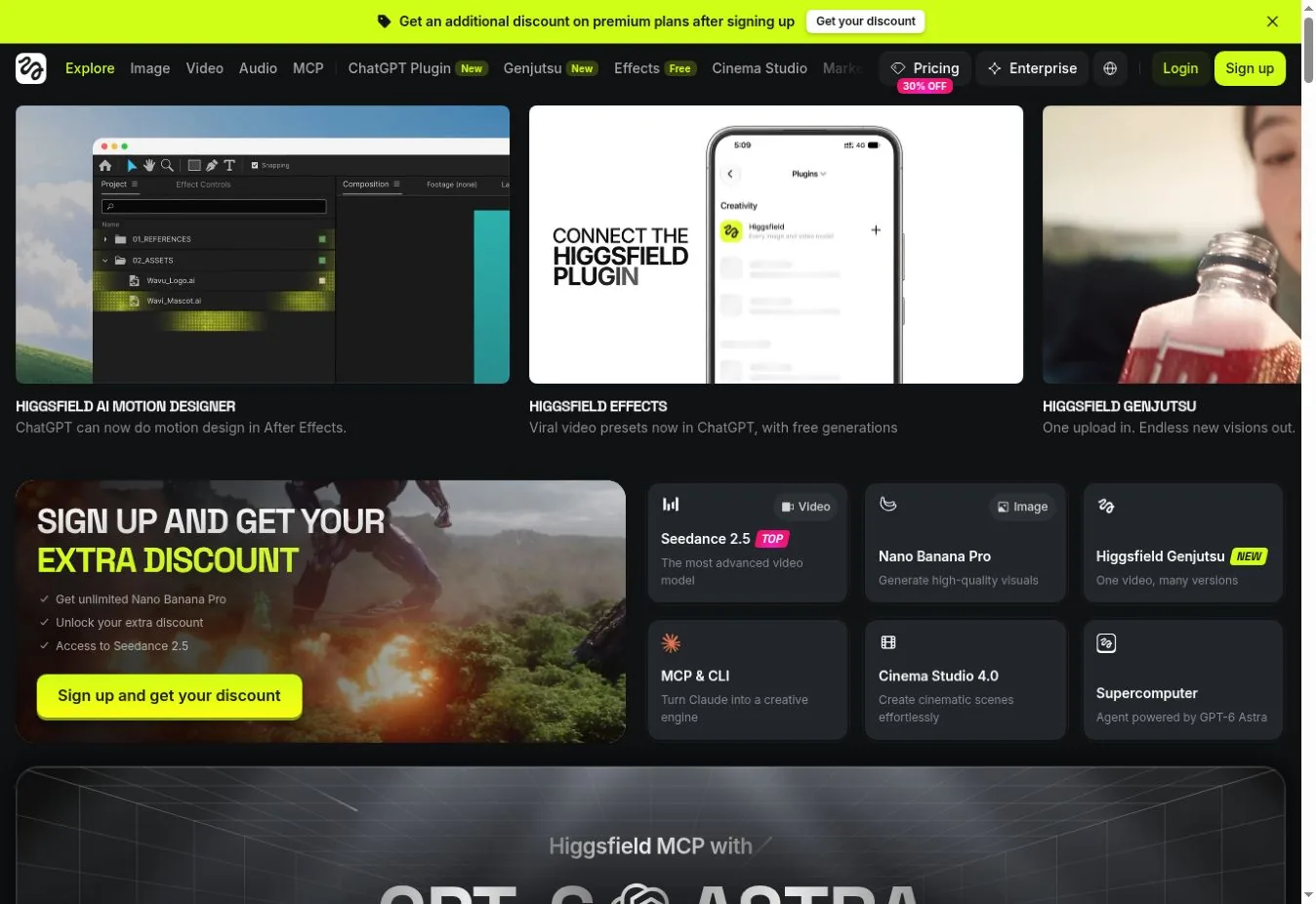
Best for: Creators choosing a specific visual treatment or effect for a short clip.
Higgsfield combines video generation with dedicated areas for Cinema Studio, Marketing Studio, and effects. Its platform also offers multiple models, which makes the surrounding controls and presets an important part of the choice.
Use it when you can point to the treatment you want: a dramatic reveal, a transition, or a particular kind of motion. Its Genjutsu tools also support transferring motion into a new scene or changing details in existing footage. A useful workflow is to choose the treatment first, then supply the image and brief.
Try this at: Higgsfield
6. HeyGen for avatar explainers and localization
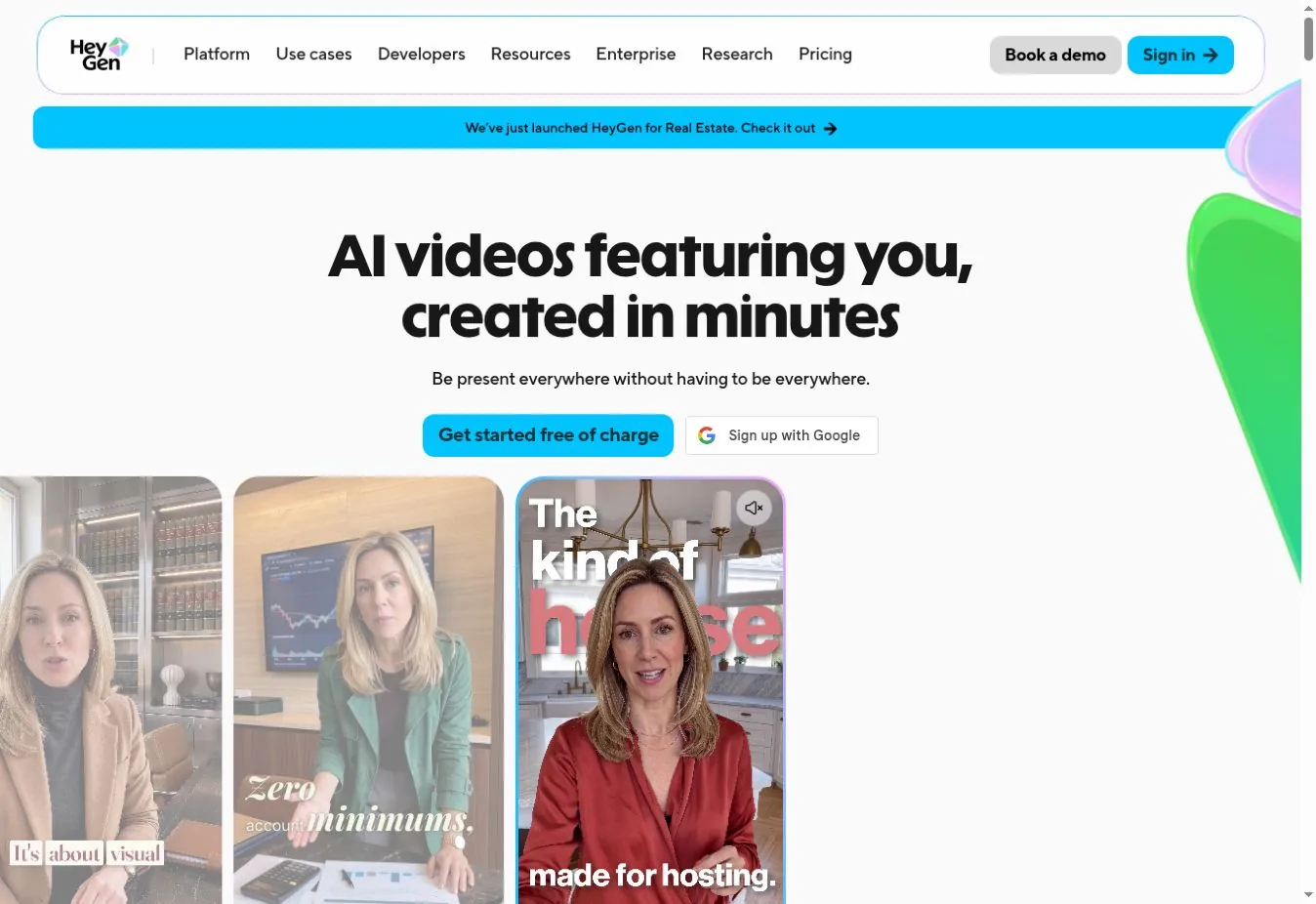
Best for: Presenter videos for marketing, product explanations, and multilingual communication.
HeyGen is a strong fit when a person explaining the message is central to the video. Its tools turn scripts into avatar presentations and support voice, captions, and translation. AI Studio adds controls for delivery, including tone, pacing, and gestures.
Start with an approved script for a feature walkthrough, customer update, or campaign message. Once the core version works, localization tools can help adapt it for another audience. This is a different purchase from a generator you mainly need for cinematic scenery or abstract footage.
Try this at: HeyGen
7. Synthesia for training videos that need updates
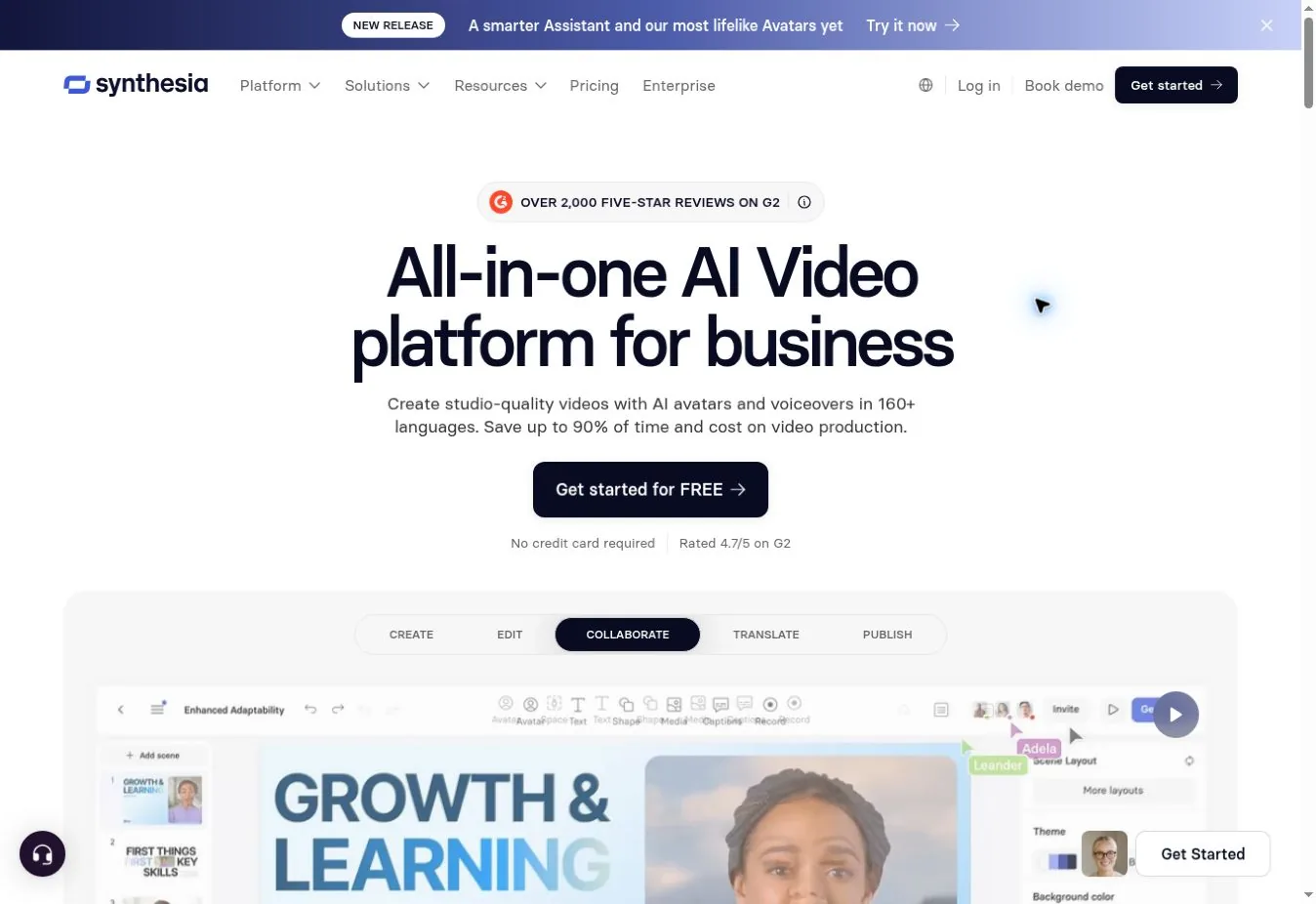
Best for: Teams producing onboarding, internal explainers, and repeatable learning content.
Synthesia focuses on business video production with avatars, text-to-speech, and translation. Its AI video assistant can work from documents, links, or ideas, making it useful for turning an existing guide into a narrated first draft.
The team workflow is the draw: brand assets, review comments, analytics, and updates to videos using their existing embed. For onboarding or training, that can matter as much as the initial generation. You can revise a lesson when a process changes and keep it connected to the learning material.
Try this at: Synthesia
8. Pika for playful social clips
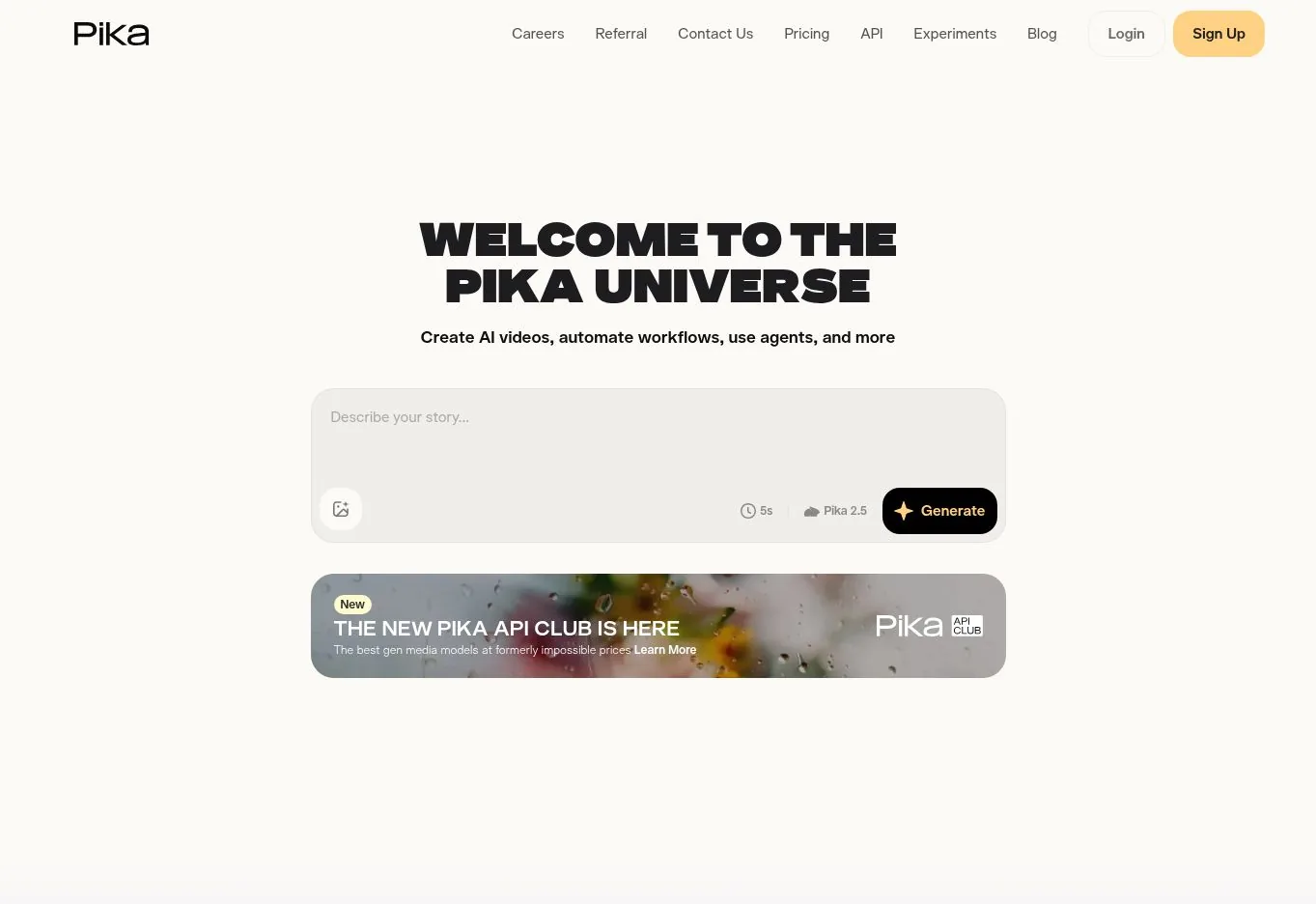
Best for: Short visual hooks, photo transformations, and effects for social posts.
Pika is an accessible place to explore an idea that depends on a striking visual effect. Its video tools sit alongside experiments such as Pikaffects, which turns photos into surreal animations, and Trendmaker, which builds around a selfie and a sound.
It fits a social post where the visual joke or transformation is the point. Try a recognizable object and one clear effect, then keep the clip short enough that the idea lands immediately. That is a more focused starting brief than asking for an entire ad in one generation.
Try this at: Pika
9. Luma for turning a brief into video assets
Best for: Creative teams developing several clips and variations from one campaign brief.
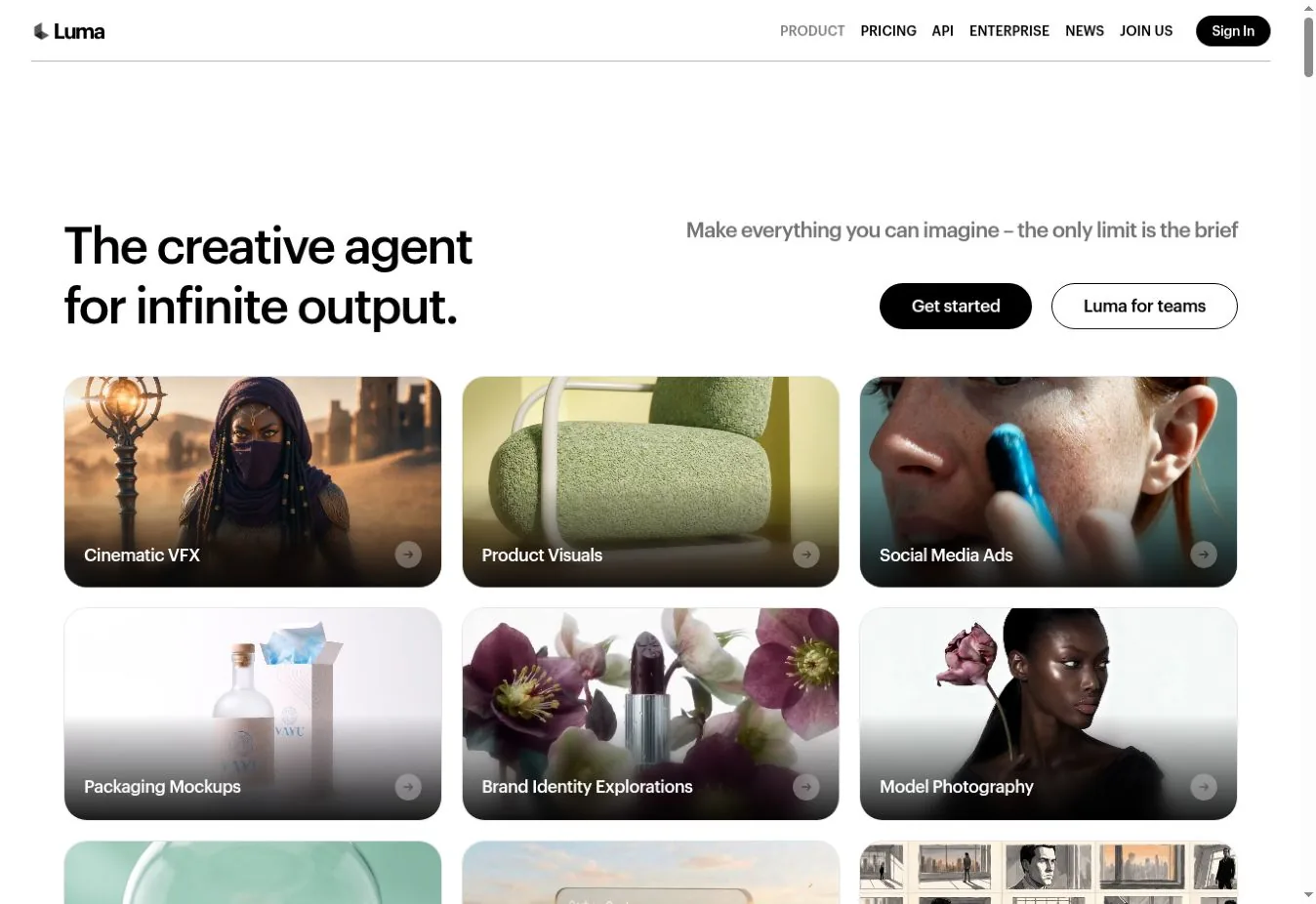
Luma now presents its app as a creative agent that can carry a brief through planning, generation, and refinement. Its offering includes video models, storyboard work, short social ads, and tools for assembling clips and adding captions.
The appeal is keeping the campaign context close to the assets. Give it the product references, desired tone, and deliverables, then develop several directions within the same project. It is a useful option when you need both an initial concept and versions for different channels.
PSA: Specify which assets are approved and which details must stay fixed. Check the selected plan’s commercial-use terms and credit allowance for the models you use.
Try this at: Luma
Frequently Asked Questions
Which AI video generator should I try first?
For generated footage with editing options, start with Runway. For playful effects, try Pika. For a scripted presenter, compare HeyGen and Synthesia using the same short script.
Are the best AI video generators free?
Some offer a trial or limited free access. Check whether that includes the model, export quality, and usage rights you need. A free preview does not necessarily cover a finished commercial deliverable.
Can I turn a photo into a video?
Yes. Tools such as Kling and Firefly support image-to-video generation. Supply a clear image and describe the motion you want while naming the details that must stay fixed.