

Claude connectors bring your files, messages, designs, and project records into the conversation. The useful part is what you can do with that access: prepare a brief from Drive, recover a Slack decision, or turn a reviewed plan into Linear issues.
These eight picks cover common work tasks. Each entry links to its official Claude connector page, shows the actual listing, and includes a practical prompt plus a setup note. Start with the app that holds the material you use most often.
1. Google Drive for document research
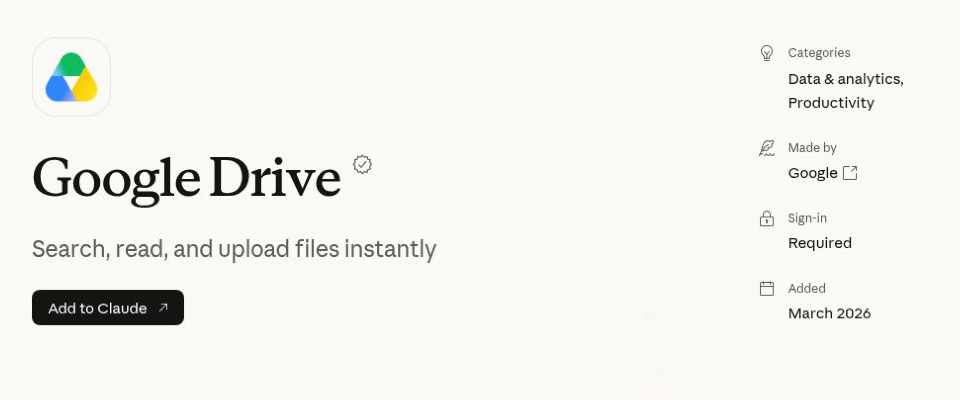
Best for: Briefs, meeting preparation, and analysis grounded in Workspace files.
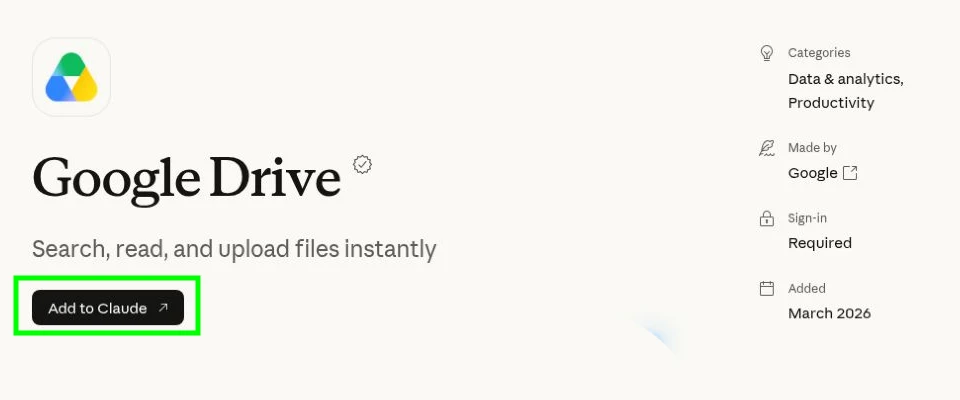
The Google Drive connector lets Claude find files, read their contents, and upload new files to Drive. Its listing covers Docs, Sheets, Slides, and PDFs, with tools for file search, creation, updates, and sharing. Give Claude a folder or document link, then specify the output you need.
Use it to pull a project’s deliverables from several documents, compare spreadsheet figures, or prepare a meeting brief with links to the evidence.
Try this prompt: Use Google Drive to find the latest [project] plan in [folder link]. Draft a one-page status update with completed work, deadlines, and open questions. Link each source and flag conflicting versions.
Try this at: Google Drive
2. Gmail for email follow ups
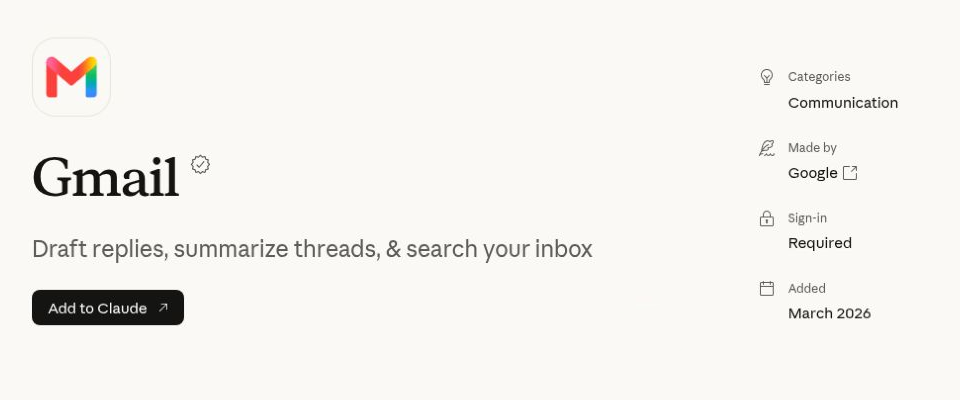
Best for: Catching up on threads and preparing replies with the right context.
Gmail’s Claude listing includes searching messages, reading full threads, and creating drafts. Its tools also include sending, replying, forwarding, and managing labels. Start with a sender, subject, or date range so Claude can find the conversation you mean.
Ask for the latest customer request, what your team has already promised, and the questions still waiting for an answer. That gives a reply draft a useful starting point.
Try this prompt: Use Gmail to find the latest thread from [sender] about [subject]. Summarize their request and our commitments, then create a concise reply draft. Flag missing information and leave it unsent.
Try this at: Gmail
3. Slack for team decisions and updates
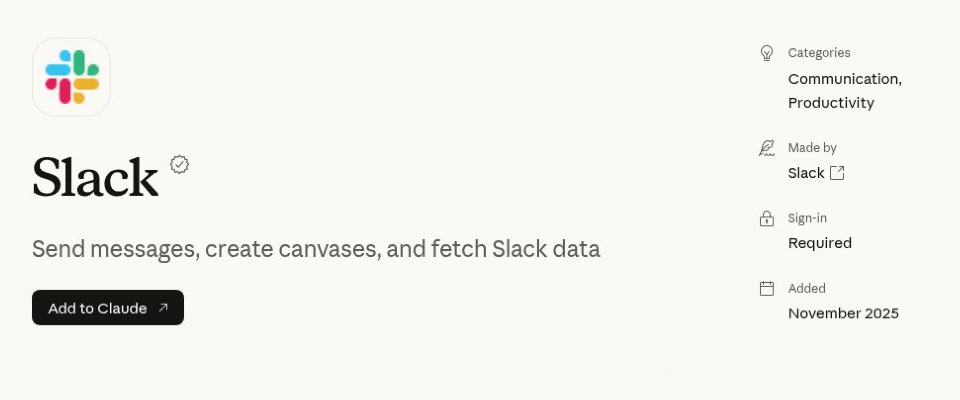
Best for: Recovering decisions from channel discussions and preparing a clear recap.
Slack’s connector lets Claude search and read messages, channels, and threads. It can also send messages and create or update canvases. For a weekly update, name the channel and time window, then ask Claude to distinguish confirmed decisions from suggestions.
A useful recap includes the decision, its owner, any unresolved blocker, and a source thread. You can then ask Claude to draft a message or turn the reviewed recap into a canvas.
Try this prompt: Use Slack to review [channel] for [date range]. List confirmed decisions, blockers, and assigned owners with thread links. Draft a short channel update and leave it unpublished.
Try this at: Slack
4. Notion for knowledge and content planning
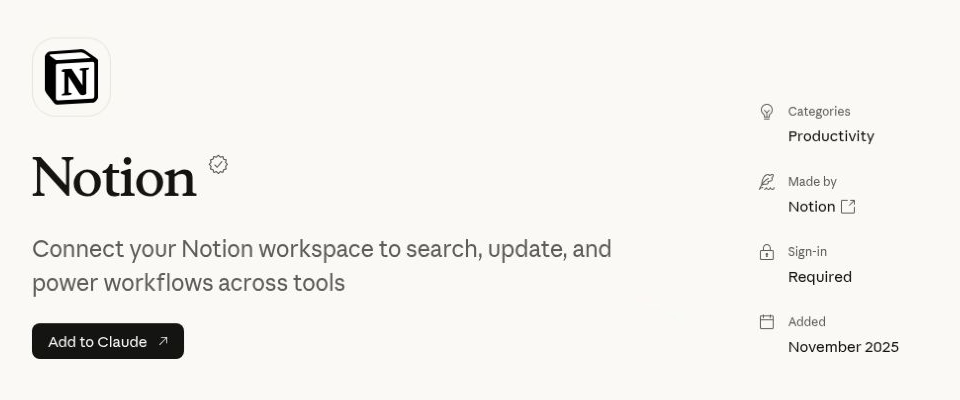
Best for: Working from team documentation and keeping plans in the right workspace.
Notion’s Claude connector can search and fetch content, create and update pages, and manage databases. Its tool list also includes moving pages and adding comments. This makes it useful when the source brief and the destination plan both live in Notion.
For an editorial workflow, ask Claude to read the positioning page and existing calendar before proposing new entries. For project documentation, have it identify outdated sections and draft targeted updates.
Try this prompt: Use Notion to read [positioning page] and [editorial database]. Propose four article entries with audience, angle, owner, and status. Show existing overlaps and wait for my review before creating pages.
Try this at: Notion
5. Canva for briefs and visual assets
Best for: Finding designs and turning approved copy into a visual draft.
Canva’s Claude listing covers searching, generating, autofilling, and exporting designs. Its tools include reading design content, retrieving pages, adding comments, and checking available export formats. Give Claude an existing design link or a brief with the copy, audience, and format.
Use it to find a campaign deck, inspect its contents, or generate a new design from an approved outline. Request an editable design link so the result can be reviewed before export.
Try this prompt: Use Canva to generate a five-slide presentation from this approved outline. Keep the supplied wording, use [brand direction], and return the editable design link. Show the result before exporting a PDF.
Try this at: Canva
6. Linear for issues and project planning
Best for: Turning a scoped feature request into tracked product work.
Linear’s connector lets Claude find, create, and update issues and projects. It can also read comments, add comments, inspect cycles, and search documentation. Start from the relevant team or project so the task uses the right backlog and status options.
Claude can check whether a request is already tracked, draft the missing issues, or summarize progress from existing work. Ask it to keep proposed work separate from tasks already completed.
Try this prompt: Use Linear to check [project] for issues covering this feature brief. Show matches, then draft only the missing issues with acceptance criteria. Wait for my review before creating them.
Try this at: Linear
7. Atlassian Rovo for Jira and Confluence context
Best for: Connecting project documentation to the work tracked in Jira.
The Atlassian Rovo connector gives Claude access to Jira and Confluence through Atlassian’s MCP server. Its listing describes reading and summarizing content, creating records, and completing tasks across those sources with the connected user’s permissions.
For a release update, ask Claude to compare the Confluence plan with relevant Jira work. The useful output is a referenced account of what changed, which items remain open, and where the plan needs attention.
Try this prompt: Use Atlassian Rovo to compare [Confluence release page] with Jira project [key]. Draft a release status update with completed items, open blockers, and source links. Flag discrepancies without editing records.
Try this at: Atlassian Rovo
8. Make for repeatable workflows across apps
Best for: Running and maintaining workflows already configured in Make.
Make’s connector lets Claude run scenarios and manage parts of your Make account. The listing includes inspecting and changing scenarios, connections, data stores, teams, and organizations. The apps reached by a scenario depend on how that scenario is configured.
If your team already has a weekly reporting scenario, Claude can inspect its inputs and help run it for the right reporting period. This is useful when a task follows an established sequence across several services.
Try this prompt: Use Make to find [weekly reporting scenario]. Explain its inputs and output destinations, then prepare the parameters for [date range]. Show the planned run and wait for my confirmation before executing it.
Try this at: Make
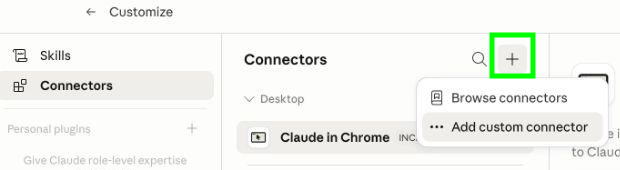
How to add a connector to Claude
- Open the official Claude listing linked in the entry.
- Select Add to Claude and follow the connection flow.
- Sign in to the service account you want to use and review the requested access.
- Start a conversation with a specific source, task, and desired output.
Which connectors should you start with
Pick a task you repeat every week. For content work, start with Drive or Notion and add Canva when the copy is ready. For project updates, Slack plus Linear or Atlassian Rovo can connect the discussion to the tracked work. Use Make when the task already follows a configured workflow.
Judge the result by the corrections it needs and the time it saves. Keep source links in summaries and state when you want a draft, a saved record, or an action carried out.
Frequently Asked Questions
Is a connector the same as MCP?
A connector is the connection you use in Claude. MCP is a protocol that lets Claude work with the tools and data a service exposes.
Does connecting an app include its paid features?
Do not assume so. Your service account, subscription, and workspace permissions still determine what you can use. Check the listing and provider setup documentation.
Can connectors change my data?
Yes, some can send messages, create pages, update issues, or run workflows. Check the listed tools and make the intended action explicit in your request.