

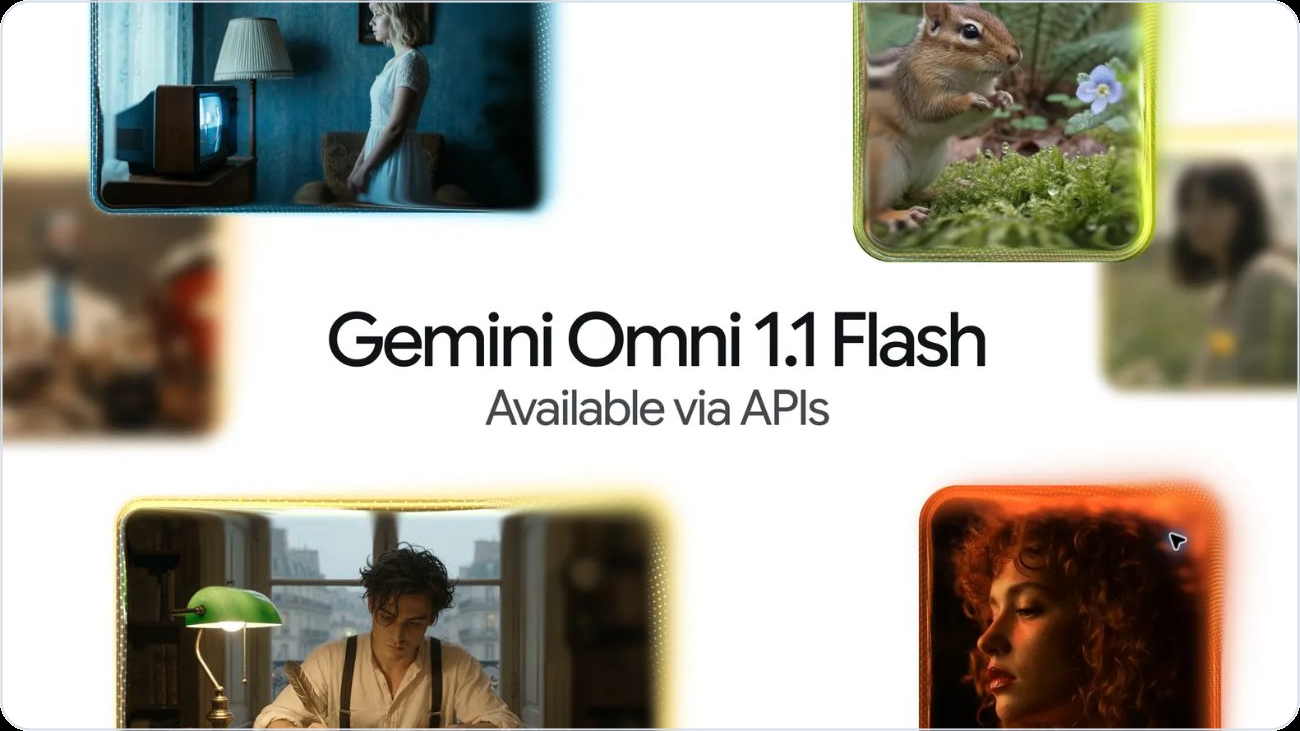
Gemini Omni already stood out by handling text, images, audio and video in one model, while generating or editing video through conversation. Version 1.1 adds longer extensions, first-and-last-frame control, 360p drafts, video references and upscaled 4K output.
The bigger upgrade is control. You now have more say over how a shot starts, ends and develops. In this article, we test these additions across three practical workflows using original prompts and reusable footage.
QUICK VERDICT It’s amazing!
Gemini Omni 1.1 Features
| Spec | Details |
|---|---|
| Model | Gemini Omni 1.1 |
| Max video extension | Up to several minutes (significantly longer than v1.0) |
| Frame control | First-and-last-frame control |
| Input types | Text, image, audio, video |
| Video references | Yes (style, motion, and structure) |
| Draft resolution | 360p (fast and cost-efficient) |
| Upscaling | Up to 4K |
| Aspect ratios | 16:9, 9:16, 1:1 and more |
| Audio | Sync audio generation supported |
| Availability | Via Gemini API and select platforms |
Test 1: 720p Video Output
Purpose: See whether the high-resolution file adds useful detail or merely exposes the same motion problems more clearly.
Settings: Generate a 10-second video, 16:9 scene at 720p. Keep native audio enabled.
Prompt
A low tracking shot inside a rain-soaked Indian tea stall at night. The vendor gently pushes a glass of steaming chai across a stainless-steel counter. The camera follows beside the glass at counter height.

At six seconds, the glass stops beside a small red plastic token. Steam rises into the yellow tube light while scooters pass outside through the rain.

Natural stall ambience, rainfall, distant traffic and soft metal clinks. No dialogue, no readable signage and no camera cuts.
Wow! If you’ve observed the previous iterations of Gemini Omni, you can clearly see the difference here. The continuity of movement is there and the scene starts and ends based on our requirements. In its previous versions, Gemini Omni sometimes introduces its own objects within the frame whimsically.
Test 2: Make One Surgical Video Edit
Purpose: Change one object while measuring how much of the original person, motion and scene survives.
Input: Download the free Pexels hallway video. Use a clean 6- to 8-second section. If needed, select it with Omni's built-in trim.
Settings: Attach the clip as the source video. Use 9:16 and 720p.
Prompt
Replace the books in the woman's hands with a compact bouquet of white lilies.

Preserve her face, clothes, walking pace, hand position, camera movement, corridor, lighting and timing. The flowers should move naturally with her stride. Keep the rest of the video unchanged.

Preserve the original audio. Add no text and no additional people.
Amazing! The subject was retained mostly and only parts of her hand that were meant to be changed were altered. This means that Gemini Omni 1.1 can now make surgical edits as well.
Test 3: Extend a Scene
Purpose: See how quickly the scene, camera and audio drift as the model builds beyond its first generation.
Input: Use the cleaner output from Test 1. Continue inside the same interaction so Omni retains the video state.
10-Second Extension Prompt
Continue for ten seconds. The vendor lifts the chai glass and carries it toward a customer outside the frame. The camera rises with the glass in one smooth arc. Preserve the stall, rain, lighting, steam, colour grade and ambience. A scooter passes loudly around four seconds into the extension. No dialogue and no cut.
I mean its kinda neat! The extend was not only continuous, but it can also be used to bypass the usual "10-second-per-clip" cap that Omni 1.1 imposes.
Test 4: Carry a Subject Into a New Scene
Purpose: Test whether a short reference clip preserves a subject's likeness without reusing the original location.
Input: Download the free Pexels Husky video. Trim one clean section to 2.5-3 seconds before attaching it as a video reference.
Settings: Attach the clip as a reference, not the source to edit. Use 16:9 and 720p.
Prompt
Use the uploaded video only as a character reference. Generate a new scene with the same Siberian Husky walking through a misty pine campsite at blue hour. It wears a plain red bandana, pauses beside a warm camping lantern and looks toward the camera.

Preserve its facial markings, coat pattern, eye colour, ear shape and body proportions. Create a new location; do not reproduce the street. One uninterrupted shot with forest ambience. No people, dialogue or text.
The movements and the appearnace of the dog were retained whiel the dog was moved to a different scene. A good edit!
When to Use It
| Good fit | Poor fit |
|---|---|
| Short concept shots and product motion | Long narrative scenes with many cuts |
| Loops, transitions and visual reveals | Frame-accurate choreography |
| Iterative edits with one clear change | Reliable on-screen text or UI |
| Fast draft-to-keeper pipelines | Voice replacement or exact lip-sync repair |
How to Run the Test in Oasis
Use Oasis as the production room around Gemini Omni. Keep each input, prompt, setting, output and verdict in the same room so the test remains reproducible instead of turning into a folder of mystery clips.
- Producer agent: Creates the test brief and names what must remain unchanged.
- Prompt agent: Produces the exact prompt and records every revision.
- Human operator: Runs the generation in Gemini and returns the original MP4 files.
- Reviewer agent: Checks the output with the shared scorecard and names the first failure.
- Human approver: Chooses the keeper and approves any paid 4K run or further extension.
- BUDGET GATE Let the room prepare prompts and 360p drafts freely. Require approval before 4K generation, repeated extensions or publishing.
Files to Keep
Test 1: 360p output, 4K output and matched comparison frames.
Test 2: Trimmed hallway source and edited output.
Test 3: Base clip plus every extension as a separate file.
Test 4: Three-second Husky reference and generated output.
Start the workflow inside one shared room in Oasis. The test only becomes reusable when the evidence travels with the verdict.
Final Take
Gemini Omni 1.1 Flash is an operator's upgrade. The useful additions are not buried in the 4K headline: cheap drafts, locked endpoints, focused edits, longer continuity and reusable references make the model easier to direct. The five tests above separate those controls instead of hiding everything inside one cinematic prompt. Start cheap, preserve the evidence and change one variable at a time. That is how you learn whether the model improved—or simply produced a prettier first frame.
Frequently Asked Questions
Is Gemini Omni 1.1 Flash free?
Not through the API. Google lists no free API tier. Consumer access depends on the Gemini plan and its current limits.
What if my input video exceeds 10 seconds?
Omni offers an optional 10-second trim before attachment. Choose the exact section you want the model to receive.
How long can the final video become?
A generated clip can be extended in 10-second turns, up to 40 seconds total.
Is the 4K output native?
No. Google documents 1080p and 4K as upscaled outputs; 720p remains the default.