

LLMs or AI Models are powerful on its own but what if you could give it real-time access to your internal database, your company's API, or a live weather feed? That's exactly what MCP servers make possible.
Model Context Protocol (MCP) is an open standard introduced by Anthropic in November 2024. It gives AI models a consistent, secure way to connect with external tools and data. If you've already explored how Claude Skills let you customize Claude's behavior for recurring tasks, MCP servers take that idea further they let Claude reach into the outside world and act on live data at runtime.
In this blog, we build a working MCP weather server step by step, explain the three core primitives behind the protocol, and show you how to connect it to Claude for Desktop so you can test it yourself.
What is Model Context Protocol?
MCP is a JSON-RPC-based open standard that lets any AI application discover and use external tools, data, and prompt templates through one consistent interface. Think of it as a universal adapter for AI integrations.
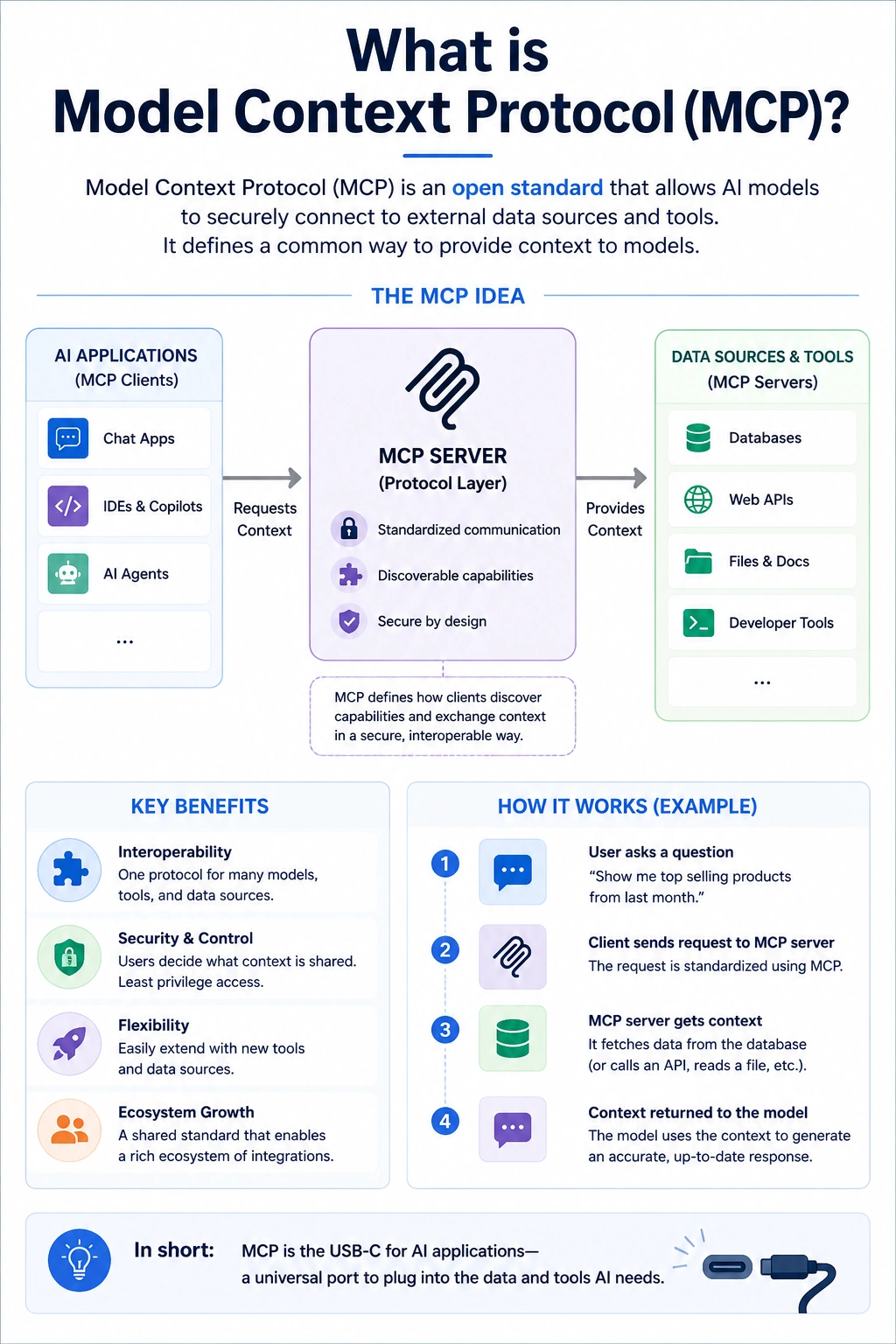
Before MCP, connecting an AI model to N different tools across M different frontends created an N × M integration problem every combination needed its own custom code. MCP solves this by standardizing how servers expose capabilities and how clients consume them. A single MCP server works with Claude, Cursor, or any other MCP-compatible client without rewriting anything. An MCP server exposes three types of capabilities: Tools, Resources, and Prompts. Understanding these three primitives is the foundation for building any MCP server.
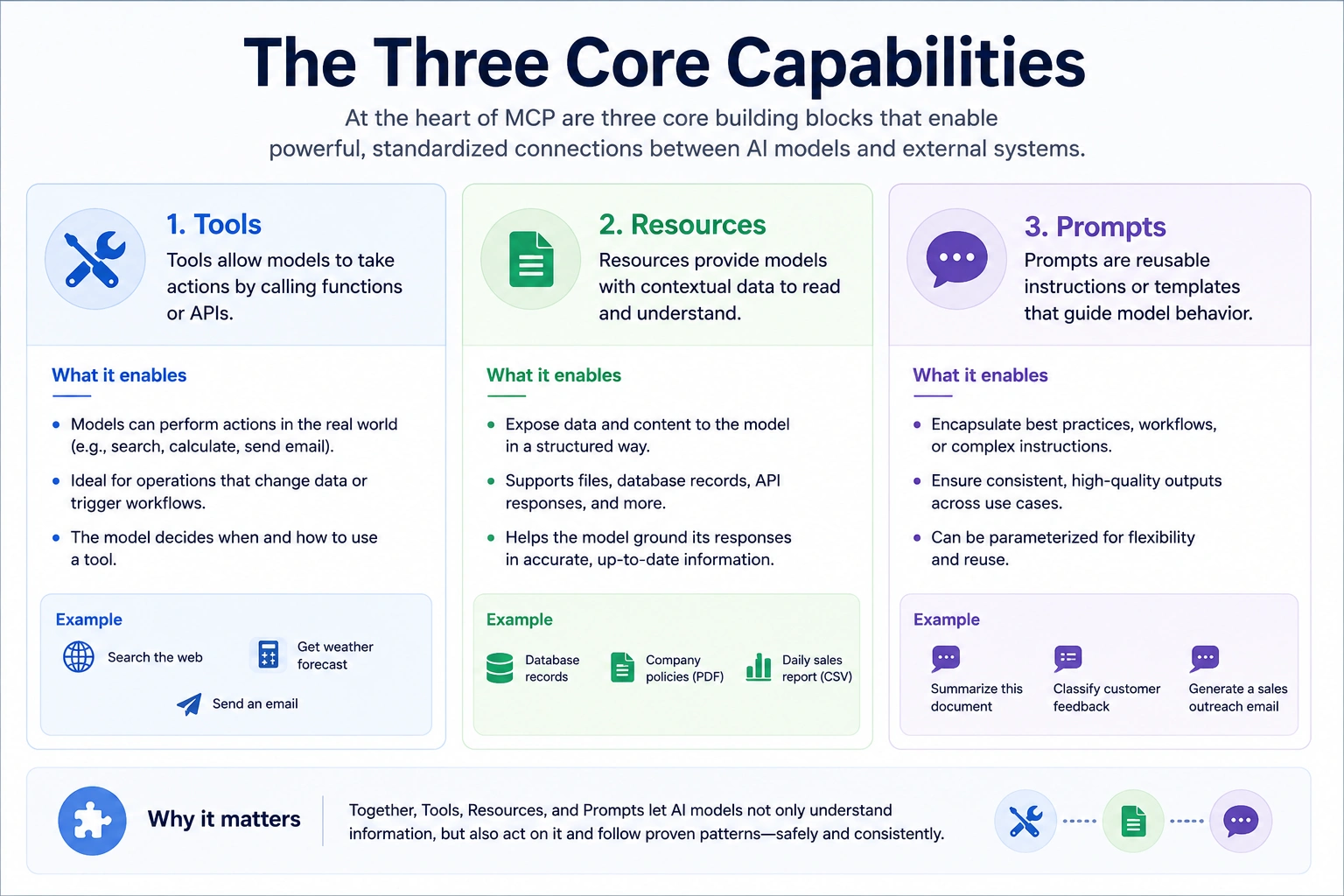
The Three Core Capabilities
Tools
Tools are executable functions that perform actions calling an API, writing a file, querying a database. The AI model decides when to invoke a tool based on what the user asks. Because tools have side effects, Claude for Desktop asks for user approval before running them.
Resources
Resources are read-only data sources the server exposes file contents, database schemas, API responses. They don't trigger actions; they supply context that the AI can read and reason over. The user or application typically controls when a resource loads into context.
Prompts
Prompts are predefined instruction templates that the server supplies on demand. Instead of hardcoding a system prompt like "You are a code reviewer" into every app, a server can expose it as a reusable template any connected client can invoke. They're the most underutilized primitive in the ecosystem but extremely powerful for standardizing recurring workflows.
Prerequisites
Before you start, have the following ready:
- Python 3.10 or higher installed on your machine
- uv a fast Python package manager (install command below)
- Claude for Desktop installed and updated download the latest version here if you don't have it yet
- Basic familiarity with Python and async functions
Install uv on macOS/Linux:
curl -LsSf https://astral.sh/uv/install.sh | sh
On Windows (PowerShell):
powershell -ExecutionPolicy ByPass -c "irm https://astral.sh/uv/install.ps1 | iex"
Restart your terminal after installation so the uv command is available.
Step 1: Set Up the Project
Create a new directory for your server and initialize it with uv:
uv init weather
cd weather
uv venv
source .venv/bin/activate.  # On Windows: .venv\Scripts\activate
uv add "mcp[cli]" httpx
touch weather.py
This sets up a virtual environment with the MCP SDK and httpx installed. The weather.py file is where all the server code will live.
Step 2: Write the Server Code
Open weather.py and add the imports and server initialization first:
from typing import Any
import httpx
from mcp.server.fastmcp import FastMCP

# Initialize the FastMCP server
mcp = FastMCP("weather")

NWS_API_BASE = "https://api.weather.gov"
USER_AGENT = "weather-app/1.0"
FastMCP is the high-level server class from the Python MCP SDK. It reads your Python type hints and docstrings to auto-generate tool definitions you write normal Python functions, and FastMCP handles the protocol.
Add Helper Functions
Add two helper functions: one to call the National Weather Service API, and one to format alert data:
async def make_nws_request(url: str) -> dict[str, Any] | None:
    headers = {"User-Agent": USER_AGENT, "Accept": "application/geo+json"}
    async with httpx.AsyncClient() as client:
        try:
            response = await client.get(url, headers=headers, timeout=30.0)
            response.raise_for_status()
            return response.json()
        except Exception:
            return None

def format_alert(feature: dict) -> str:
    props = feature["properties"]
    return f"Event: {props.get('event', 'Unknown')} | Area: {props.get('areaDesc', 'Unknown')}"
Register Your Tools
Now define the two tools your server exposes. The @mcp.tool() decorator registers each function as an MCP Tool:
@mcp.tool()
async def get_alerts(state: str) -> str:
    """Get weather alerts for a US state.
    Args:
        state: Two-letter US state code (e.g. CA, NY)
    """
    url = f"{NWS_API_BASE}/alerts/active/area/{state}"
    data = await make_nws_request(url)
    if not data or "features" not in data:
        return "Unable to fetch alerts or no alerts found."
    alerts = [format_alert(f) for f in data["features"]]
    return "\n---\n".join(alerts) if alerts else "No active alerts for this state."

@mcp.tool()
async def get_forecast(latitude: float, longitude: float) -> str:
    """Get weather forecast for a location.
    Args:
        latitude: Latitude of the location
        longitude: Longitude of the location
    """
    points_url = f"{NWS_API_BASE}/points/{latitude},{longitude}"
    points_data = await make_nws_request(points_url)
    if not points_data:
        return "Unable to fetch forecast data for this location."
    forecast_url = points_data["properties"]["forecast"]
    forecast_data = await make_nws_request(forecast_url)
    if not forecast_data:
        return "Unable to fetch detailed forecast."
    periods = forecast_data["properties"]["periods"]
    return "\n---\n".join([p["detailedForecast"] for p in periods[:5]])
Run the Server
Add the entry point at the bottom of weather.py:
if __name__ == "__main__":
    mcp.run(transport="stdio")
One critical rule with STDIO-based servers: never use print() to write to stdout. It corrupts the JSON-RPC messages and breaks the server silently. Route all logs to stderr instead use print(..., file=sys.stderr) or a logging library configured to write to stderr.
Start the server with:
uv run weather.py
Step 3: Connect the Server to Claude for Desktop
With the server running, register it in Claude for Desktop. The official MCP local server setup guide covers this in detail, but here's the short version.
Open the Claude for Desktop configuration file in any text editor:
- macOS/Linux: ~/Library/Application Support/Claude/claude_desktop_config.json
- Windows: %APPDATA%\Claude\claude_desktop_config.json
Create the file if it doesn't exist, then add:
{
  "mcpServers": {
    "weather": {
      "command": "uv",
      "args": [
        "--directory",
        "/ABSOLUTE/PATH/TO/PARENT/FOLDER/weather",
        "run",
        "weather.py"
      ]
    }
  }
}
Replace the path with the actual absolute path to your project folder. Run pwd in your project folder on macOS/Linux to get it, or cd on Windows Command Prompt.
Restart Claude for Desktop completely after saving. The tools icon appears in the chat input area once the server connects successfully. If it doesn't appear, run which uv on macOS/Linux to get the full path to the uv executable and use that in the command field instead of just "uv".
Step 4: Test Your Server
With Claude for Desktop open, try a few prompts to verify both tools work:
- "What are the active weather alerts in California?"
- "Give me the forecast for latitude 37.7749, longitude -122.4194."
Claude will ask for approval before running each tool call. Approve it, and Claude calls your server, receives the response, and uses it to build the answer. The whole round trip Claude → MCP client → your server → NWS API happens in seconds.
If Claude doesn't trigger your tools, double-check the config file path and JSON syntax. A missing comma or mismatched bracket silently disables all servers. The Anthropic MCP troubleshooting guide covers the most common failure modes in detail.
Best Practices for MCP Server Development
Keep Each Server Focused
Build one server per domain — a weather server, a GitHub server, a Notion server. Small, focused servers compose better than monolithic ones that try to do everything. This is the same principle behind effective Claude Skills design: scope is a feature, not a limitation.
Write Clear Tool Docstrings
The AI model reads your docstrings to decide when and how to use each tool. Write them as if explaining the tool to a new colleague: what it does, what arguments it accepts, what it returns. Vague docstrings cause missed or incorrect tool calls.
Handle Errors as Return Values
Return descriptive error strings instead of raising exceptions. The MCP protocol expects tool errors to come back as results so Claude can communicate what went wrong clearly to the user. Test With the MCP Inspector Before Connecting Claude
The MCP SDK ships with a browser-based inspector you can use to test tools without Claude for Desktop at all. Run it with:
mcp dev weather.py
This opens an interactive interface where you call tools directly, inspect raw JSON-RPC messages, and debug responses. It's far faster than restarting Claude for Desktop on every change.
Use Absolute Paths in Config
Relative paths behave inconsistently when Claude launches your server at startup. Always use full absolute paths in claude_desktop_config.json. A quick way to get the path: right-click your project folder in VS Code and select "Copy Path".
Conclusion
MCP servers are one of the most practical ways to extend what Claude can do. In this guide, you set up a Python project with uv, wrote two live tools with FastMCP, and wired the server to Claude for Desktop through a JSON config file.
The weather server is just the starting point. The same pattern a focused server, typed tools, clear docstrings scales to production integrations with any API or database. If you want to extend Claude in ways that don't need live data, custom Claude Skills are a lighter-weight complement worth exploring too. For a full deep-dive on the protocol, visit the official MCP documentation.
Frequently Asked Questions
What is an MCP server?
An MCP server is a lightweight process that exposes tools, resources, and prompts to AI clients like Claude through the Model Context Protocol. It acts as a bridge between the AI model and external systems like databases, APIs, or file systems.
What programming languages can I use to build an MCP server?
The official MCP SDK supports Python and JavaScript/TypeScript. Python is the most documented option for beginners. Community SDKs for Go, Rust, C#, and other languages also exist.
How is an MCP server different from a regular API?
A regular API requires custom integration code for every AI client that uses it. An MCP server uses a standardized protocol, so any MCP-compatible client — Claude, Cursor, or your own agent can discover and use its tools automatically without additional glue code.
Do I need Claude for Desktop to test my MCP server?
No. The MCP SDK includes a built-in inspector (run with mcp dev your_server.py) that lets you test tools in a browser without Claude for Desktop. It's the fastest way to iterate during development.
Can I connect multiple MCP servers to Claude at once?
Yes. You add each server as a separate entry in the mcpServers object inside claude_desktop_config.json. Claude discovers all registered servers on startup and makes their tools available simultaneously in any conversation.