

Claude Code can read a repository, edit files and run tests from your terminal. But once a coding session gets longer, the useful questions change. Which model is active? What is filling the context window? Can you return to the conversation you left yesterday?
A small set of slash commands handles most of this. These ten cover project instructions, planning, permissions, usage and recovering earlier work.
If you also use Codex, our Codex CLI commands guide covers the equivalent controls there.
Before You Start
Claude Code is Anthropic’s coding agent. Its terminal interface combines codebase exploration, file editing and command execution in one conversation. Open your project directory, run claude and sign in before using the commands below.
cd path/to/your/project
claude
Access is available through supported Claude subscriptions, prepaid Console API credits or supported cloud providers. Subscription usage has limits; API access is billed by consumption. Installation alone does not include unlimited model access.
Enter slash commands inside Claude Code, rather than at your normal shell prompt. Type /help to check your installed version’s menu. Available models and some screen details vary by account, provider and release.
1. /init: Give Claude Project Instructions
/init
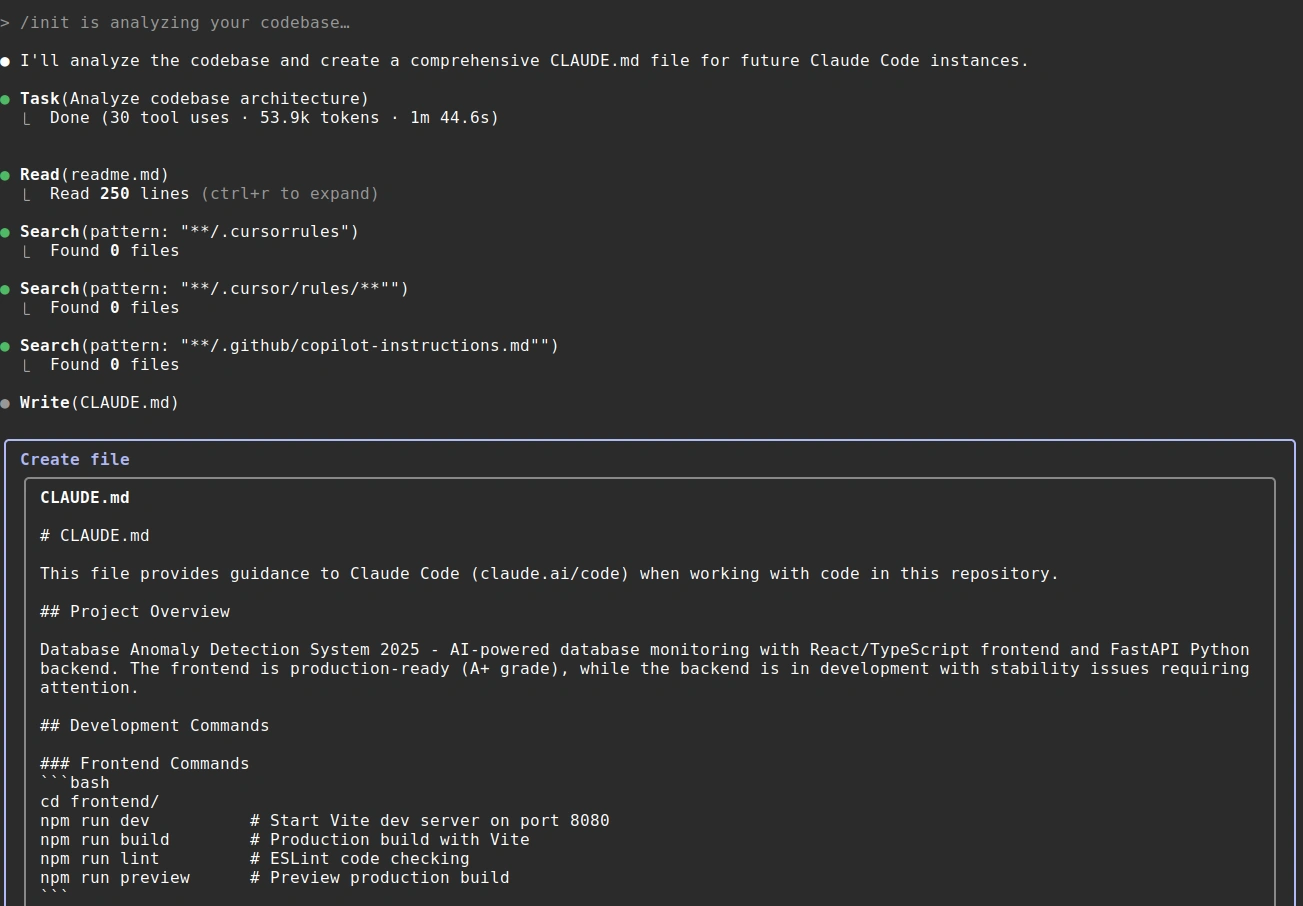
Repository analysis followed by a CLAUDE.md file creation preview.
Run /init when you first bring Claude into a repository. It examines the project and prepares a starter CLAUDE.md with useful build commands, testing steps and coding conventions. When instructions already exist, it can suggest improvements.
The captured preview shows Claude inspecting the codebase before proposing the file. Review the instructions and add what the code cannot reveal, such as which generated files must stay untouched.
2. /plan: Inspect the Approach Before Editing
/plan
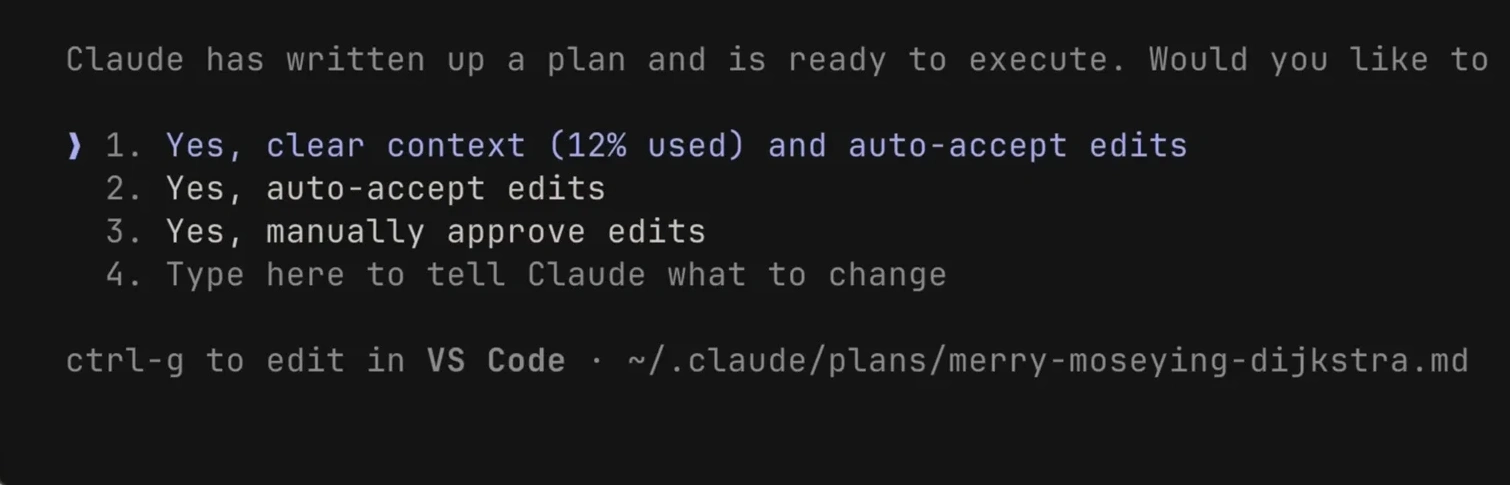
The plan approval menu lets you continue, request changes or keep reviewing.
Use /plan before a change that spans several files or needs a decision about architecture. Claude can inspect files and run exploratory commands while planning; source edits wait for approval in an ordinary planning session.
You can include the request directly: /plan Add pagination to the orders API and identify the tests that need updating. Check the proposed files, behavior and verification steps before moving into implementation.
3. /model: Switch the Active Model
/model
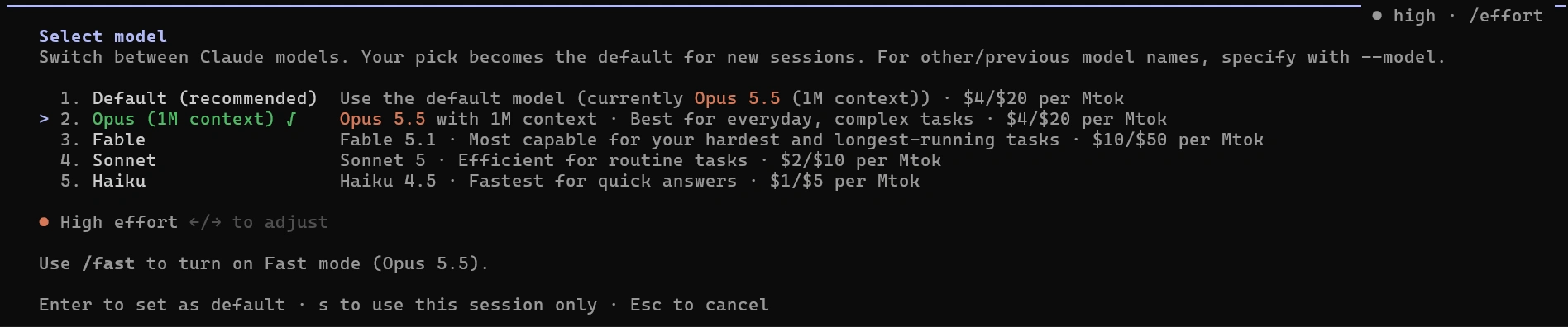
An earlier model picker. The listed model versions and prices are historical.
Open /model when a task needs a different balance of capability, speed and usage. You can choose from the picker or switch directly with an alias such as /model sonnet, when available on your account.
The choice becomes your default for new sessions. Press s on a picker row to switch for this session only. Check the available choices instead of assuming every account or provider exposes the same models.
4. /permissions: Set the Approval Rules
/permissions
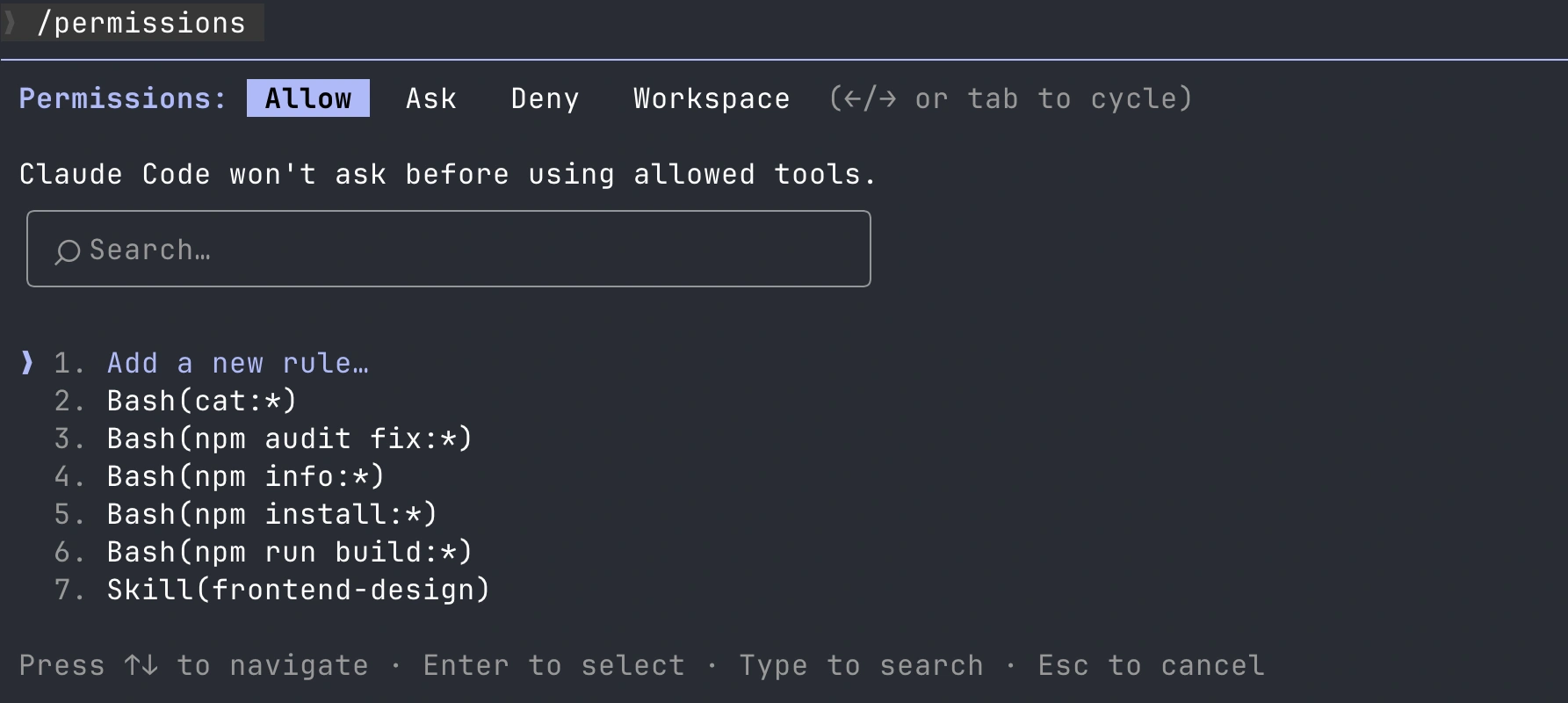
Allow, Ask and Deny tabs organize tool permission rules.
Repeated approval prompts can interrupt a routine workflow. /permissions lets you inspect and manage rules for actions Claude should allow, ask about or deny, along with their scope.
For example, you might allow a specific build command while keeping other shell actions subject to approval. Check existing deny rules when an action stays blocked: a narrower allow rule does not override a matching deny.
5. /status: Check the Session Setup
/status
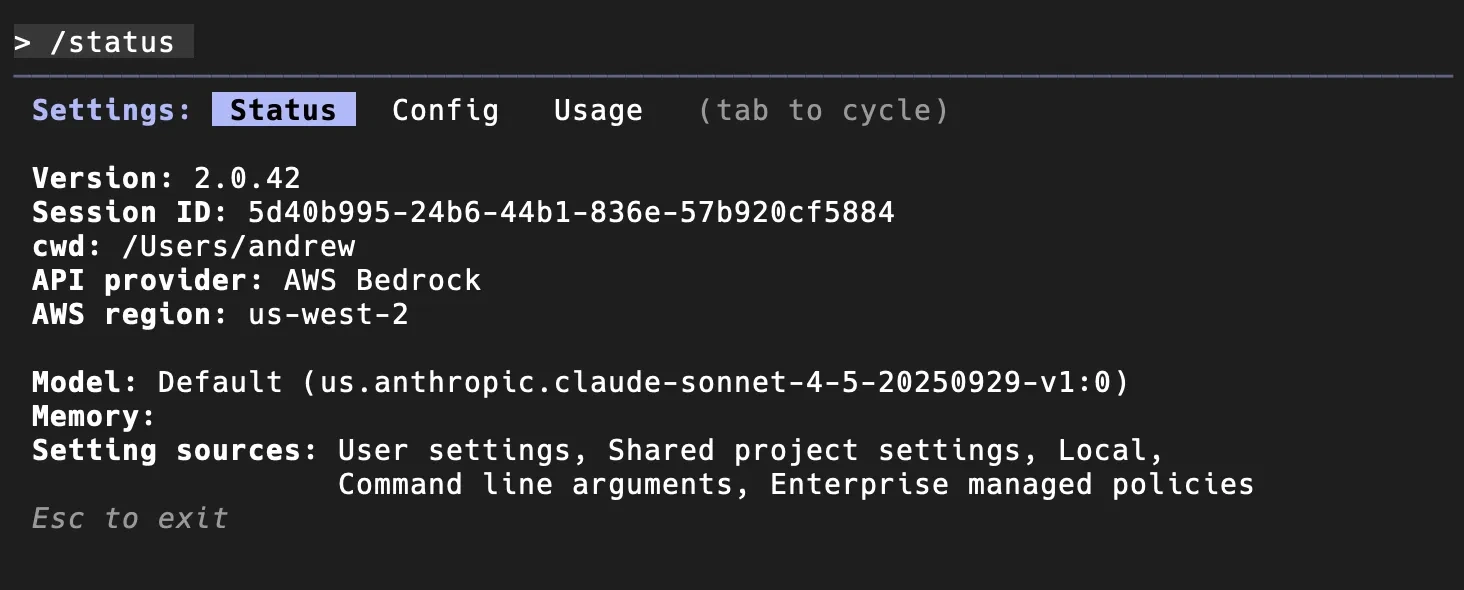
The Status tab shows the version, provider and active model in this session.
Run /status when Claude behaves differently from what you expected. It opens the Status tab, where you can inspect session information such as the installed version, model, account or provider, and connectivity.
This is especially useful after switching accounts or changing a configuration. The captured session identifies AWS Bedrock as its provider, making the route to the model visible without guessing from its responses.
6. /usage: Check Consumption and Limits
/usage
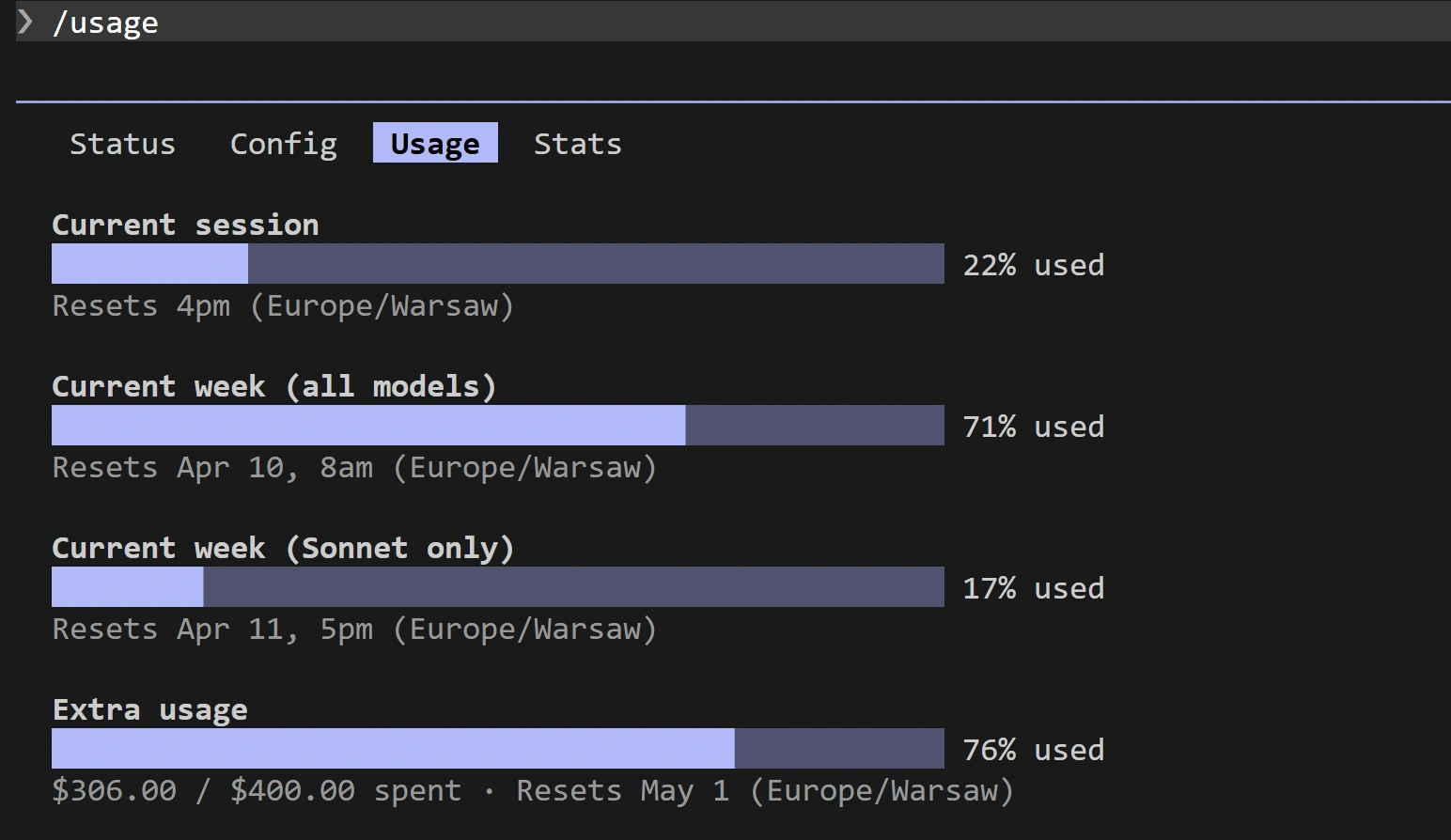
Session and weekly usage bars appear alongside their reset times.
/usage answers a different question from /status: how much capacity have you used? The current screen brings together session usage, plan limits and activity information, with the details depending on your access route.
For API users, the session dollar figure is an estimate; check billing records for the final charge. Pro and Max subscribers should read the plan limit indicators rather than treat that estimate as an additional subscription bill.
7. /context: See What Is Filling the Window
/context
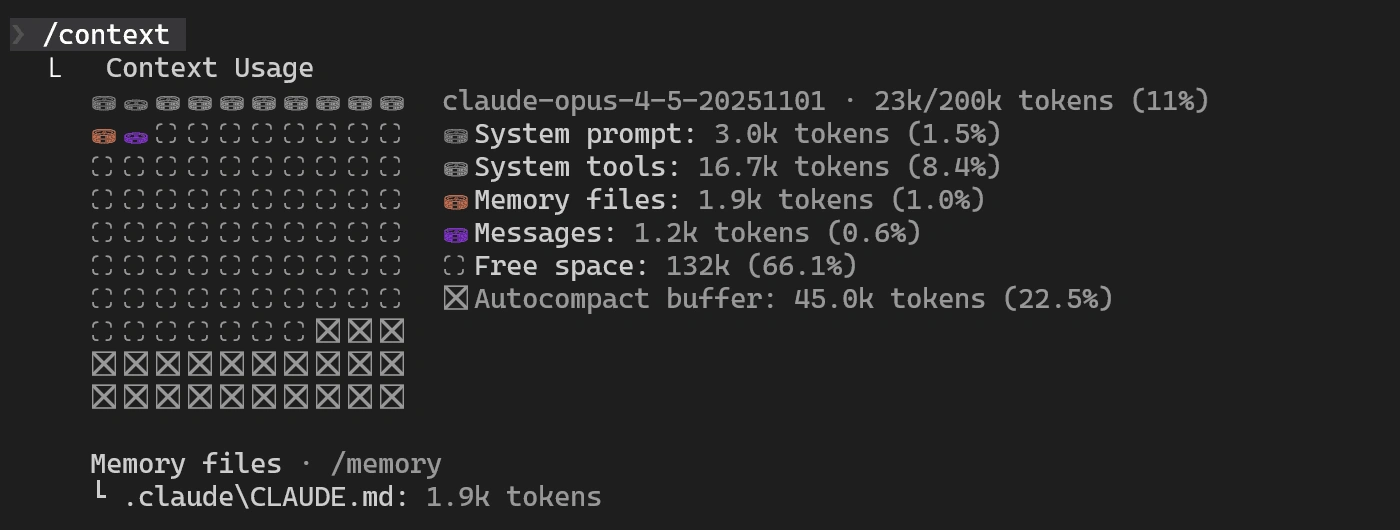
A context breakdown separates instructions, tools, memory and conversation content.
Long sessions accumulate more than your visible messages. Tool definitions, instructions, file contents and responses all compete for context space. /context shows the breakdown so you can see where the space is going.
The captured output separates system tools, memory files and messages, alongside free space and the compaction buffer. Use this view before trimming instructions or disconnecting tools; the largest contributor may not be the chat itself.
8. /resume: Return to an Earlier Conversation
/resume
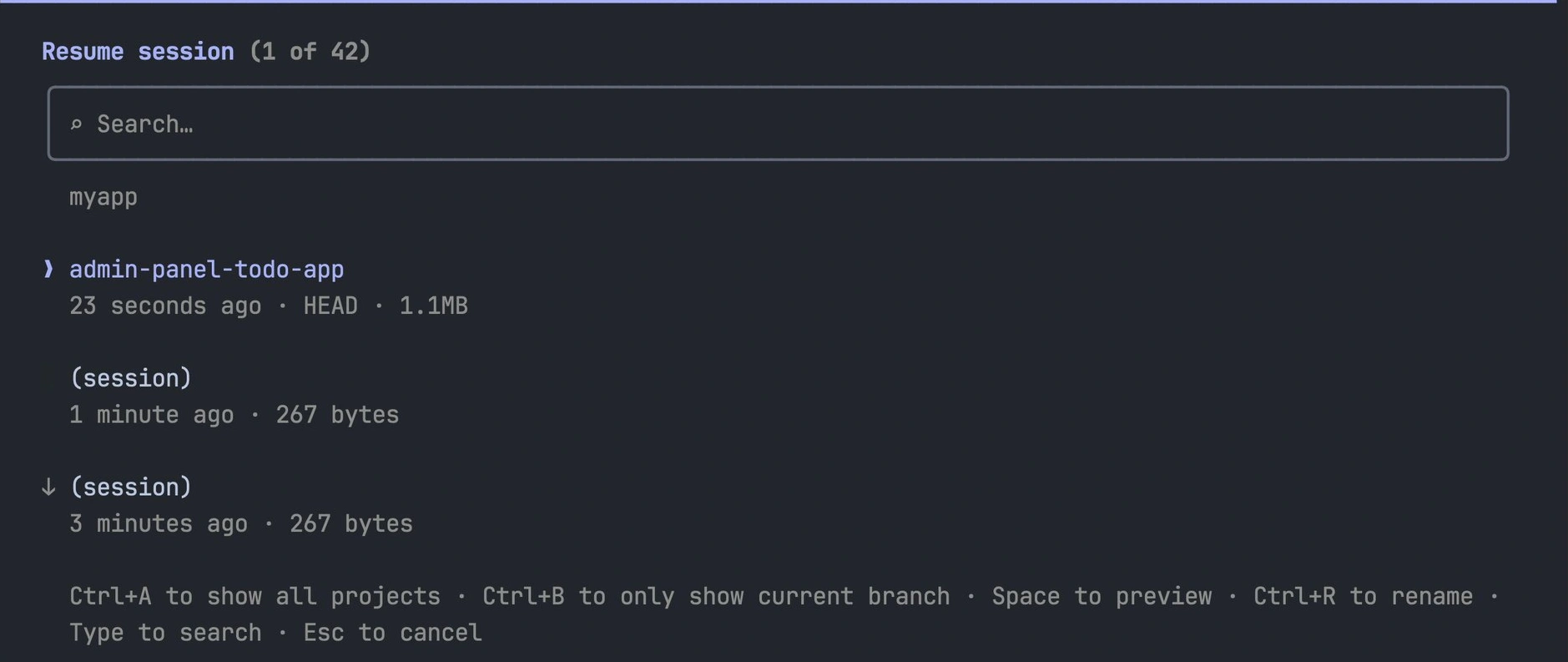
The session picker lets you search for an earlier conversation.
Use /resume when you reopen a project and want the discussion, decisions and unfinished work from an earlier session. It opens a picker; you can also pass a session name or ID directly.
From your regular terminal, claude --continue reopens the latest conversation for the current directory. Remember that restoring a conversation does not roll your files back to yesterday’s state. Check the working tree before continuing.
9. /rewind: Return to a Checkpoint
/rewind
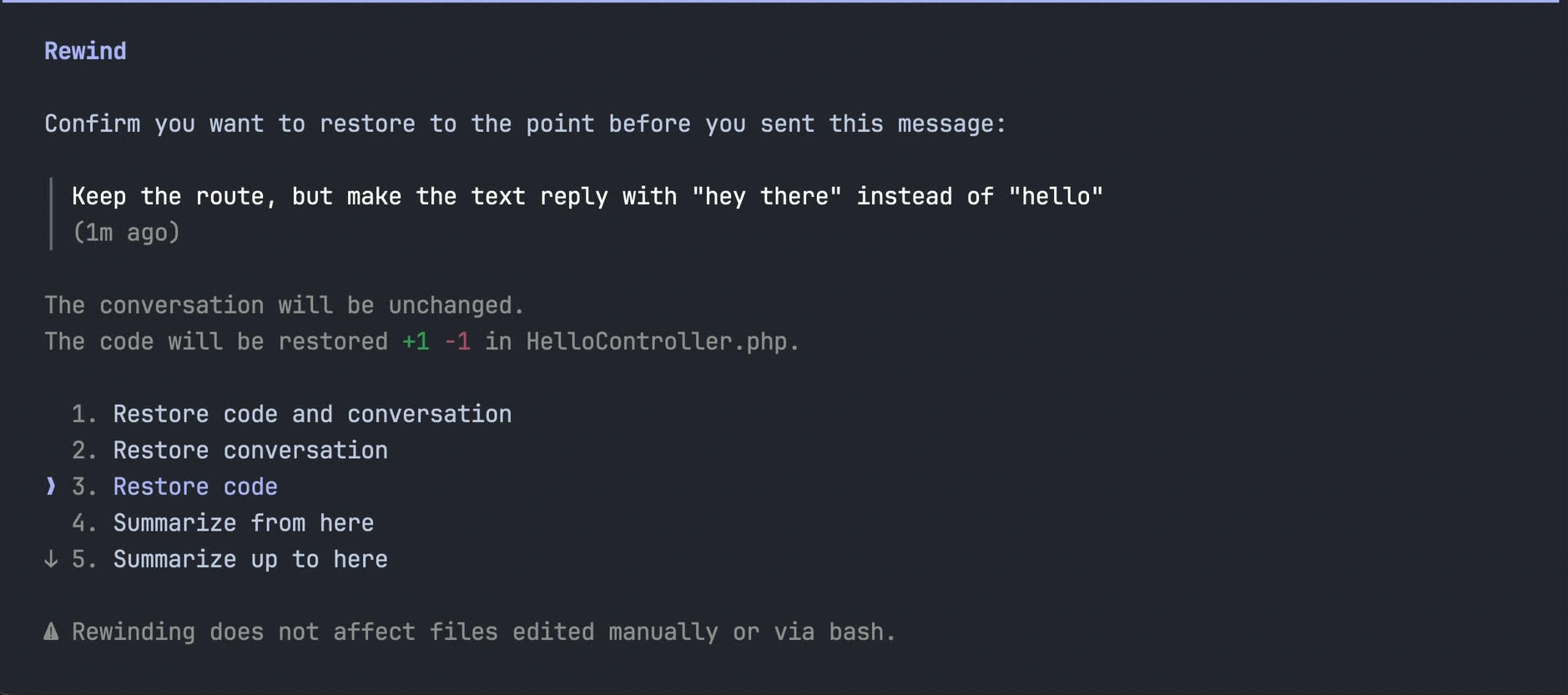
Restore options for a selected checkpoint, with a warning about manual and Bash edits.
When an implementation takes the wrong direction, /rewind opens earlier checkpoints. Depending on the tracked changes, you can restore code, conversation or both. You can also summarize part of the conversation to recover context space.
Keep using Git. Rewind tracks edits made through Claude’s file editing tools, and it cannot reliably undo general shell changes, outside edits or every subagent’s work. Choose the checkpoint and restore option deliberately.
10. /compact: Make Room for the Next Phase
/compact
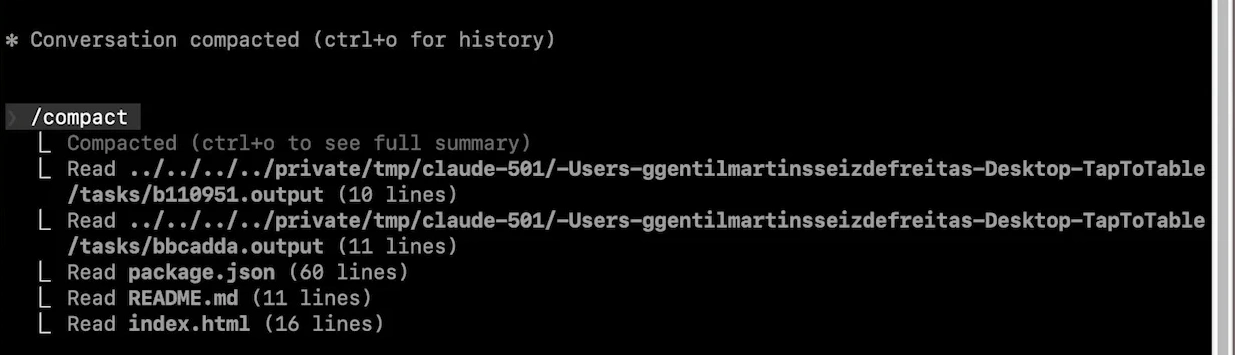
Compaction summarizes a long conversation so the session can continue.
Run /compact when a long discussion contains useful decisions but too much accumulated detail. It summarizes the conversation, freeing context for the next stage of the task. This is useful after a lengthy investigation and before implementation.
Guide what survives with /compact Keep the API decisions, failing tests and next steps. A summary can omit details, so put durable project rules in CLAUDE.md and keep exact requirements in a file you can reopen.
A Practical Claude Code Command Flow
Start with /init, inspect /permissions and use /plan for a substantial change. Check /status when the setup is unclear, /usage when capacity matters and /context before a long session fills up. Use /compact to continue, /resume to return and /rewind to revisit a tracked checkpoint.
Learn the command that solves your current bottleneck first. Once the basics feel familiar, Claude Code skills can package the workflows you repeat across projects.
Frequently Asked Questions
Which Claude Code command should beginners try first?
Start with /init to prepare project instructions, then review the resulting CLAUDE.md before making changes.
What is the difference between /status and /usage?
/status shows session configuration. /usage shows consumption, plan limits and related activity information.
Does /resume restore an older version of my files?
No. It restores a conversation. Use Git or an applicable /rewind checkpoint to recover earlier code.
When should I use /compact?
Use it during a long session when you need more context space while retaining a summary of the current task.