

FLUX.3 Image Klein combines image generation, reference-based editing, and layout control in a single browser-based interface. But how well does it handle tasks that demand precise instructions and visual consistency? We put it through three practical tests to find out.
These included generating a product photograph with a specific composition, changing a coat’s material while preserving the original scene, and designing an event flyer using bounding boxes. In this article, we examine the results, compare them against our prompts, and explore where the model succeeds and struggles.
TLDR: the free demo is worth trying for image generation and targeted edits. Pay attention to surface finishes, inspect every inherited box description, and expect shared GPU availability to affect the workflow.
What FLUX.3 Image Klein offers
FLUX.3 Image Klein is Black Forest Labs' image-generation and editing model. The 5.6-billion-parameter figure refers to its image transformer, rather than the entire working pipeline. The model supports editing with up to ten reference images and layout guidance through bounding boxes.
The demo provides Distilled at 16 steps and Base at 50 steps, with 1K, 2K, and 4K resolution choices. In this Space, Base is restricted to 1K, and 4K requires Distilled. Our runs used Distilled and 1K. We did not test Base, higher resolutions, or multi-reference composition, so the results below do not establish their quality or hardware requirements.
How we set up the tests
We used the official Hugging Face Space without signing in. In Generate & edit, you enter a prompt and optionally add reference images. Bounding boxes provide a separate canvas for positioning elements and describing what belongs inside them.
We set the seed to 42 and turned Randomize off. That records the configuration, but it is not a promise of identical results after changes to the demo. The app also expands prompts: its Prompt model saw panel revealed a longer version of our product-photo request. The results therefore reflect that browser pipeline.
- Start with Generate & edit and select Distilled at 1K.
- Choose an aspect ratio suited to the output, or use Auto when preserving a reference image's shape.
- Write the object, material, position, and preservation requirements explicitly.
- Generate, then inspect the full downloaded image rather than judging only the small preview.
Test 1: A product photograph with exact object placement
This task checks more than whether the model can make an attractive still life. We specified an exact object count, left-to-right order, handle direction, water level, and light direction. Each requirement is visible in the result.
Prompt
A realistic product photograph on a light oak shelf against a pale cream wall. Exactly three objects: a small matte red ceramic cup on the left, one clear glass bottle half filled with water in the center, and a closed navy blue notebook on the right. The cup's handle faces left. Soft morning sunlight enters from the left, casting natural shadows to the right. Eye-level camera, landscape composition, fine ceramic and wood textures. No text, no logos, no extra objects.
Settings: Distilled, 16 steps, 1K, 4:3, seed 42. The downloaded image measured 1184 × 880 pixels.
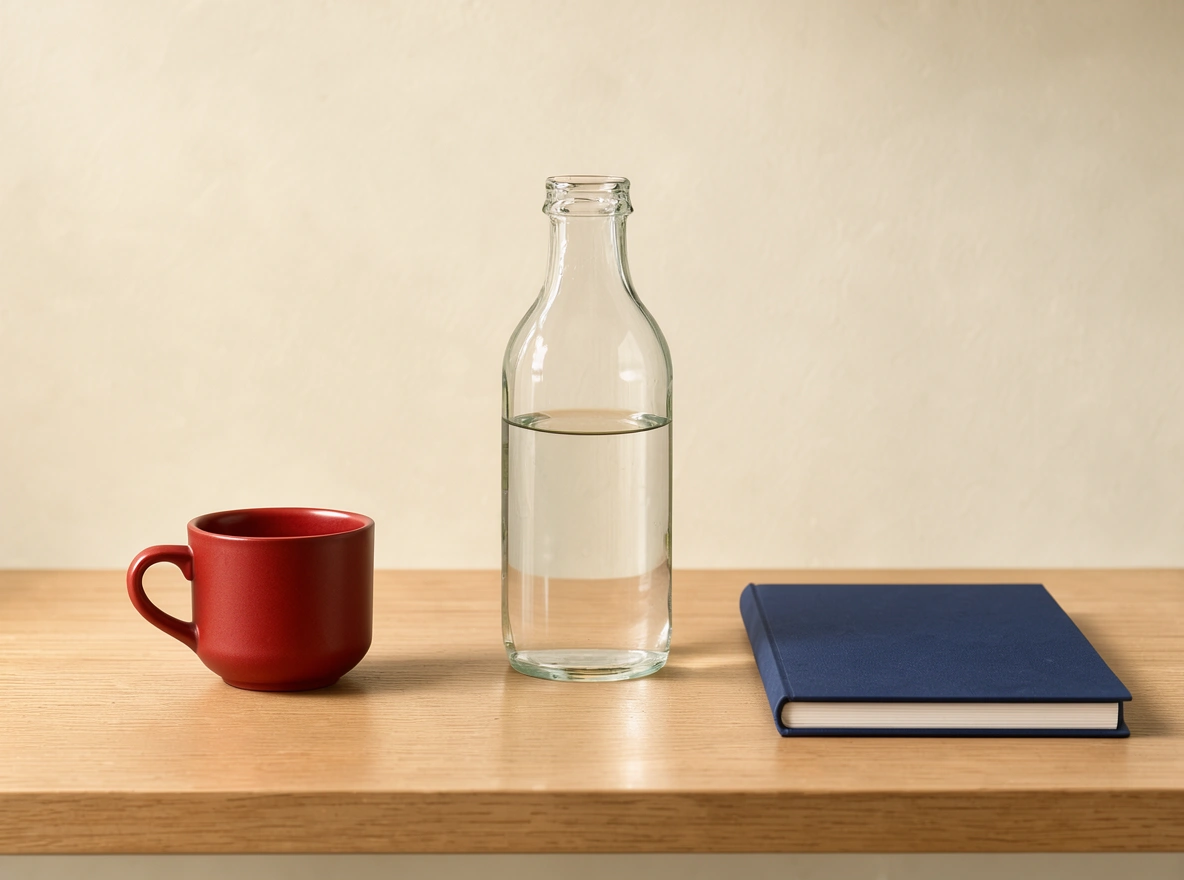
The complete product-photo output places the cup, bottle, and notebook in the requested order.
Observation: all three objects are present, with no added lettering or extra props. The cup's handle faces left. The bottle has a visible water line at roughly half its height, and the oak surface and transparent glass look coherent. Shadows generally extend toward the right.
The material instruction was less exact. We asked for matte ceramic, but the cup has bright rim and surface highlights that give it a satin or glazed appearance. It is a small miss, but a useful one if you are choosing materials for a product concept.
Verdict: strong control over count, order, and broad composition in this example. Material finish still needs inspection.
Test 2: Change a wool coat into green leather
For the second task, we used an actual image input: the gray-coat photograph included with the demo's editing example. We kept that reference and replaced the preset edit request with a new instruction. The task was to change the coat while preserving the surrounding photograph.
Prompt
Change only the gray wool coat into dark forest-green leather. Preserve the woman, her face, pose, hands in pockets, coat cut and length, black trousers, black boots, yellow background, camera angle and lighting. Keep the two patch pockets, collar and seams in the same positions. The leather should have a restrained natural sheen, with realistic folds. Do not add accessories, text or logos.
Settings: Distilled, 1K, Auto aspect ratio, seed 42. The reference and edited output both measured 832 × 1248 pixels.
| Reference | Edited result |
|---|---|
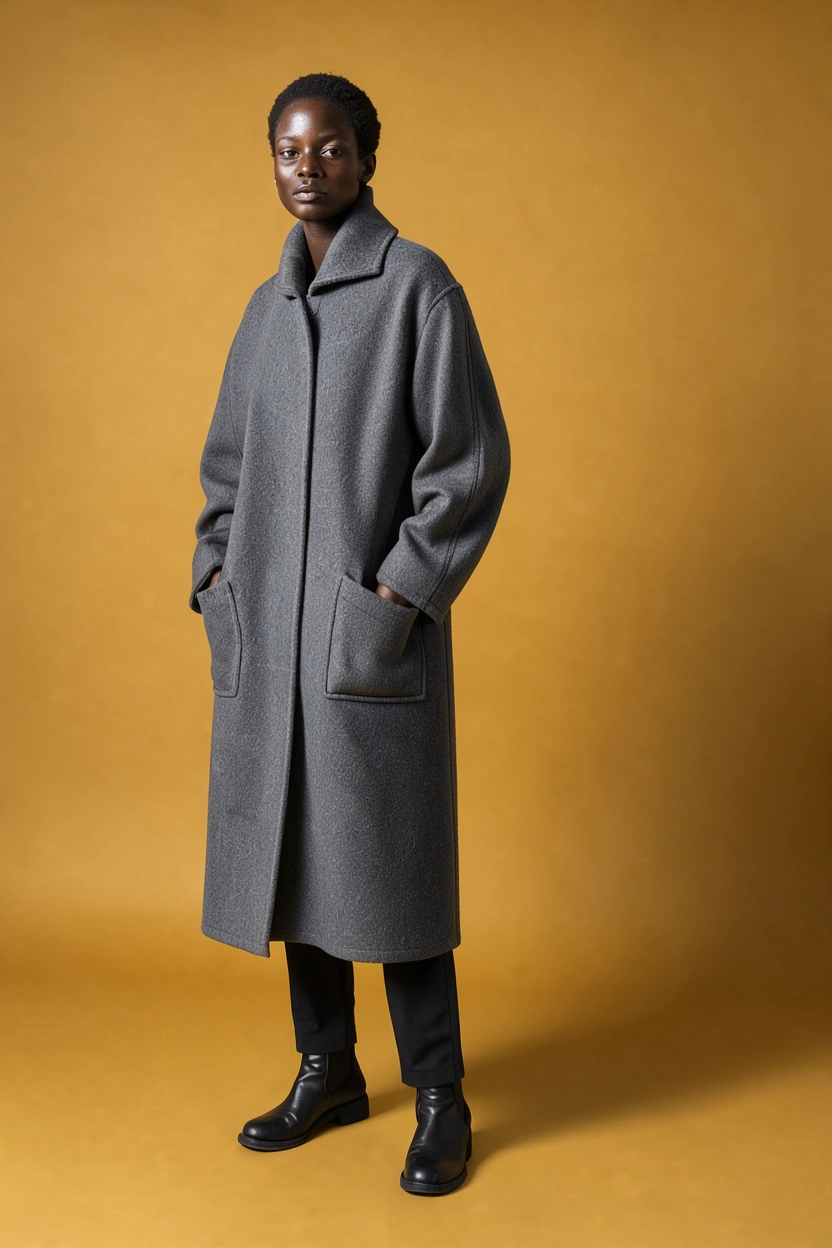 | 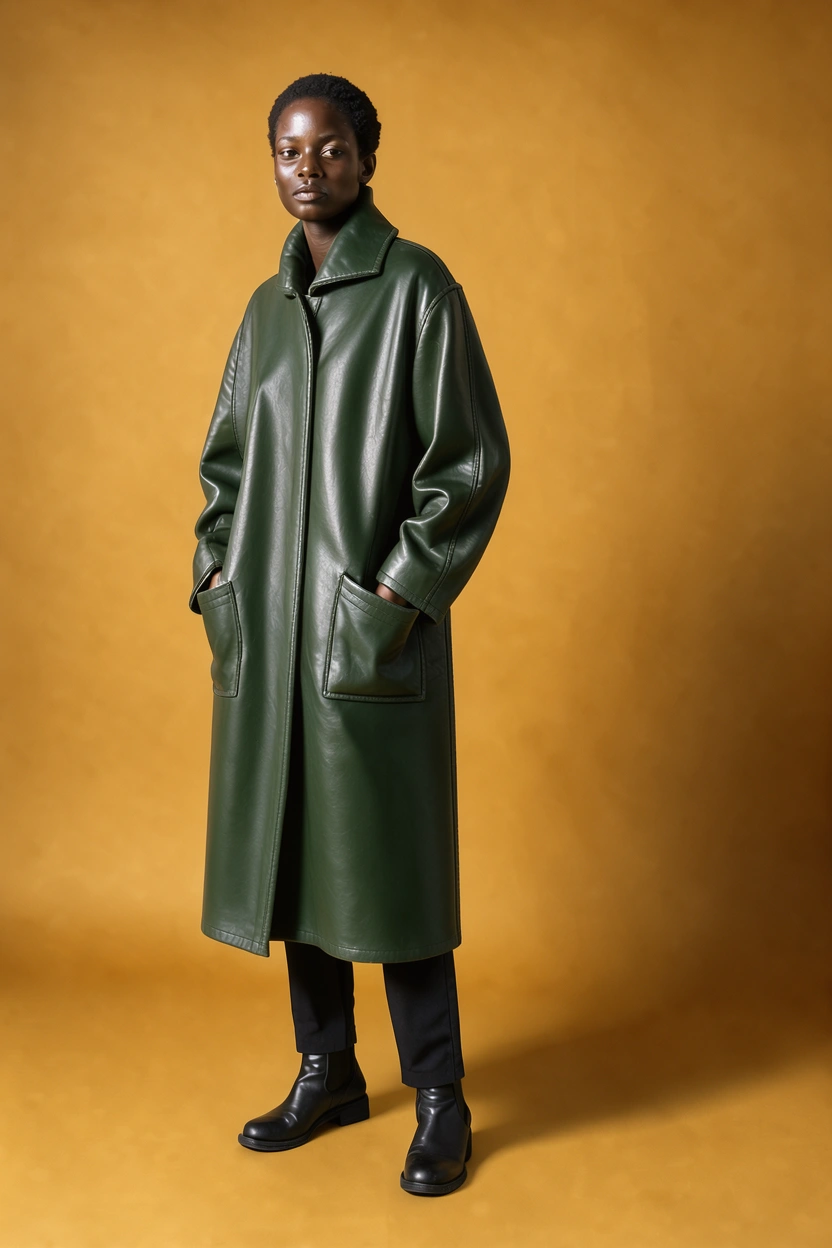 |
The complete reference is on the left; the complete forest-green leather edit is on the right.
Observation: the coat changed from gray wool to dark green leather. The subject's face, pose, trousers, boots, and mustard-colored background look visually close to the reference. The large patch pockets and collar remain in the expected places.
The material transformation also changes the folds and highlights. That is appropriate for leather, although the finish is glossier than the restrained sheen we requested. We inspected preservation visually; this is not a claim that every unaffected pixel stayed identical.
Verdict: this was the most useful result of the session. It made a substantial material change while retaining the composition well enough for a visual concept or direction check.
Test 3: Use bounding boxes for an event flyer
The third task explored layout control and exact text. We started from the SILENCE poster preset, then specified a new open-studio flyer: a headline at the top, an orange vase in the center, and a short event line at the bottom.
Main prompt
A clean art-studio open-house flyer on warm ivory paper <poster_1>. The headline reads exactly "OPEN STUDIO" <obj_1> across the top. One burnt-orange illustrated ceramic vase <obj_2> fills the center. The footer reads exactly "SAT 24 OCT | 10 AM" <obj_3>. Keep generous blank space between elements. Use only dark navy, burnt orange and ivory. No other text, no logos, no additional objects.
Settings: Distilled, 1K, 3:4, seed 42. The displayed output measured 880 × 1184 pixels.
We assigned separate descriptions to the headline, vase, footer, and paper background. The box coordinates use the order top, left, bottom, right on a normalized 0–1000 scale. Our intended headline box was 60, 80, 200, 920; the vase was 260, 150, 800, 850; and the footer was 870, 80, 950, 920.
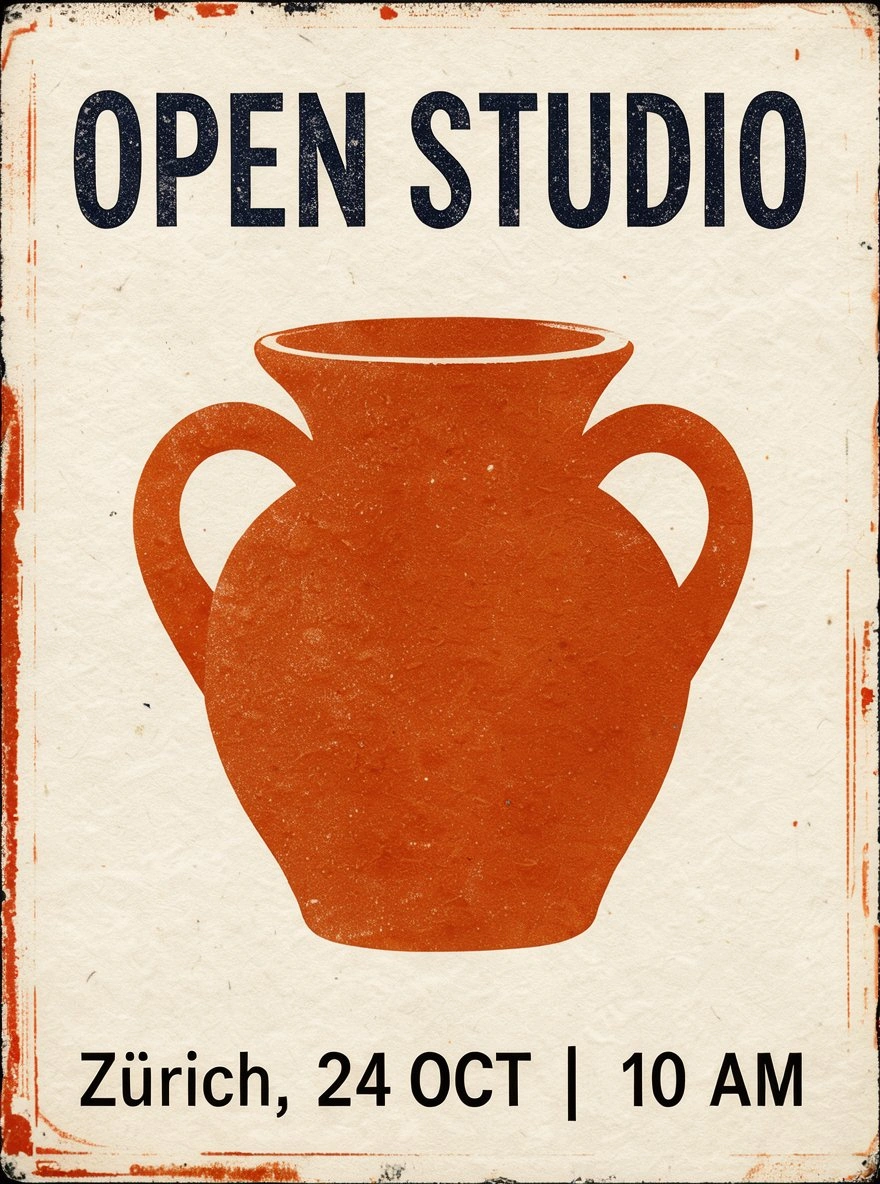
The first flyer has the requested headline and vase, but a footer that mixes new text with the old preset.
What went wrong: two preset descriptions survived the initial edits. The footer still contained Zürich, 3 December, and the background still described rough paper with worn edges. Those instructions conflicted with the main prompt.
The output spelled OPEN STUDIO correctly and placed the vase in the central area. Its footer read Zürich, 24 OCT | 10 AM, combining old and new instructions. It also retained the distressed border treatment. That is a setup failure we need to account for before judging the model's clean-prompt text accuracy.
We corrected the footer and background descriptions separately and checked that the new values persisted. The corrected generation and one retry returned a generic Error. The demo did not explain the cause, so we cannot call it quota exhaustion or score the corrected request as a model failure.
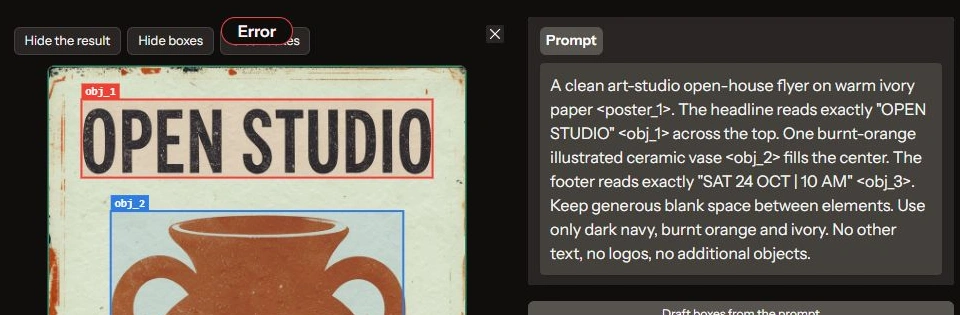
A corrected attempt returned a generic Error while the previous flyer remained visible.
Verdict: the successful run showed broad placement and a correctly spelled headline, but it was not a clean test of the intended footer. Reliable exact typography and corrected box behavior remain unverified in this session.
What to check before your next generation
The practical lesson is to inspect every active instruction. Replacing the main prompt does not necessarily replace text stored in a preset's individual boxes. Click away from an edited field, confirm its saved value, and review the background description as well as the foreground objects.
Bounding boxes guide placement and scale; they should not be treated as pixel-perfect masks. For editing, name both what should change and what should stay. Then examine faces, garment edges, materials, and small text in the downloaded output.
Our take on FLUX.3 Image Klein
For a quick browser trial, FLUX.3 Image Klein gives you useful control over both new images and reference-based changes. The product photograph respected the composition, and the coat edit preserved the scene while making a clear material transformation.
The weaker points were precise surface finish and the box-editing workflow. We would use it to explore product imagery, wardrobe concepts, and early visual directions, then review the exact details before treating an output as finished. The reference edit is the strongest reason to try it.
Frequently Asked Questions
Can you try FLUX.3 Image Klein for free?
Yes. Our demo runs required no sign-in or payment, but shared GPU quotas and queues apply.
Can it edit an existing image?
Yes. Our test changed a gray wool coat into green leather while visually preserving the subject and setting.
Which version did we test?
Distilled at 16 steps and 1K resolution, using seed 42. Base and higher resolutions were not tested.
Do bounding boxes guarantee exact layouts?
No. They guide placement and scale. Review every box description and inspect the generated result.