

OpenAI announced GPT-6 Astra on September 3, 2026, with a focus on carrying complex work through to a finished result. The release spans coding, research, computer use and document creation, alongside better handling of requests that change during a task.
For teams using AI at work, the useful question is how much checking and correction a task still needs. In this article, we break down the release, outlining how you can access GPT-6 Astra, its usage limits and four practical workflows you can test yourself.

TL;DR: Astra is built to handle work across domains. Coding, writing, visualizations, animation... you name it. Chances are, Astra can help you with it.
What Is GPT-6 Astra?
GPT-6 Astra is OpenAI’s flagship for reasoning, code, browser workflows and documents. It is the best paid model by OpenAI till date. Its API identifier is gpt-6-astra.
Here are its technical specifications:
| API specification | GPT-6 Astra |
|---|---|
| Context window | 1,050,000 tokens |
| Maximum output | 128,000 tokens |
| Native modalities | Text and image input; text output |
| Knowledge cutoff | April 30, 2026 |
What Changes in since GPT 5.6?
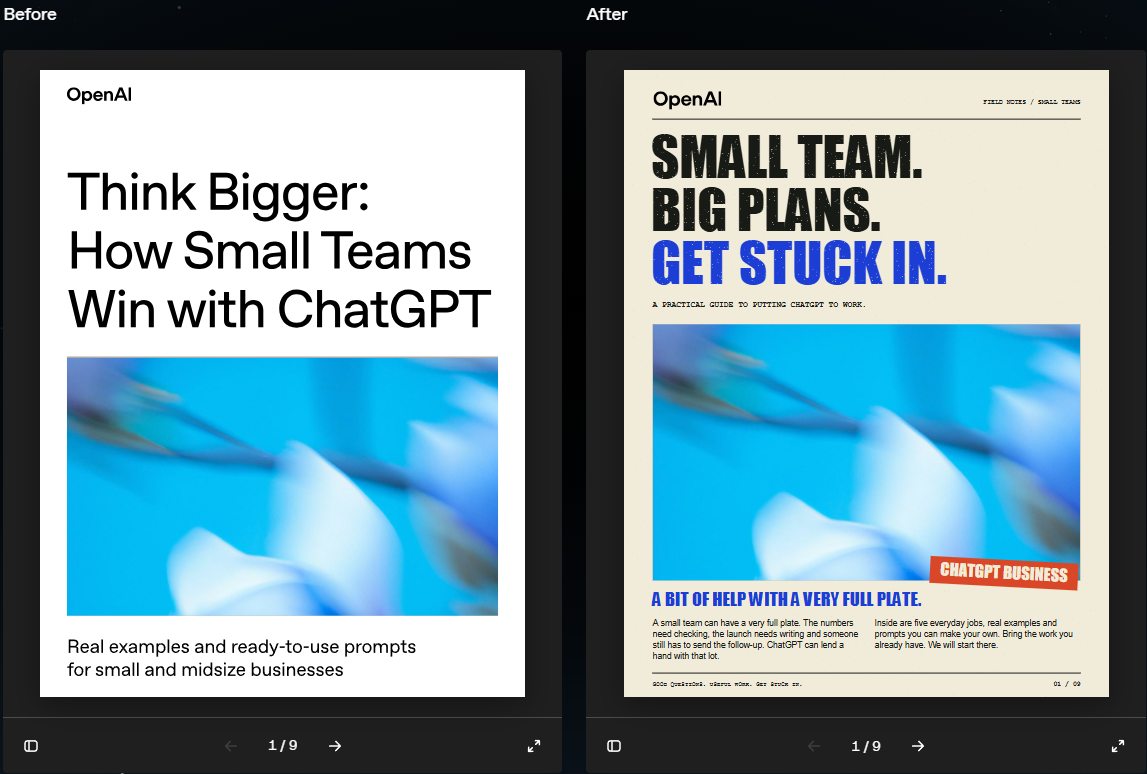
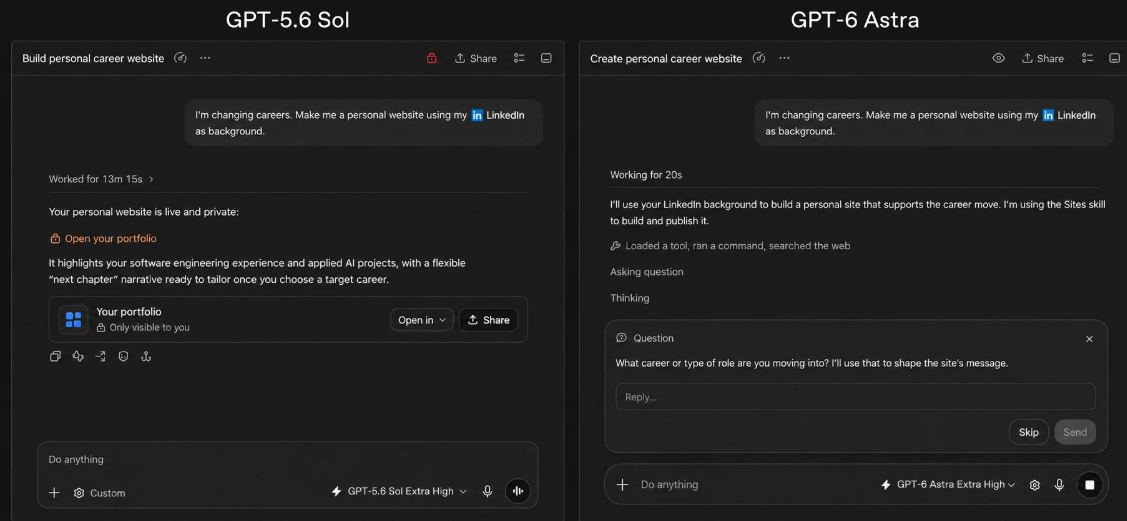
GPT 6 Astra has a stronger adherence to templates when creating documents, spreadsheets and presentations, plus better retention of the original task as requirements change. This means that the instruction following is much better than its predecessors.
The developer release adds three useful controls:
-
Work while tools run: Asynchronous tool calls let Astra continue independent work while the application executes a tool.
-
Correct a task in progress. Mid-turn steering over WebSockets lets an application supply updated instructions during a response.
-
Adjust reasoning effort. Applications can change effort during a conversation while retaining the cached prompt prefix.
How to Access GPT-6 Astra
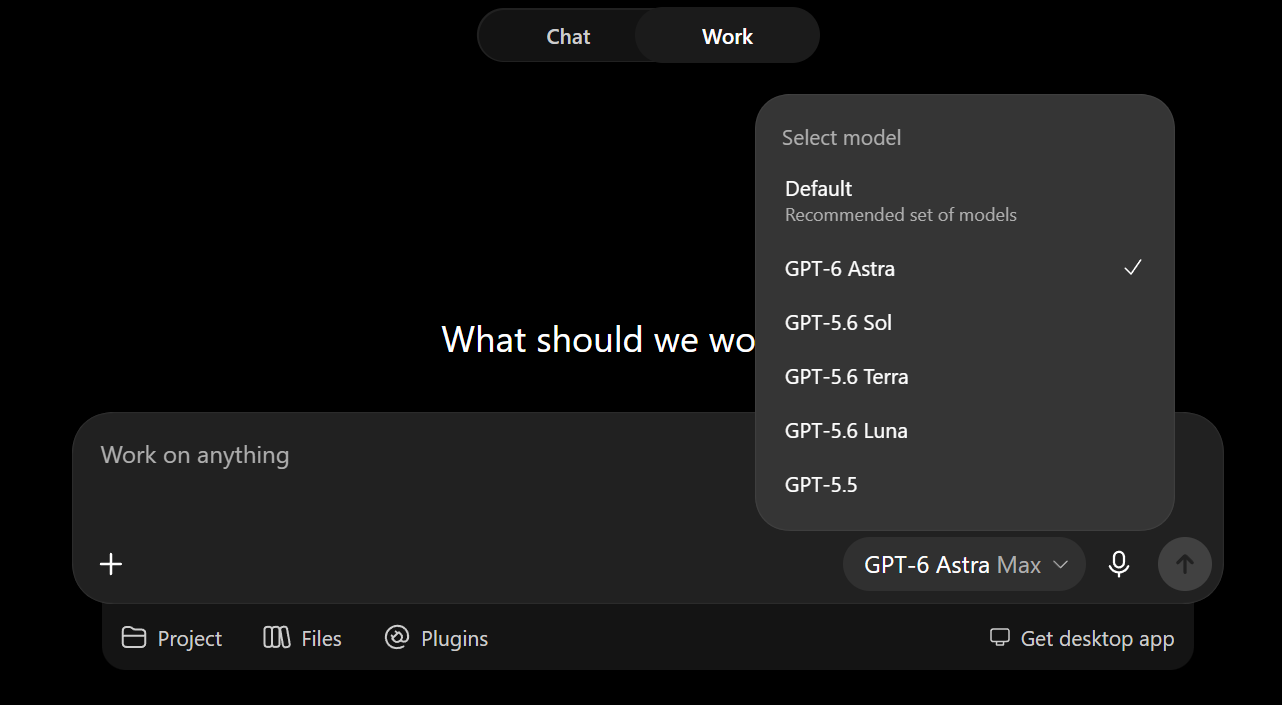
Plus subscribers get GPT-6 Astra through ChatGPT Work and Codex as rollout reaches their accounts. In regular Chat, Astra powers GPT-6 Pro, which is rolling out to Pro, Business and Enterprise plans. OpenAI’s availability guide.
To use Astra in ChatGPT Work:
- Open ChatGPT and sign in.
- Select Work and start a new chat.
- Open the model menu beneath the message box and select Astra, if available.
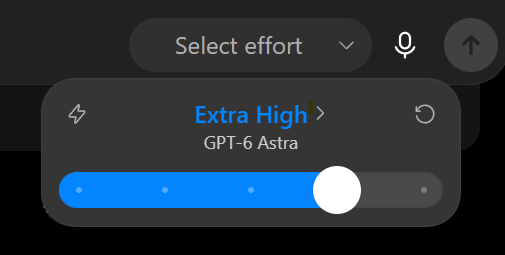
- You can also change the thinking level to balance between quality and usage.
- Start putting in your prompts and documents to get going.
How to Access GPT 6 via Codex?
You can use GPT-6 Astra in Codex CLI by selecting its model ID: gpt-6-astra. Here’s how to get started.
- Install or update Codex CLI using the following command:
codex -m gpt-6-astra
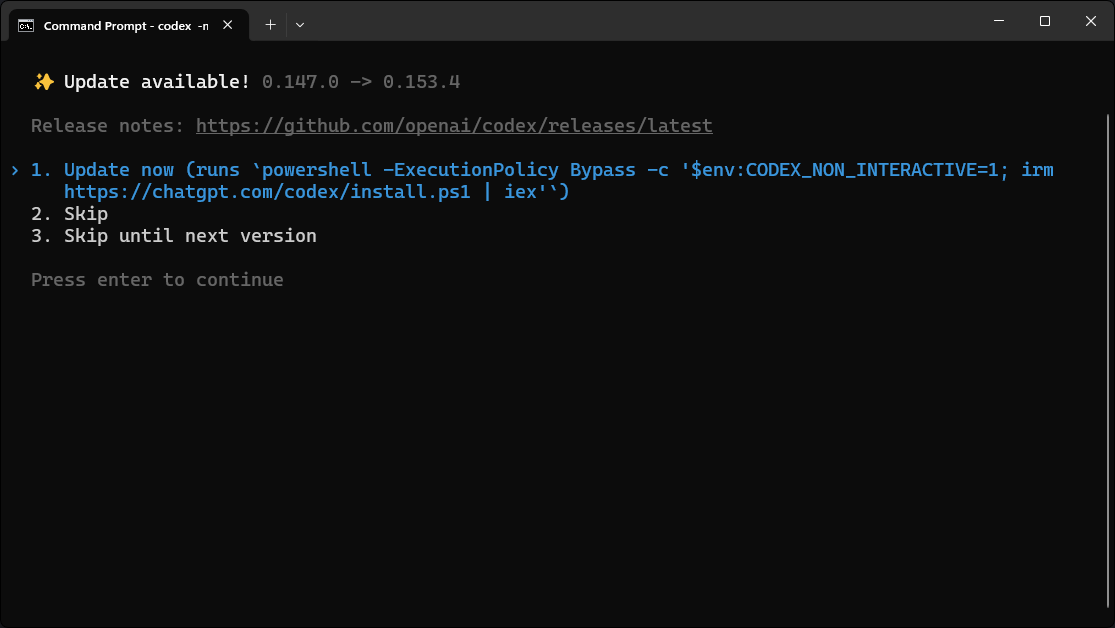
- Complete the Update and you’d be greeted with a model selection option:
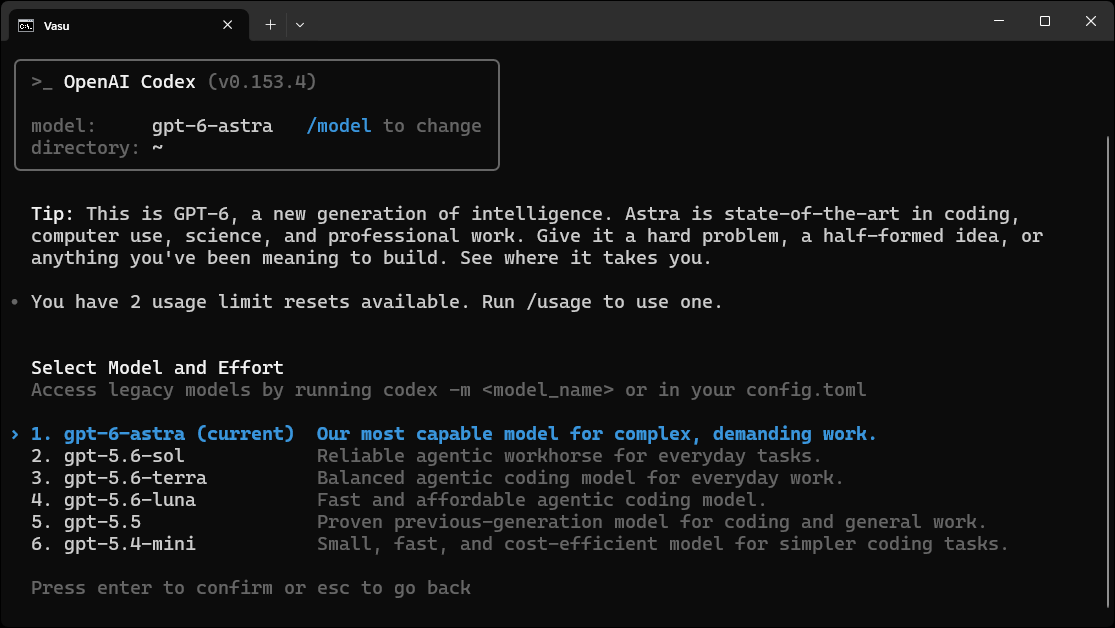
- After this you’d be prompted to select the thinking level ranging from Low - Ultra
- Switch models within an existing session by typing
/model, then selecting Astra and your preferred reasoning effort.
Prefer working inside your editor? Install the Codex IDE extension, sign in, and select Astra from the model switcher below the prompt box. Available models depend on your client and account access.
Hands-On: Four Workflows to Try
The following tasks are varied enough to test how well GPT-6 Astra fares across a variety of tasks. From Coding to Animation, all of it has been put to test.
1. 3D Interactive Visualization
A 3D visualization creator that would be interactive and would explain a simple concept.
Prompt
Create a 3D visualization that would let me analyze different parts of the book. Like the spine, cover, and all that stuff. Make it interactive and not static.
Wow! The visualization was exactly what was asked for. The visual has sliders and dropdown menus that allows adjustability. Looks and feels intuitive and easy to use.
2. Revise a Brief Without Losing the Constraints
This exercise checks fact preservation and instruction following across two turns. The product and pilot below are fictional.
First prompt
Use only these fictional product notes. Draft a 75-85-word introduction in two paragraphs for an article on Relay 2.0. End with 'In this article,' followed by what the reader will learn. Keep the wording plain. Do not invent features, rollout dates or test results. Notes: Relay 2.0 was announced on 3 September. It can summarize support tickets and draft replies. A pilot reduced median handling time from 12 to 9 minutes across 80 tickets. Human agents approved every outgoing reply. Availability is limited to 20 pilot teams. Pricing has not been announced.
Response:
Relay 2.0 was announced on 3 September. It can summarize support tickets and draft replies. A pilot across 80 tickets reduced median handling time from 12 minutes to 9 minutes. Human agents approved every outgoing reply.
For now, Relay 2.0 is available to 20 pilot teams, and pricing has not been announced. In this article, you’ll learn what Relay 2.0 can do, what the pilot results show and what role human agents played in the pilot.
Follow-up in the same conversation
It looks decent. Let’s try making some changes into it.
Correction: the pilot measured 60 tickets, not 80\. Also, this article is for an operations manager, so explain the practical gain without saying the tool replaces support staff. Keep the original length, two-paragraph format, and ending requirement. Return only the revised introduction.
Response:
Relay 2.0, announced on 3 September, can summarize support tickets and draft replies. In a pilot covering 60 tickets, median handling time fell from 12 to 9 minutes, a 25% reduction. Human agents approved every outgoing reply.
For operations managers, the pilot shows faster handling with human approval still in place. Availability is limited to 20 pilot teams, and pricing has not been announced. In this article, you’ll learn what Relay 2.0 does and what the pilot means for support operations.
GPT-6 Astra was able to make the appropriate edits in the original response to make up for updated requirements. This means that the newer model is not only more receptive but also more accomodating of the adjustments of the user.
3. Build a Dashboard With Controls That Work
This task checks a small, verifiable software deliverable. It uses a separate synthetic dataset with complete lead counts.
Prompt
Create a complete self-contained HTML file for a campaign dashboard. Use inline CSS and JavaScript, no external libraries or network calls. Use this separate synthetic dataset; all lead counts are complete: Search, spend INR 12000, clicks 600, qualified leads 24; Social, spend INR 9000, clicks 900, qualified leads 9; Newsletter, spend INR 3000, clicks 150, qualified leads 15\. Label the data as synthetic. Show total spend, clicks and qualified leads, a searchable campaign table, and a channel filter. All three KPI cards must recompute from the currently visible rows. Include cost per qualified lead for each row, a spend sort (high to low / low to high), and a Reset button that resets search, filter and sort. With no matching rows, show zero totals and a helpful empty state, never NaN. Use warm white, charcoal text, one green accent, rounded corners, and a responsive layout. Output the entire HTML in one code block. Do not claim you tested it unless you actually ran it.
The webapp was just as much we had asked for. Which is good to me. Yeah a lot of different functionalities could be added, but considering that the final html was 1-1 of our requirements, that means that the model wouldn't go out of its way to build something offhanded without any signal.
4. Basic Animation
Prompt
Create an animation of Gojo hitting a Black Flash on Sukuna, based on how it went in the manga.
Pretty basic. But conveys the event accurately. A good response considering how less info we provided and how well the characters as well as this whole sequence looks (canonically).
GPT-6 Astra Usage Limit: What We Learned
Hmmm… I think the image does a good job of explaining the usage situation:
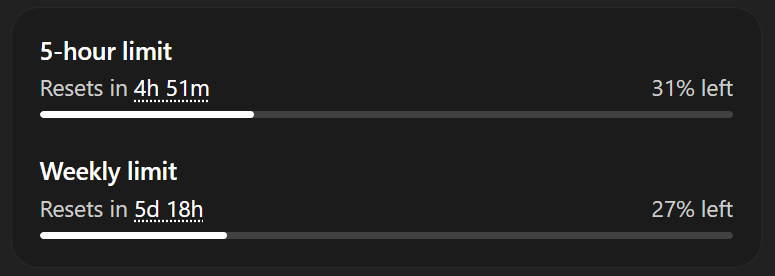
Create a mail seeking referral for {x} company and also add a friendly image at the top of the mail. Use my background experience for doing so.
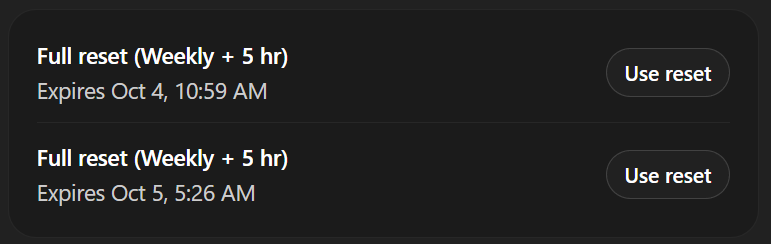
That’s it. A 100 word referral draft with an image took 70% of usage!! Now wonder OpenAI was handing out free usage-limit resets.
GPT-6 Astra API Pricing
Standard rates in USD per one million tokens:
| Token type | GPT-6 Astra | GPT-5.6 Sol |
|---|---|---|
| Input | $10.00 | $4.00 |
| Cached input | $1.00 | $0.40 |
| Cache writes | $12.50 | $5.00 |
| Output | $50.00 | $20.00 |
A request using 20,000 uncached input tokens and 2,000 billed output tokens costs $0.30 in standard token charges. Tools and other applicable fees add to that total.
For prompts above 272,000 input tokens, the model card lists doubled input and cache rates and 1.5× output rates for the full request. Fast mode doubles applicable rates; Batch and Flex halve Standard rates.
Final Take
GPT-6 Astra is best judged by how well it handles real work, not just benchmark scores. Try it on tasks you already know, use the prompts above, and compare the first response with the final result after corrections. That should give you a much clearer idea of where Astra works well and whether it fits your workflow.
Frequently Asked Questions
Is GPT-6 Astra the same as GPT-6 Astra Pro?
No. OpenAI lists Astra Pro separately, with access planned for Pro, Business and Enterprise users. Availability
Is Astra cheaper than GPT-5.6 Sol?
Standard input and output tokens cost 2.5× more at the listed rates. Total task cost also depends on token usage, tools and retries. Pricing
Does the ARC-AGI-3 result prove AGI?
No. It is one benchmark result under particular evaluation settings, not evidence of reliable performance on every task. Evaluation context
Can I compare these prompts with another model?
Yes. Keep the inputs and tool access consistent, record each model’s effort setting, and apply the same checks to every response.