

Qwen Image 2.1 brings image generation, editing, and transparent assets into one model. Supporting multiple reference images, selective editing, and native 2K output and much more, the model pushes the envelop when it comes to open-source image generation models.
In this article, we explore what Qwen Image 2.1 introduces and walk through hands-on tests to see how its generation and editing capabilities work.
What Is Qwen Image 2.1
Qwen Image 2.1 is Alibaba’s open-weight model for creating and editing images. The official release highlights transparency, reference-based editing and improved visual detail.
| Standout Feature | What you get |
|---|---|
| Visual generator | 7B parameters across 32 Single-Stream DiT layers |
| Image output | Native 2K generation, including transparent RGBA images |
| Reference images | Up to 10, according to Qwen’s release announcement |
| Editing controls | Text instructions, circles, painted regions and separate masks |
The 7B figure covers the visual generator. The full pipeline also includes an 8B vision-language encoder and an image autoencoder, so it does not imply a 7B-sized total memory requirement.
Qwen-Image 2.1 vs Qwen-Image 3.0
Despite its lower version number, Qwen-Image 2.1 is newer than Qwen-Image 3.0. The two serve different purposes:
-
Qwen-Image 2.1: Open weights, 7B generation backbone, up to 10 reference images, native transparency, and mask-based editing.
-
Qwen-Image 3.0: Closed, API-based model focused on detailed generation, complex compositions, and multilingual text rendering.
Smaller doesn't automatically mean better image quality. Qwen-Image 2.1 offers greater editing control and self-hosting, while 3.0 provides hosted generation.
Qwen Image 2.1 Examples and Prompts
These examples come from Qwen and Comfy. Prompt briefs paraphrase their published instructions or task descriptions; they are not the original full generation prompts.
1. Edit Text on a Transparent Asset
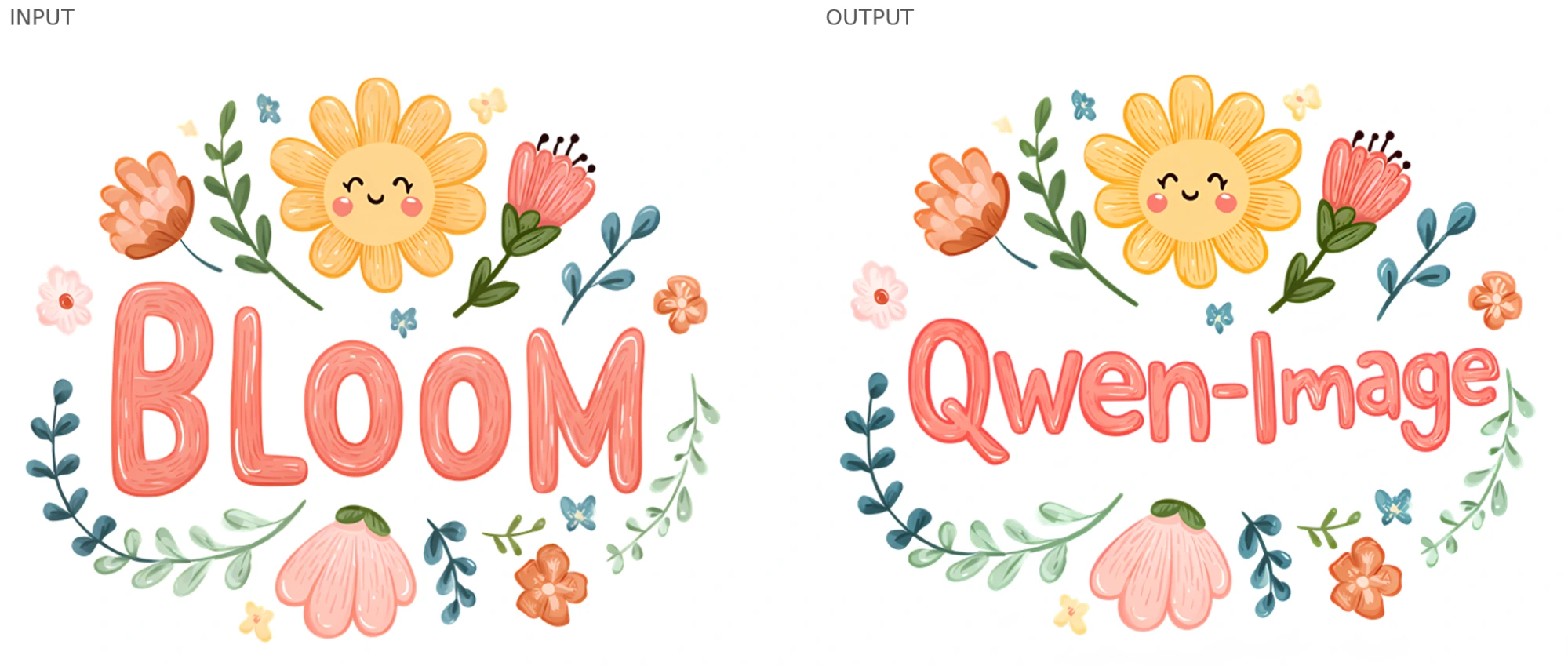
Prompt: Replace “BLOOM” with “Qwen-Image” in the input image.
The result keeps the flower illustration and changes the central lettering. The longer name also changes the layout: the letters shrink to fit, and the surrounding composition adjusts. This is useful when exploring alternate wording on a sticker or decorative asset, but it is not pixel-perfect text substitution.
Native RGBA support matters here. The asset can retain transparency through an edit, avoiding a separate background-removal pass. Inspect the edges against your intended background before using the file.
2. Make Several Local Edits Together
Prompt: Delete the watch marked with a blue outline. Make the red-marked hair black. Replace the green-marked clothing with grey linen pyjamas with short sleeves.
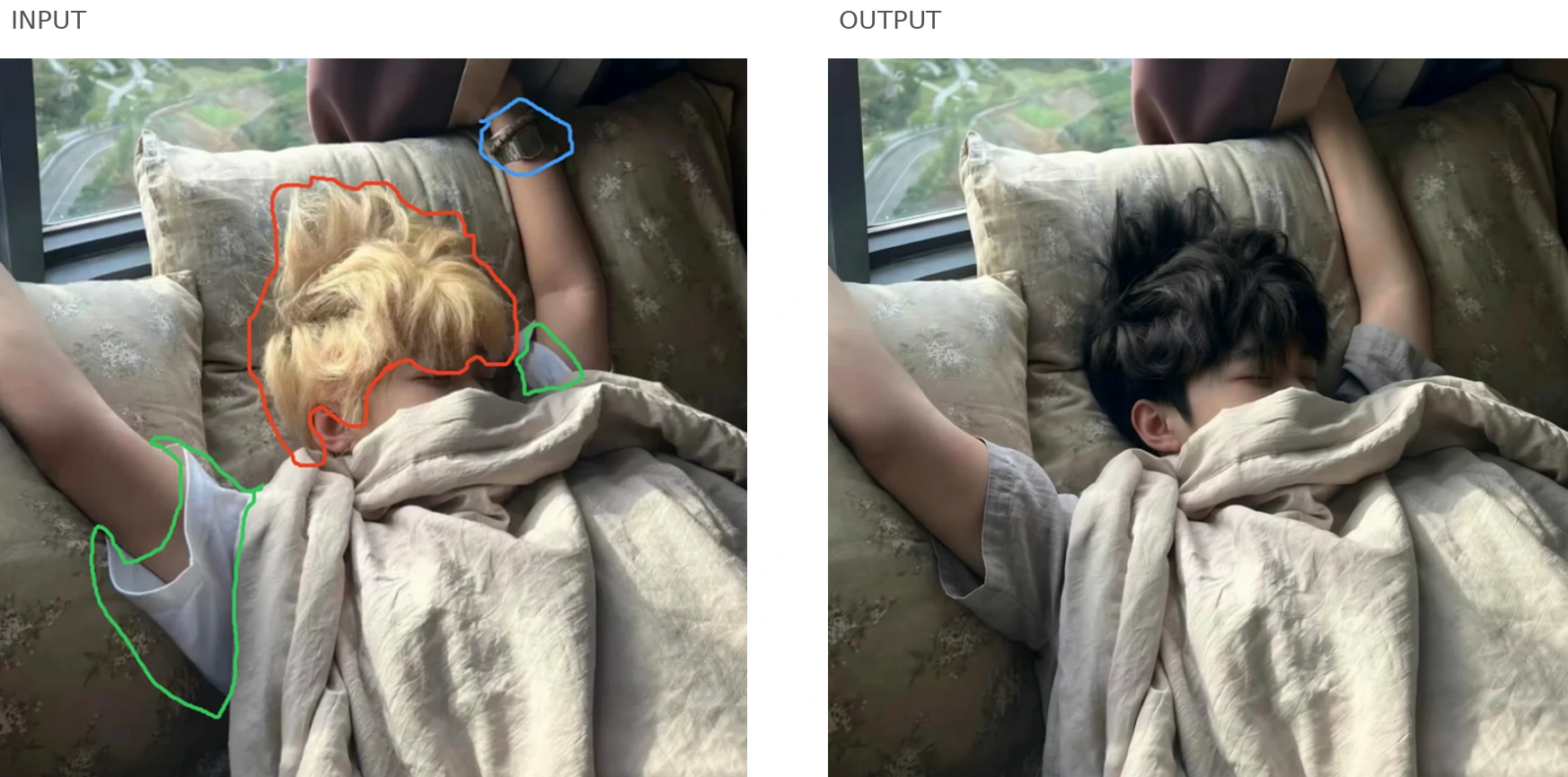
The output visibly changes the hair and clothing while retaining the reclining pose, bedding and room. Colour-coded circles make a multi-part request easier to specify: each instruction points to a distinct region. For tighter control, Qwen also accepts an original image alongside a separate mask.
3. Assemble an Outfit from Reference Images
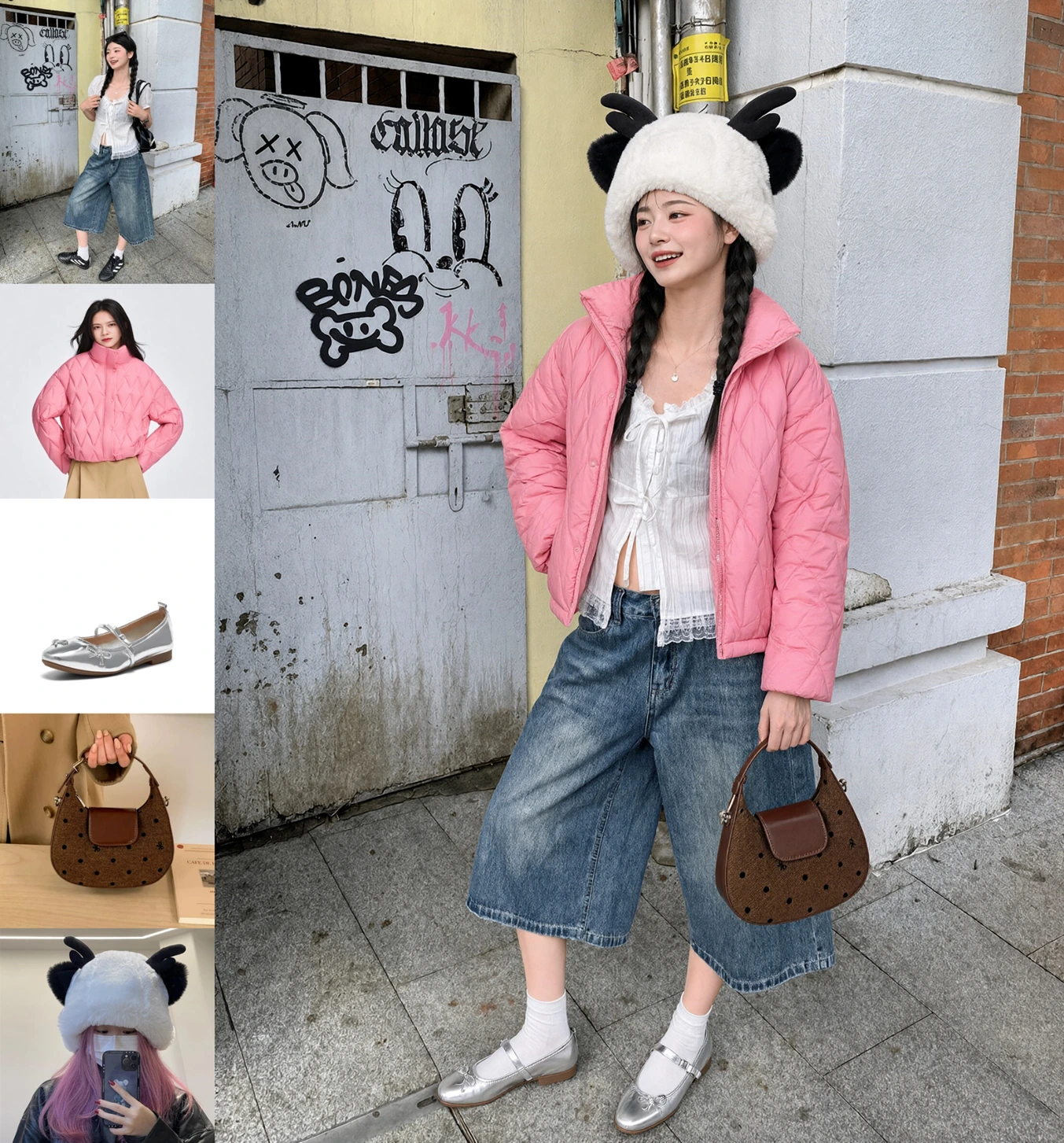
Prompt: Dress the reference model using the supplied jacket, shoes, handbag and hat.
Five inputs become one outfit. The result incorporates the pink jacket, silver shoes, brown bag and furry hat while retaining the original street setting. This is a useful preview of how reference-based composition can bring separate assets together.
The inspection points are specific: bag shape, jacket stitching, shoe straps and the model’s face. A convincing overall image does not establish exact product fidelity or accurate sizing. Treat this as an outfit concept, not evidence of how a garment will fit.
Qwen also demonstrates combining six portraits into a group photograph and ten furnishing references into an interior. Those examples test composition across several inputs, rather than simply restyling one image.
4. Expand a Photograph into an Infographic
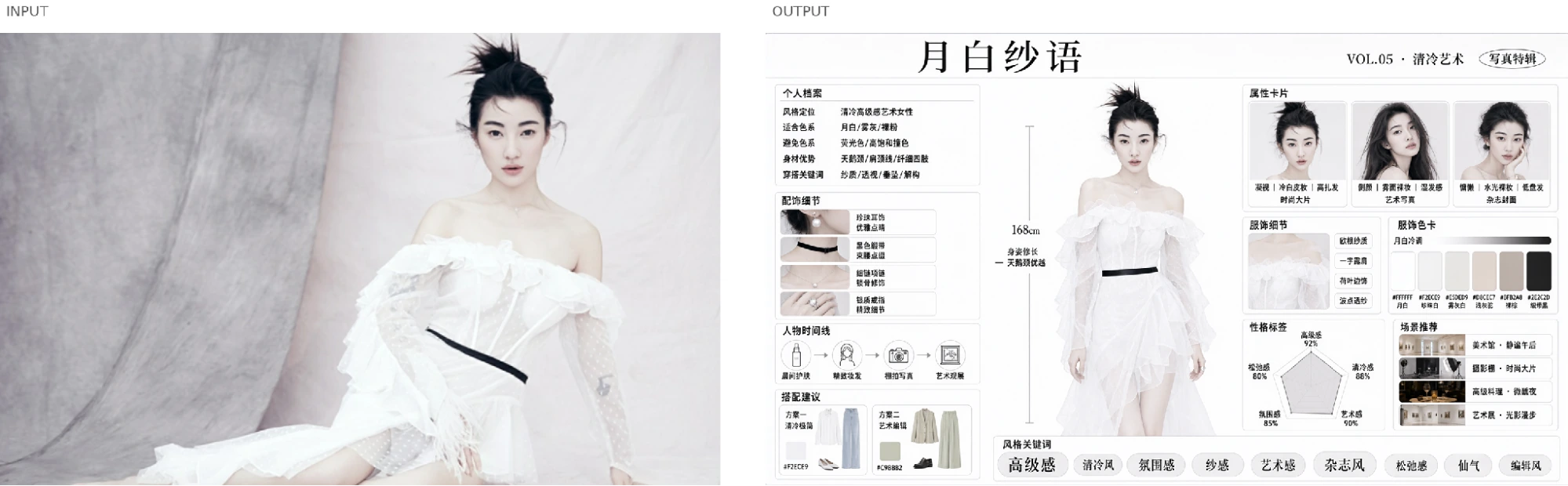
Prompt: Develop the supplied model photograph into a detailed visual profile with supporting information.
The output builds a layout around the portrait, adding accessory close-ups, colour swatches and smaller panels. It shows how a reference image can anchor a much larger composition. The visual hierarchy is clear even before reading the labels.
However, the generated height and percentage scores are not verified facts about the person. For a real profile or product sheet, supply the data yourself and check every label. Image generation can arrange information; it cannot validate information inferred from a photograph.
5. Generate an Explainer with Readable Labels
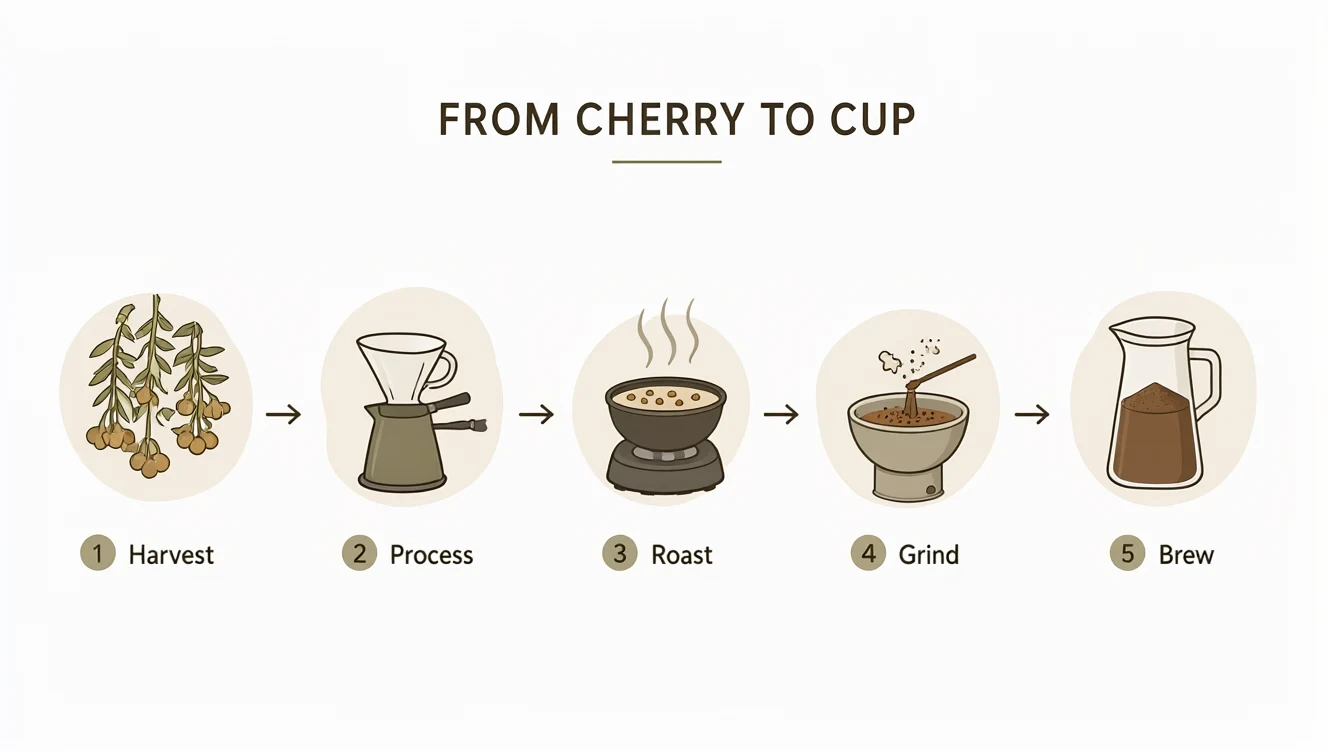
Prompt: Design a spacious, earth-toned coffee infographic titled “FROM CHERRY TO CUP”. Arrange five numbered, illustrated stages horizontally: Harvest, Process, Roast, Grind and Brew.
Comfy’s published example keeps the title and all five labels readable. The spacing and restrained palette make it easy to follow. This is a useful test of lettering, sequence and layout within one image.
Look past the typography, though: the processing and grinding illustrations do not clearly depict those operations. A neat infographic can still explain something poorly. Check both the words and the meaning of the pictures before publishing.
6. Extract a Transparent Foreground
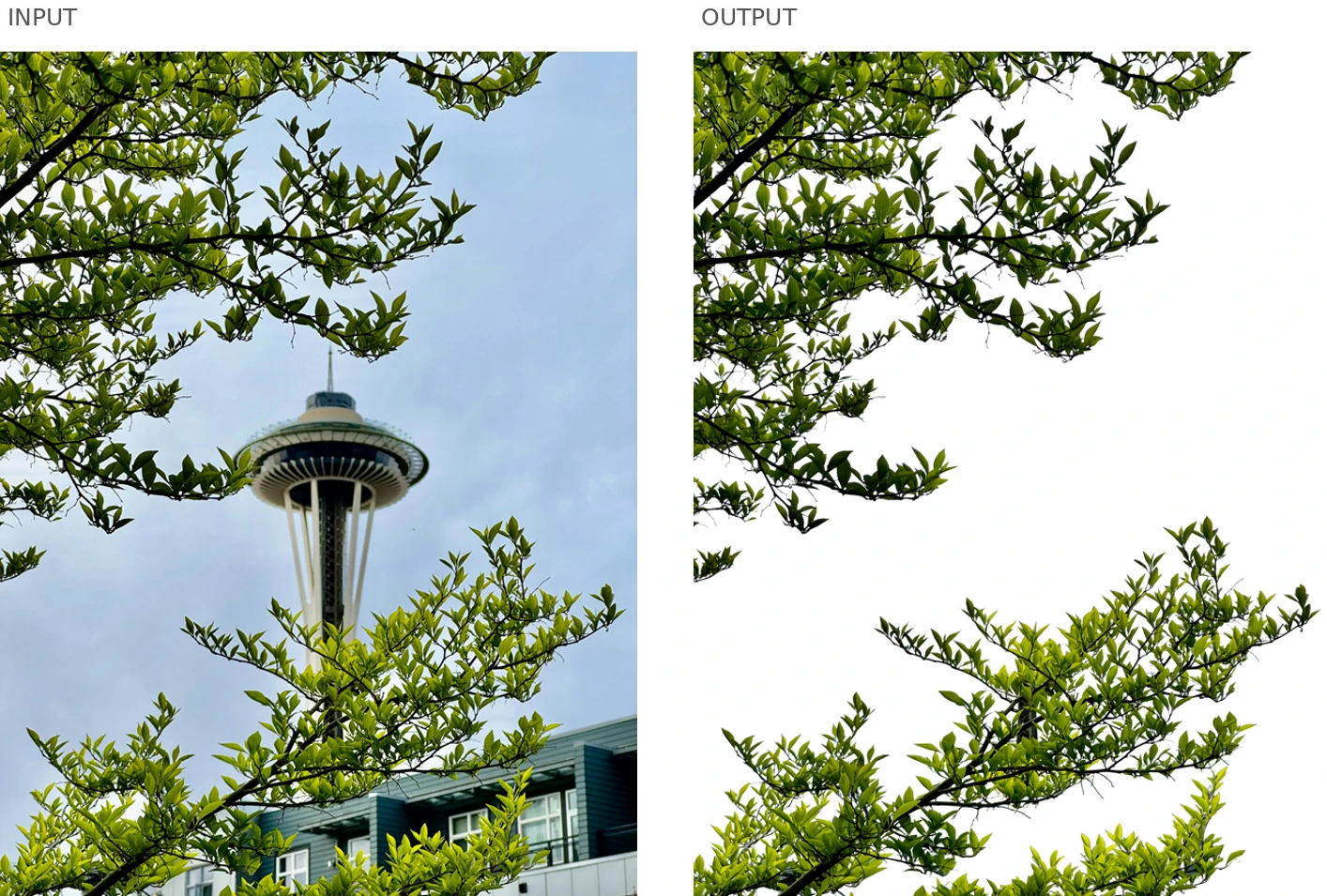
Prompt: Extract the foreground foliage from the photograph as a transparent layer.
The original contains leaves, sky, a tower and nearby buildings. The output isolates the foliage, leaving open space between the branches. It demonstrates a more demanding cutout than a single object against a plain background: thin stems and overlapping leaves need to survive the extraction.
A reusable foreground like this can frame a poster or sit over another photograph. Check the small gaps and leaf edges at full size; a convincing preview can conceal halos or missing detail. The transparent output is shown against white here for readability.
7. Expand a Selfie into a Panorama
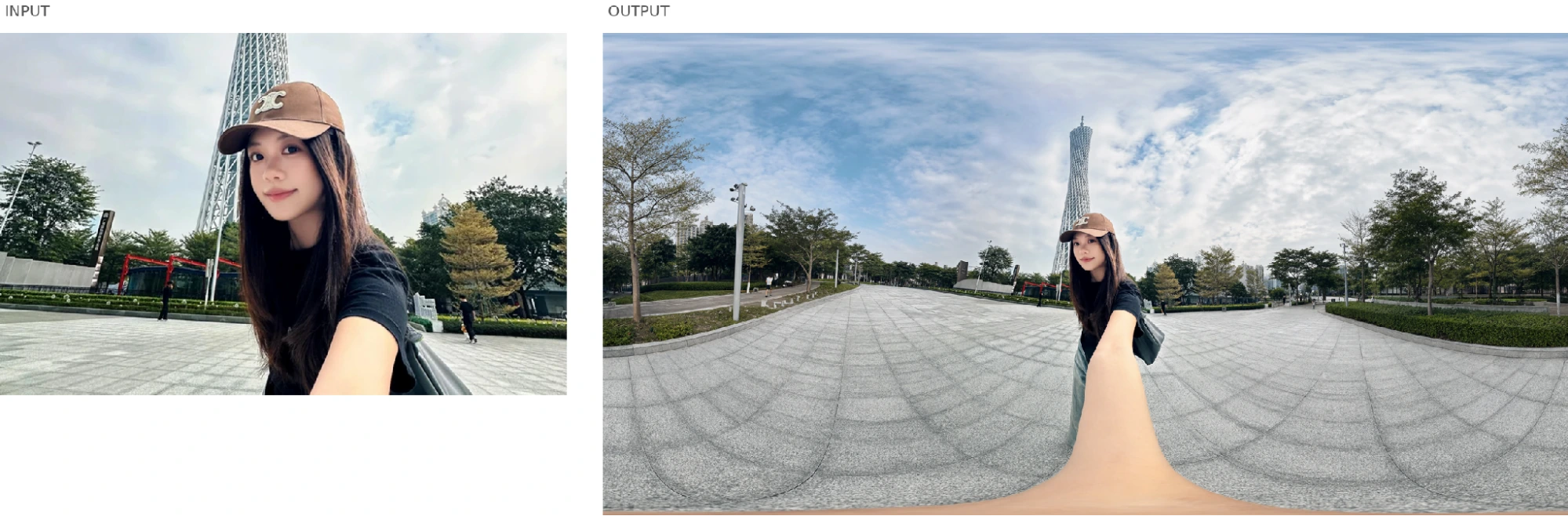
Prompt: Use the supplied selfie to generate a panoramic scene.
Qwen expands the narrow view into a broad plaza, keeping the person and tower near the centre while adding surrounding trees, paths and sky. The stretched foreground belongs to the flattened panoramic projection; the release also shows the result inside a panorama viewer.
This is useful for exploring an immersive scene from a single reference. The added surroundings are generated, however, so the result should not be treated as a faithful record of what stood outside the original frame.
8. Turn a Character Reference into a Storyboard
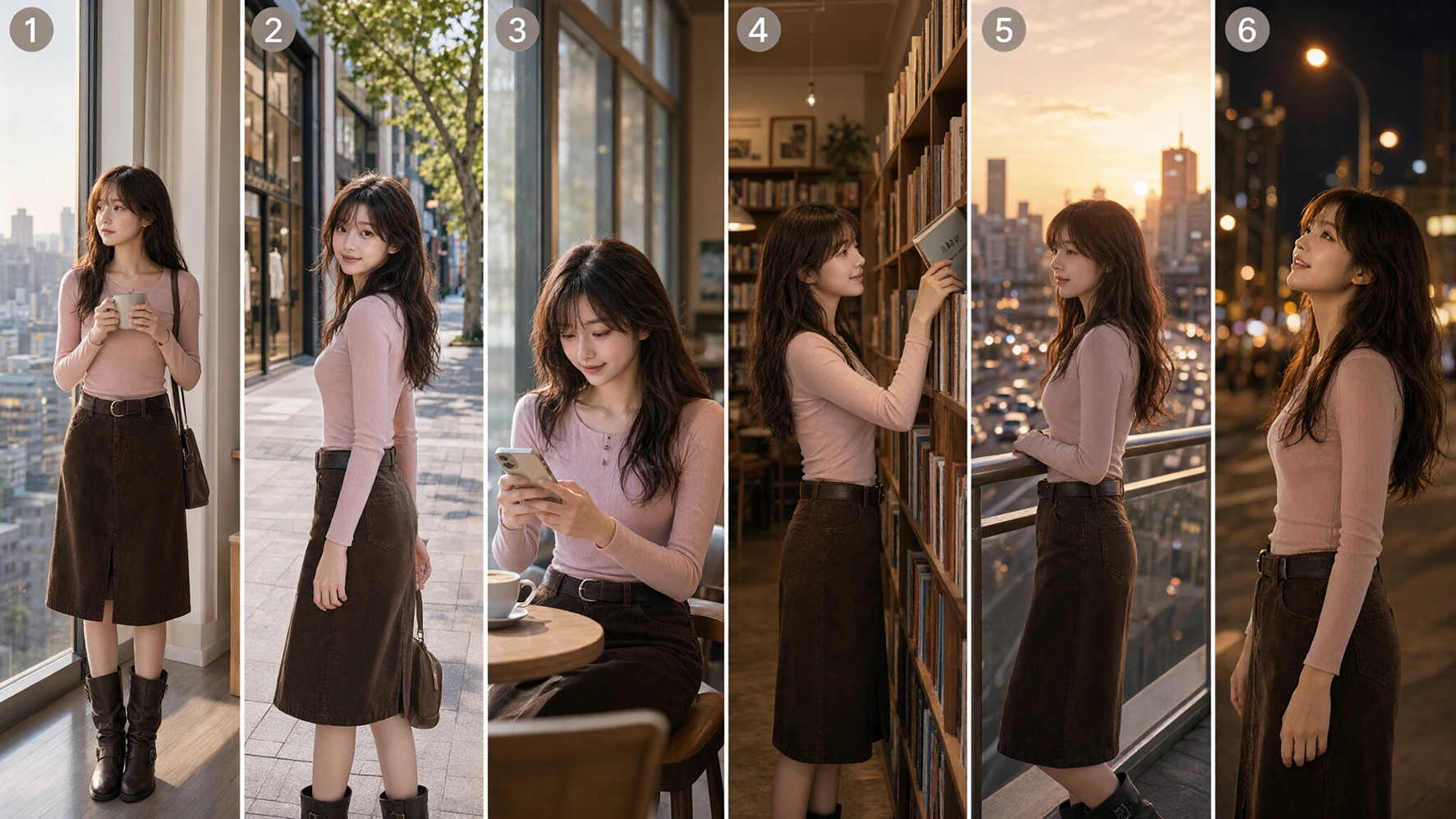
Prompt: Turn the supplied three-view character reference into a complete storyboard.
The six-panel output follows the character through several settings: a window, a street, a café, a bookshop, a sunset balcony and a night scene. Clothing, hairstyle and the overall appearance remain recognisable while the framing and lighting change.
That makes the example useful for a visual treatment or an early scene plan. Review continuity panel by panel, especially facial features, accessories and hands. A coherent-looking sequence is a starting point for storytelling, rather than proof that every detail stays fixed across shots.
How to Try Qwen Image 2.1
For a browser-based starting point, the repository links to the official Hugging Face demo. Demo availability and queue limits can change.
Is Qwen Image 2.1 Worth Exploring
The strongest reason to explore Qwen Image 2.1 is the combination of transparency and editing controls. Its examples cover useful jobs: revising a graphic, combining references and changing selected details. Start with one asset you can judge closely. Check identity, lettering and edges before moving to more elaborate compositions.
Frequently Asked Questions
Can Qwen Image 2.1 generate transparent images?
Yes. It supports an alpha channel for transparent generation and editing. Preserve that channel when exporting the result.
How many reference images does it support?
Qwen advertises up to 10. ComfyUI exposes more input slots, but that is not the same as Qwen’s stated reference limit.
Is Qwen Image 2.1 free for commercial use?
The released model materials use a research licence. Commercial use requires a separate licence from Qwen.