
Grok Bot is a standalone AI agent from SpaceX Super Intelligence. It keeps instructions and a work log for each Bot and can start jobs on a cloud computer while your laptop is off. That makes it useful for work you’d otherwise have to remember to restart, such as pulling the updates for a weekly project brief.
What Is Grok Bot?
Grok Bot is an AI agent app that lets you delegate work to persistent AI teammates. Its Bots share a cloud computer and use connected apps such as Gmail, Google Drive, Slack and Notion to research topics, organize email and prepare documents. They can continue working after you close your laptop.
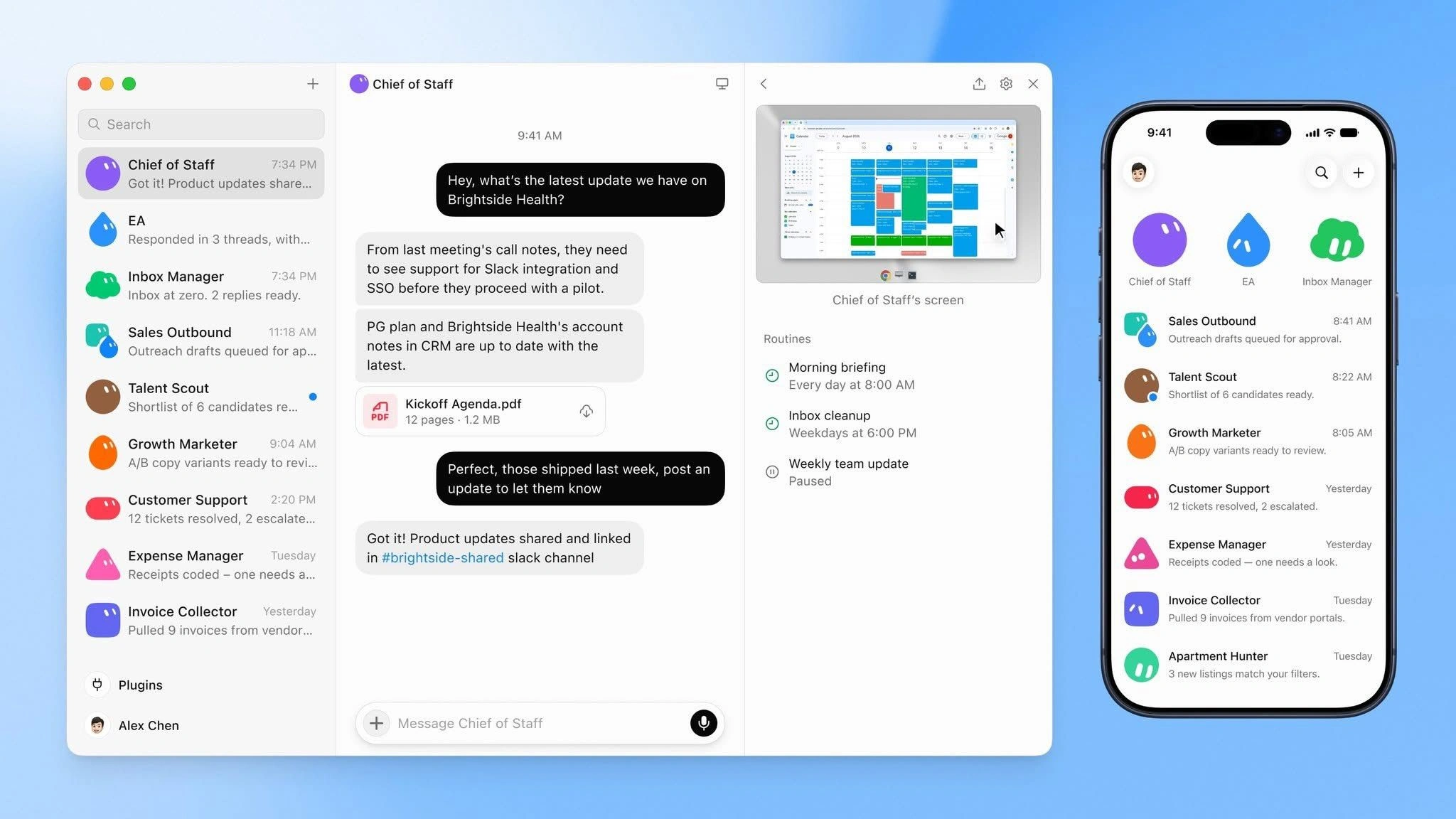
You can create a Bot for a specific job or choose a prebuilt template, then schedule recurring tasks. Bots remember preferences, hand work to one another and pause for approval when required. For example, a morning routine could review your inbox, calendar and project documents, then prepare a briefing highlighting what needs attention.
Before we get into what Grok Bot is let's clear a common misconception.
Grok Bot vs Grok Chat
Grok chat and Grok Bot both support files and connected apps. Grok Bot adds persistent AI teammates with a cloud computer, saved workflows and routines, giving you a way to delegate jobs that continue beyond an individual conversation.
| Aspect | Grok chat | Grok Bot |
|---|---|---|
| Main use | Questions, writing and analysis | Delegating ongoing tasks to dedicated Bots |
| Workspace | Conversations with files and connected tools | A shared cloud computer with browser, files and app access |
| Weekly brief | Ask for a summary of current project updates | Save the process and schedule a Bot to collect fresh updates each week |
For an occasional summary, Grok chat may be enough. Grok Bot becomes useful when you want the same process to repeat on a schedule, with clear instructions and an output you can review—even when your laptop is closed.
When Grok Bot starts work
A release brief has a deadline, and a support escalation can arrive at any hour. Pick a trigger that fits how the work arrives.
| Start condition | What Grok Bot does | Example |
|---|---|---|
| Message in chat | Starts a task now and can finish it in the cloud. | Review open Linear issues and return blockers. |
| Scheduled routine | Starts at the times you set. | Draft a project brief every Friday at 9 a.m. |
| Event-triggered routine | Starts when a configured connection supplies a matching event. | Triage a new issue or Slack message. |
Your primary Bot can also offer to take on work or flag a disconnected app. Each Bot can hold 50 routines, with scheduled runs at least five minutes apart.
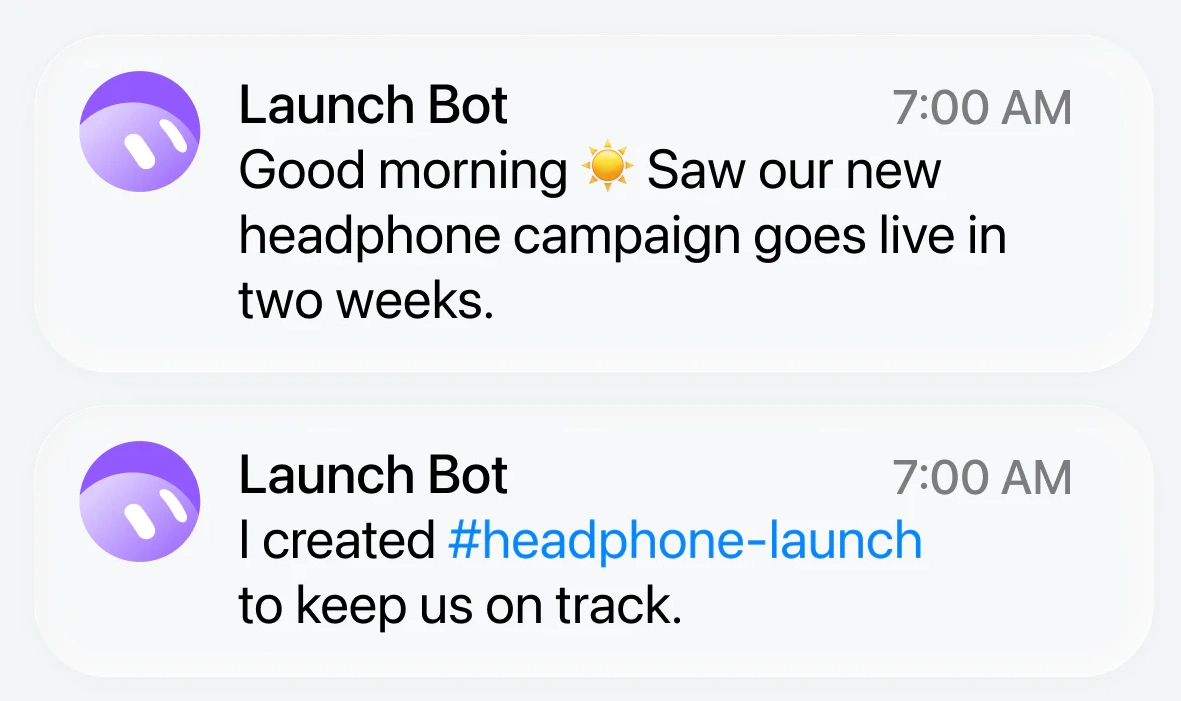
For a Slack-triggered routine, check two connections. The Slack app gives the Bot tools to read and post. The separate Slack integration on the Cursor account that owns the Bot starts the routine. Confirm the channel and matching phrase under When to run. Only new messages can trigger a run, so post a fresh example in the chosen channel when checking setup.
Key Grok Bot features
A Friday brief needs access to source updates, a saved way to collect them and something to start the work on time. If coworkers will request changes too, check which plans let you share the Bot.
- App connectors: Pull issues from Linear, find a receipt in Gmail, or update a file in Google Drive. Each connection uses the account and access you grant.
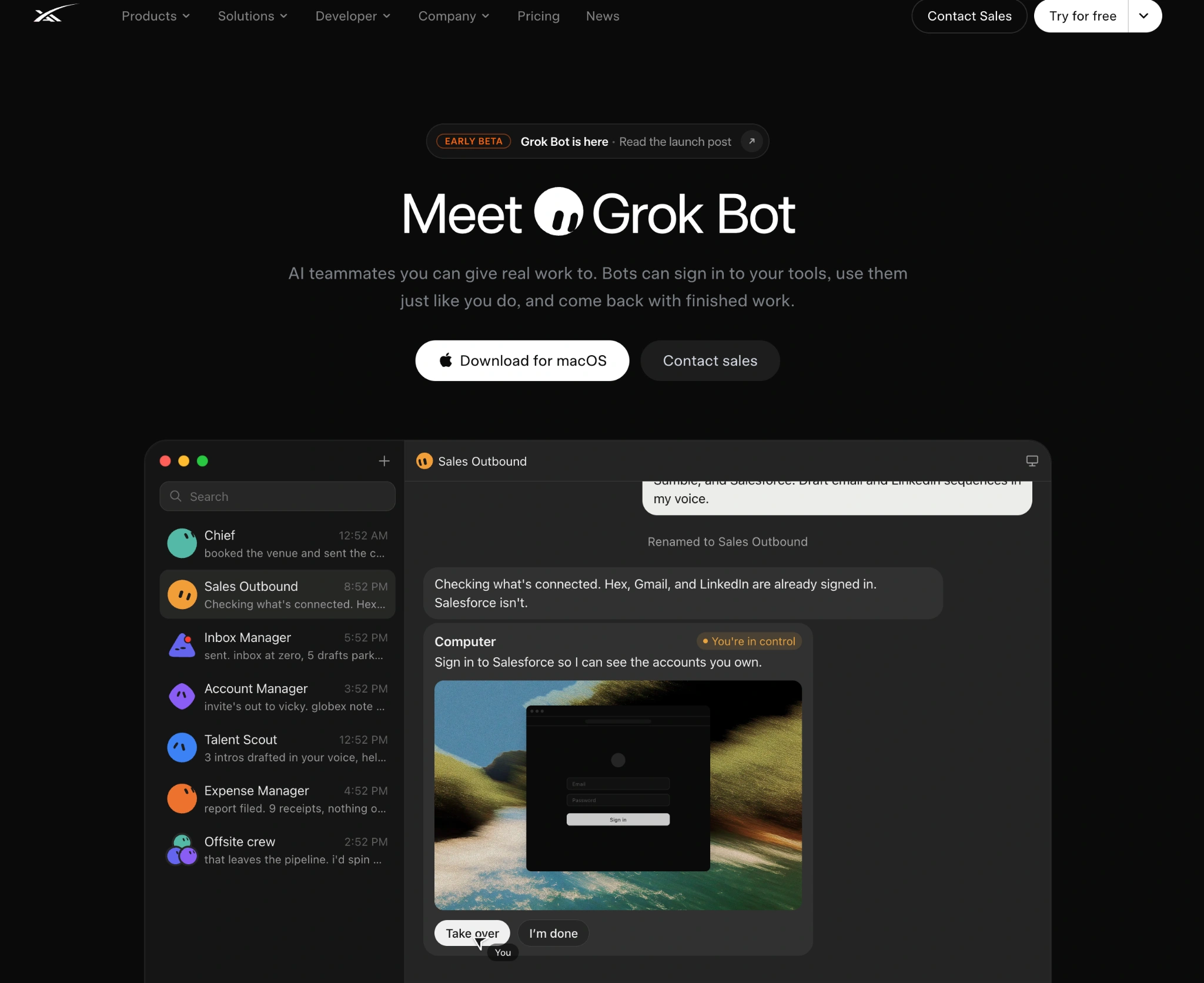
- Cloud computer: Use its browser for a site without a connector or when a tool needs a visual workflow. You can take control for a passkey or sign-in step.
- Memory, skills and routines: Memory keeps preferences and past actions. A skill saves what to do. A routine sets when to run.
- Team Bots: On eligible Team and Enterprise plans, share a Bot with coworkers in Grok Bot chats, Slack or Microsoft Teams.
What Grok Bot remembers and what your Bots share
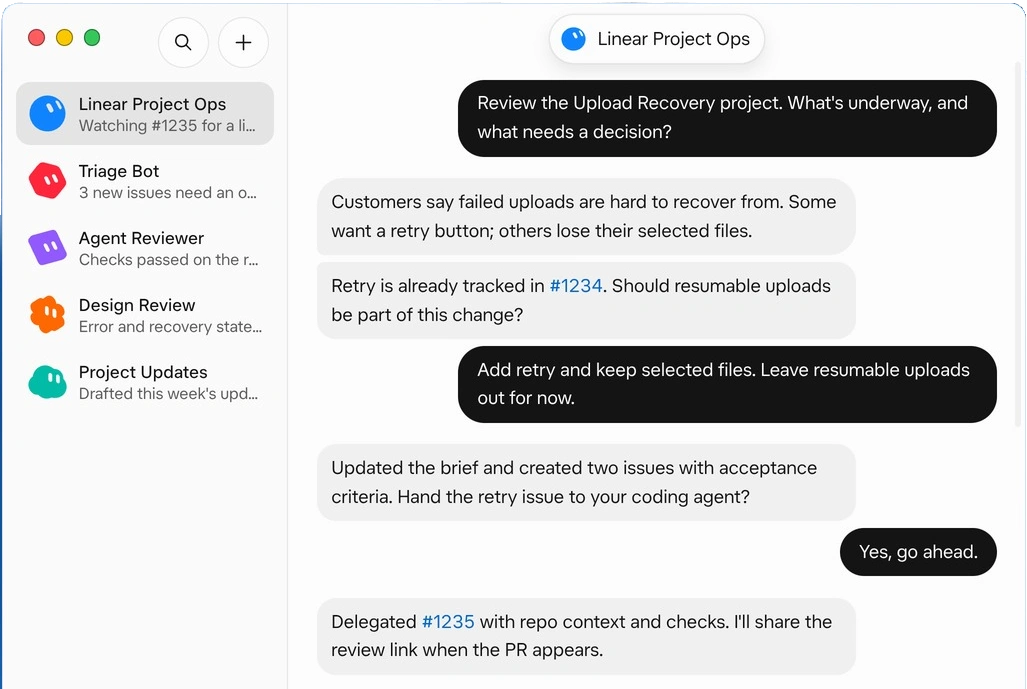
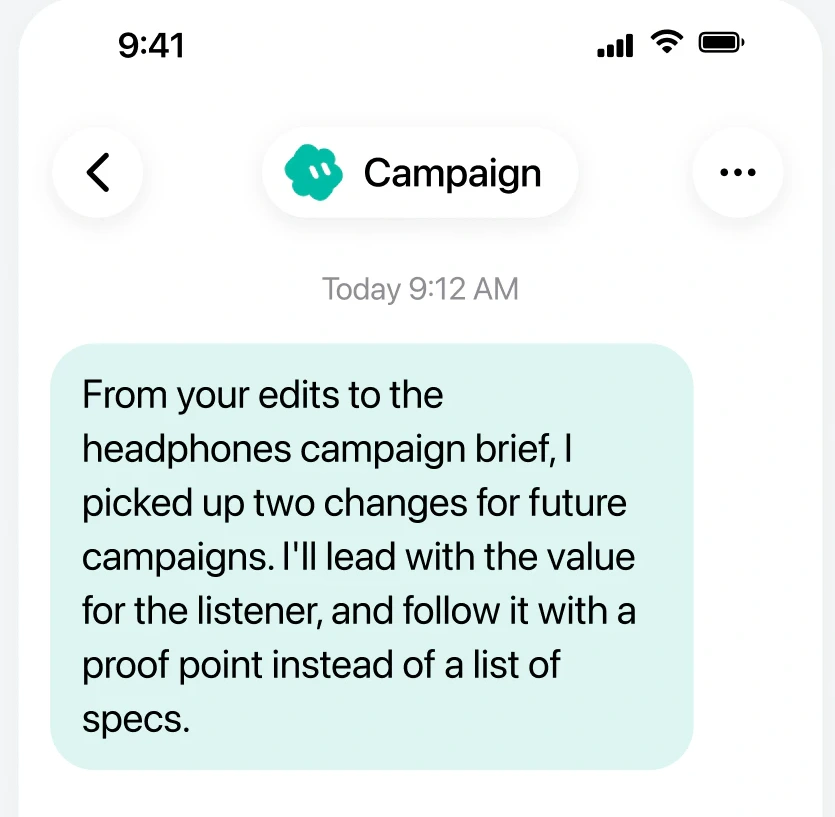
A personal Bot remembers preferences, lasting instructions and summaries of earlier work. Tell a release Bot to put blockers first and ask it to remember the preference. Keep changing facts in the source app. If a blocker’s status matters, have the Bot reopen the issue in Linear on every run.
Your personal Bots have separate conversations and roles, but they use one cloud computer per account. Files and signed-in browser sessions are visible to the other Bots on that account. Connected apps are account-wide too. The authorized app account still sets the limits. If it can only view a Google Sheet, the Bot can only view it through the connector.
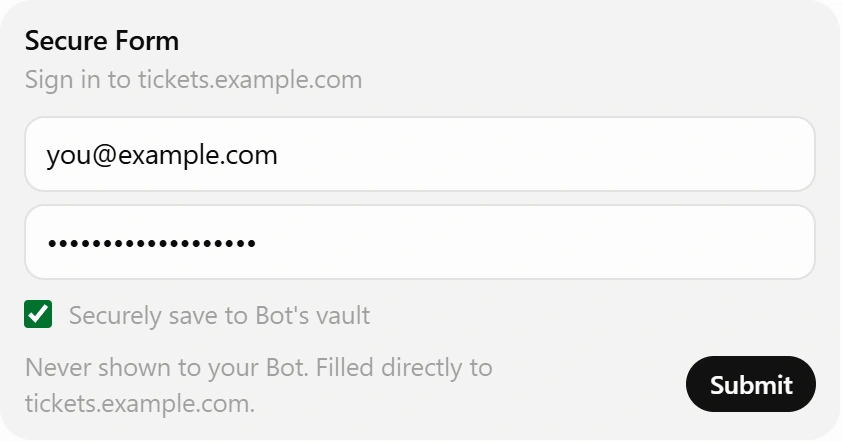
For a website that needs a sign-in, a Secure Form can pass login details directly to the site. The form keeps the password out of the Bot's view.
How to install Grok Bot and set up a routine
Start with one Linear project. Limiting the first run makes it easier to spot the wrong issues before you put the work on a schedule.
- Download Grok Bot from x.ai/bot for macOS, Windows or Linux. Choose Sign in and finish in your browser to open your first Bot chat. The same account works on iOS 18 or later and Android 9 or later.
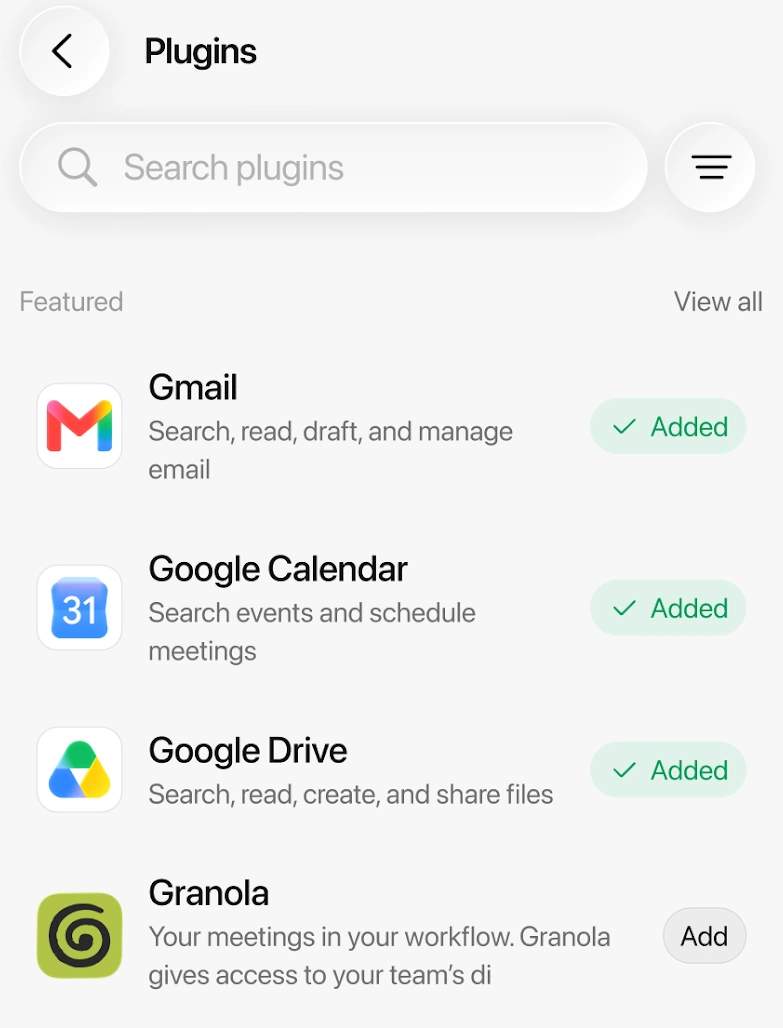
- Select Connect apps in the desktop sidebar and add Linear. Finish the provider sign-in with the account that can read your project. If the app shows Needs auth or Disconnected, open it and choose Authenticate.
- Ask for up to three blockers from one project, with issue links, update dates and open decisions. Have the Bot stop and tell you if it can’t reach Linear. Keep the result in chat and open the links to check it.
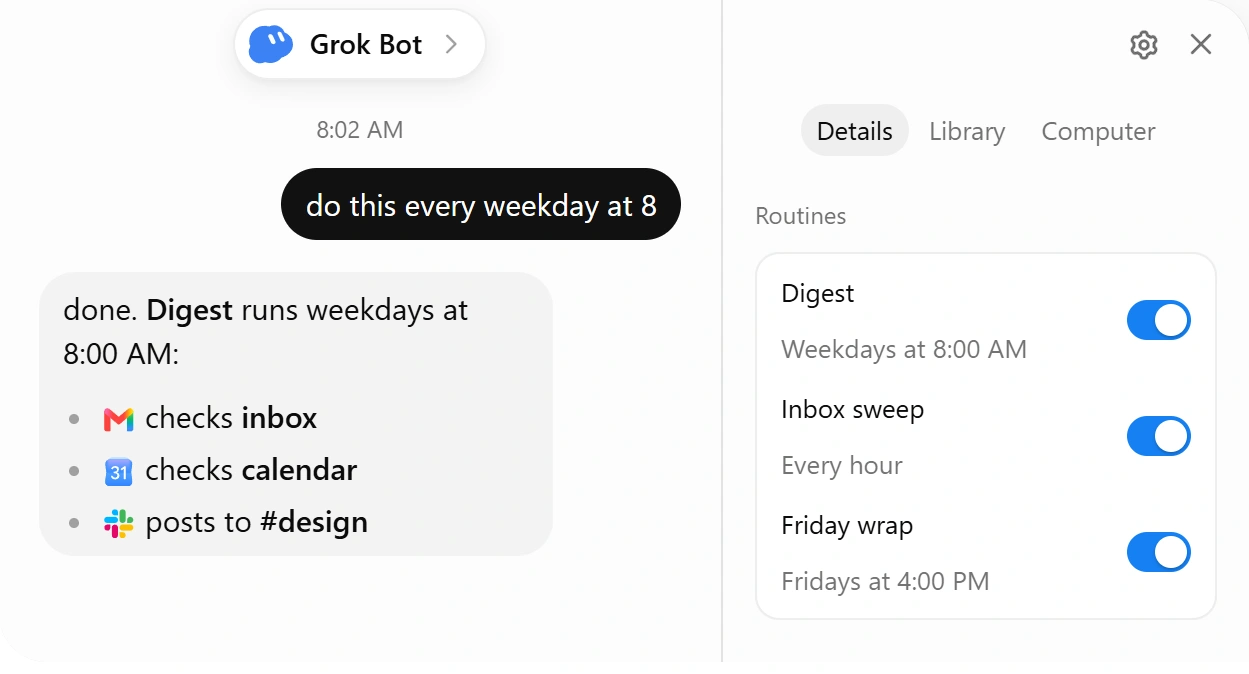
- Save the method as a skill and ask the Bot to run it every Friday at 9 a.m. in your time zone. Open the Bot’s Details tab and select the routine under Routines. Check that Instruction still says to stop if Linear is unavailable and When to run shows the intended schedule.
If the brief pulls in the wrong issues, tighten the project scope in the skill so the correction carries into the next run.
How to test, edit or pause a routine
A new schedule waits for its next run time. When the desktop routine offers Test, use it to start a real run and check the result in chat. It draws from usage and can take actions, so keep the first check to reading and drafting. If you don’t see Test, run the equivalent request in chat and check the first scheduled result separately.
If a run doesn’t appear, open the routine in the Bot’s mobile profile and check Next run and Run history. A failed run shows a reason. On desktop, choose Edit and tell the Bot what to change if the schedule or instruction is wrong. Turn off the routine’s switch to stop future starts. A Bot hidden from the sidebar keeps running its routines.
Team Bots in Slack and meetings
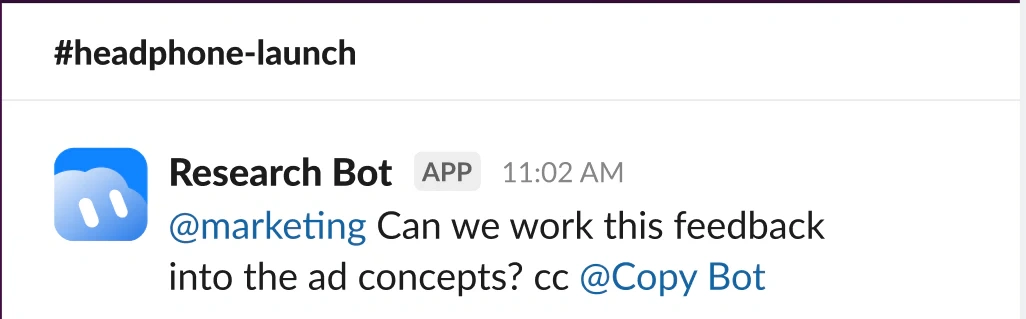
An eligible Team or Enterprise plan and at least one teammate let you use a Team Bot. In a private conversation or Slack DM, it uses your Grok Bot cloud computer. A shared channel conversation runs on the Team Bot’s own computer. The Bot uses its owner’s connections there by default and asks before it uses yours. Only the person it’s answering can respond to its approval card.
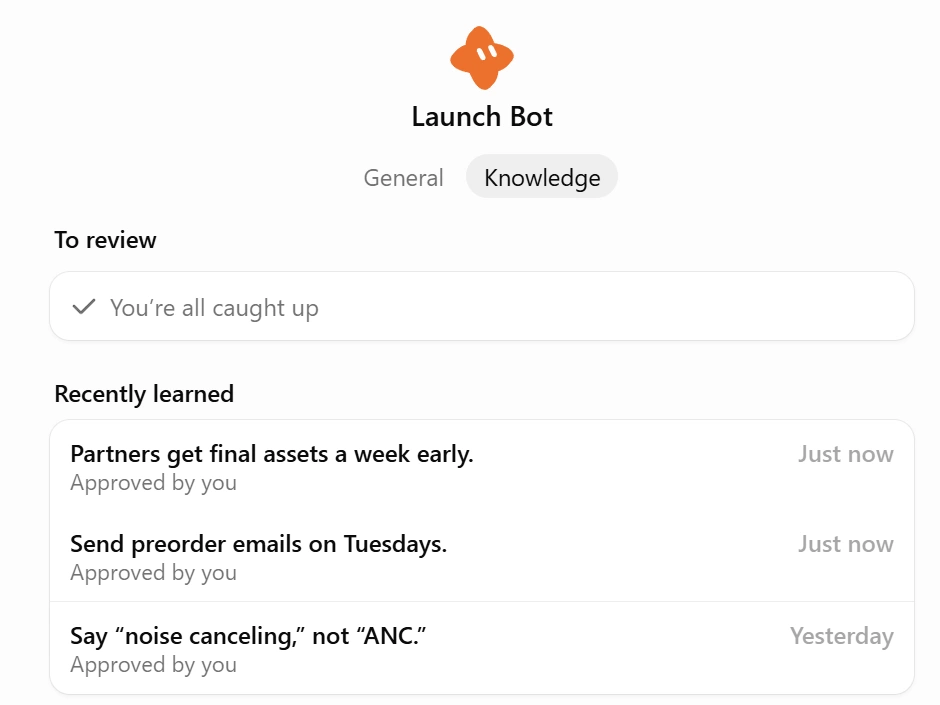
If a teammate with the Collaborator role teaches the Bot a team-wide rule, the Bot saves it as a suggestion. The owner or a Manager can approve it under Review learnings. That review matters when one new instruction would change everyone’s future briefs.
For a meeting on an eligible plan, paste a Google Meet, Zoom or Microsoft Teams link into chat and ask the Bot to join. The host admits it, and the Bot sends a summary and action items afterward. A join scheduled through a routine takes notes. Ask the Bot directly if you also want it to answer in the meeting chat.
How much does Grok Bot cost?
Grok Bot is included in eligible subscriptions. These are the listed US prices for The X Subscription in November 2026.
| Plan | Monthly price | Grok Bot access |
|---|---|---|
| Premium | $30 | Entry plan that includes Grok Bot |
| Super | $100 | 3.5× Premium’s weekly Grok Bot usage |
| Ultra | $200 | 12× Premium’s weekly Grok Bot usage |
| Teams | From $30 per user | Available on eligible paid seats |
| Enterprise | Custom | Confirm access and deployment with the account team |
On The X Subscription, Grok Bot, Cursor and the Grok apps draw from one weekly allowance. Extra usage uses prepaid credits. Leave Auto Top-up off or set a monthly limit in billing. Eligible legacy Cursor plans, linked SuperGrok or X Premium+ subscriptions, and qualifying Grok Business seats offer other ways in.
What requires your approval?
Auto Review is on by default. When a proposed action needs permission, the Bot posts a card and waits. To always review an action such as sending an external email, go to Settings, General, Bot, then Custom Rules and add an Ask first rule.
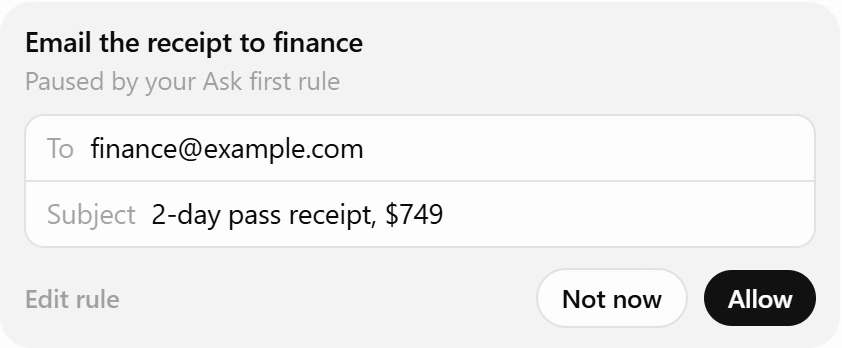
A background approval expires after 30 minutes. A card from a direct chat request waits for your answer. Have the weekly brief stop at a draft if it needs review later.
Where Grok Bot is limited
Grok Bot fits a release brief that one Bot can pull from Linear on a schedule and return in the team’s existing Slack thread. When engineering, support and marketing each own part of the brief, an Oasis room gives them a shared place to review the evidence and assign separate agents to gather updates and draft the final copy. Those agents can use different models and draw on shared context. See how Oasis coordinates people and agents.
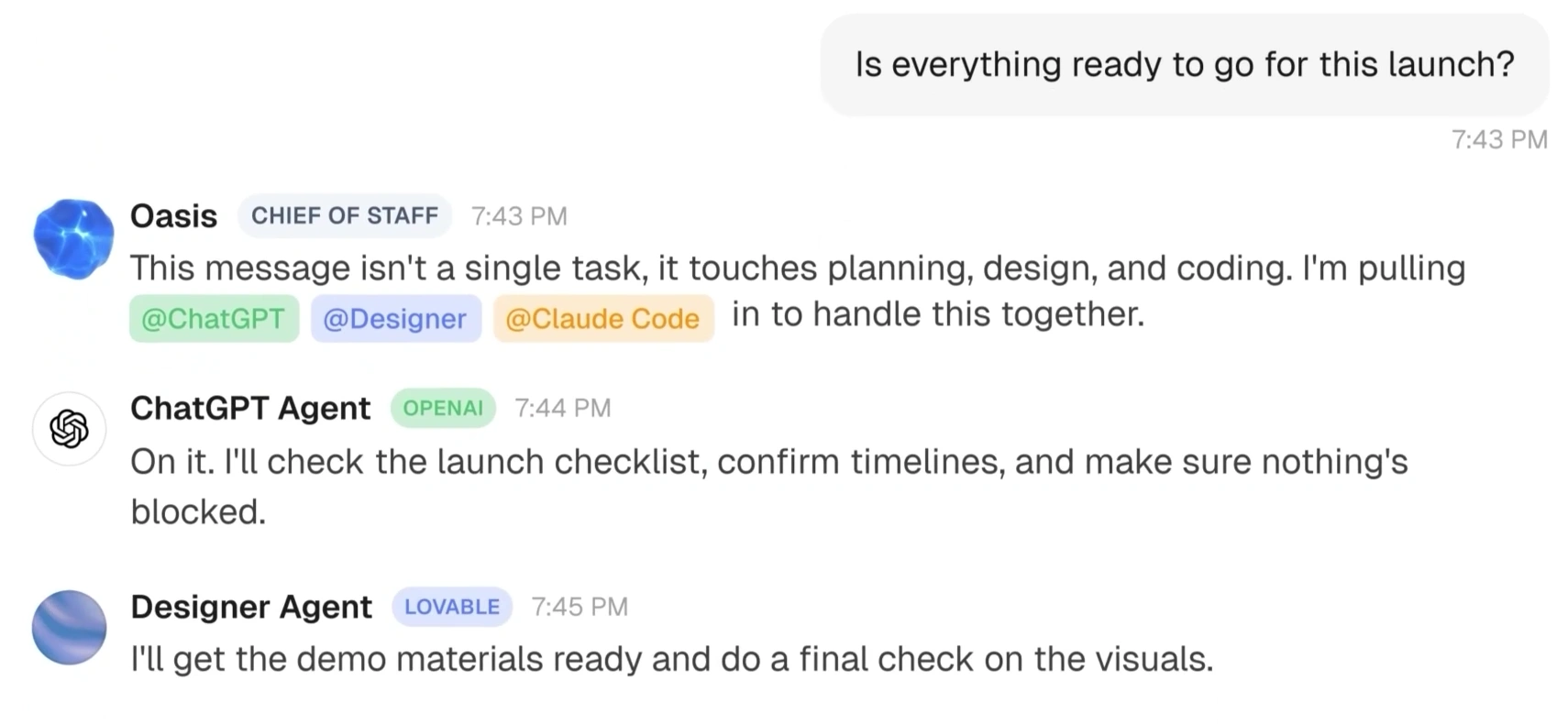
Multiple agents collaborating towards a shared goal
Is Grok Bot worth using?
Use Grok Bot when a job repeats, the sources stay accessible, and you can check each result quickly. Keep the routine if verifying the draft takes less time than gathering the updates yourself.
Frequently Asked Questions
Does Grok Bot work when my laptop is off?
Yes. Tasks and routines run on Grok Bot’s cloud computer. You can check results and approvals on mobile.
Can I try Grok Bot for free?
Some accounts see Start Trial. It provides limited usage credit for up to seven days.
Can Grok Bot join meetings?
Yes, on eligible Team, Enterprise and Ultra plans. It supports Google Meet, Zoom and Microsoft Teams calls.
Can I change what Grok Bot remembers?
Yes. Ask the Bot what it remembers, tell it to correct a detail, or ask it to forget something.