

The best AI spreadsheet tool usually starts with the file you already have. If your team works in Excel or Google Sheets, an assistant inside that workbook avoids another import-and-export routine. A separate AI spreadsheet makes more sense when you need database queries, Python analysis, or a dashboard people can actually use.
The examples below are starting points for your own work. This guide compares seven options by the work they suit, how you access them, and the checks their outputs still need.
TLDR: Start with Copilot for Excel or Gemini for Google Sheets. Consider ChatGPT or Claude for conversational workbook editing. Choose Quadratic for visible code, Sourcetable for connected analysis, and Bricks for visual reporting. Pick the workflow first, then compare usage limits.
1. Microsoft Copilot in Excel
Start with Copilot when Excel is already your team's working file. It can edit worksheets, write formulas, create charts and PivotTables, and apply formatting. Its edit, plan, and chat modes matter: choose plan to inspect proposed changes before modifying the workbook.
For inventory, ask it to flag products below their reorder level and summarize shortages by warehouse. Specify which columns hold available stock and incoming deliveries. Otherwise, a plausible formula can count inventory that hasn't arrived.
Access requires an eligible Microsoft 365 or Copilot subscription, with availability depending on app version and organization settings. Check the Copilot button before buying another tool, then verify changed ranges and totals.
2. Gemini in Google Sheets
Gemini suits teams already collaborating in Google Sheets. From Ask Gemini, request formulas, summaries, charts, formatting, and pivot tables. You'll need an eligible Google Workspace or Google AI plan; start with native Sheets files.
Sheets canvas adds an editable visual layer over your data. The seating planner above illustrates how an event guest list can become an interactive layout, with edits synchronized between canvas and sheet. Canvas is available in English and requires an eligible plan.
Watch the output type. An analysis chart inserted by Gemini uses a new data tab and doesn't automatically follow changes in the original dataset. Canvas synchronization and analysis-chart refresh are different features.
3. ChatGPT for Excel and Google Sheets
ChatGPT has official spreadsheet-native experiences for Excel and Google Sheets. Install the appropriate marketplace add-in, sign in, and use its sidebar to change the workbook directly. Uploading a spreadsheet into ordinary ChatGPT is a separate workflow.
Try: “Create a launch tracker with owners, deadlines, and a summary tab. Keep unknown dates blank.” For existing files, name the tabs it may change and request a plan before broad edits.
Access spans free and paid ChatGPT plans, with different usage limits. Spreadsheet chats don't inherit ChatGPT memory or sync with your main chat history. Supply context again and review changed cells. VBA and macros may not be fully supported.
4. Claude for Excel
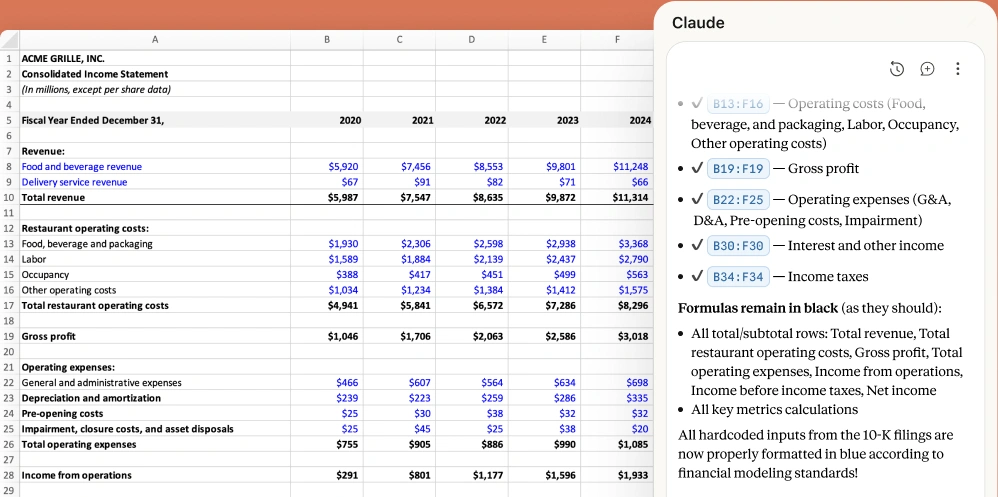
Claude helps when someone hands you a complicated workbook and the first job is understanding it. It can trace formulas across tabs, explain results with cell references, update assumptions, and debug errors. Native operations include pivot-table editing and conditional formatting.
For a staffing plan, ask how start dates feed monthly headcount before requesting a delayed-hiring scenario. Check partial-month rules and whether vacant roles are included; those choices matter even when every formula runs.
Install Claude for Microsoft 365 to get Claude for Excel. It's generally available on Pro, Max, Team, and Enterprise plans. Excel data tables, macros, and VBA operations remain unsupported, so inspect your model before committing.
5. Quadratic
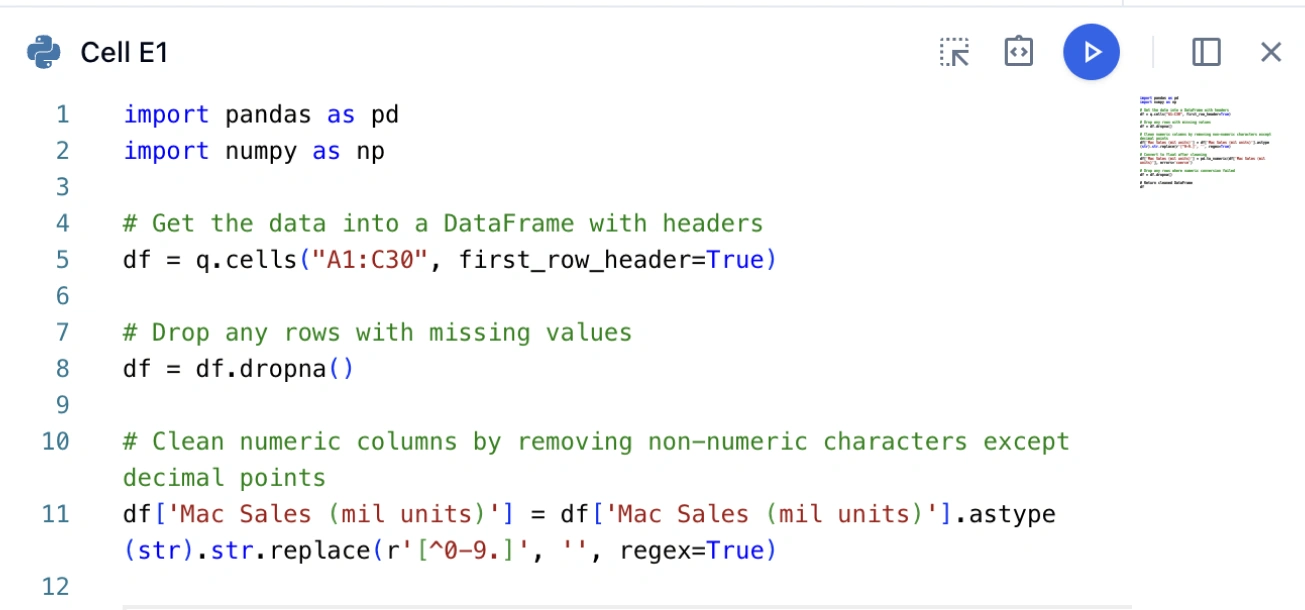
Quadratic is a separate spreadsheet with Python, SQL, JavaScript, and formulas built into its cells. You can inspect the code behind an AI-generated analysis, import files, and connect to databases while keeping results in a familiar grid.
For a CSV of machine readings, request a daily summary excluding maintenance windows. Inspect the generated Python and removed rows. With database work, review SQL joins: joining one machine to several maintenance records can silently multiply readings.
The free Personal plan limits AI usage, files, sharing, and connections. Paid plans increase capacity. Choose it when someone can review the code and maintain the analysis, especially when ordinary formulas have become difficult to follow.
6. Sourcetable
Sourcetable combines a standalone spreadsheet, an AI assistant, and data connectors. Import files, request formulas and charts, and analyze connected applications or databases. It suits reports assembled from scattered exports.
For a campaign review, combine advertising spend and qualified leads to calculate cost per qualified lead. Define “qualified” and align date ranges first. Match stable campaign IDs rather than changeable names.
The free Regular plan includes limited credits. Pro adds a Python toolkit and SQL editor. Check your connector’s refresh behavior; an available connection alone doesn’t establish how current a recurring report will be.
7. Bricks
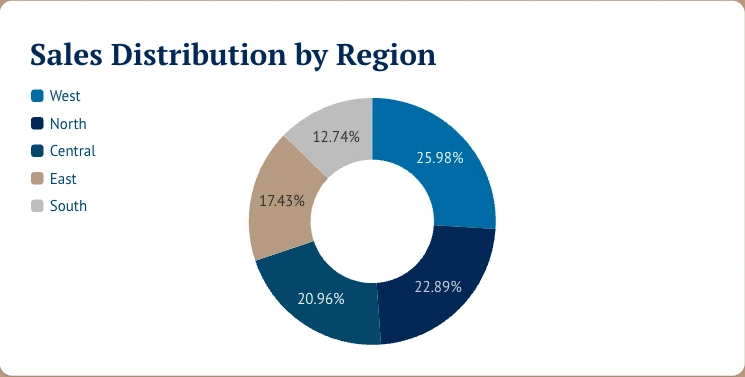
Bricks suits dashboards and visual reports. Its workspace combines spreadsheet grids with charts and boards, using AI to turn imported data into a presentation. You work in Bricks rather than inside Excel.
For a support review, import ticket data and request category totals, a weekly trend, and unresolved tickets. Check whether each row represents a ticket or an update. Counting updates as tickets makes a polished dashboard misleading.
Linked charts and tables refresh when their source Grid changes; written insights may need a separate update. An uploaded CSV still isn't a live support-system connection. Check AI allowances, export options, and sharing features before adopting it.
Choose around the work you need to finish
Keep an existing workbook in its home app when that matters to collaborators. Start with Copilot or Gemini, then compare ChatGPT and Claude on one task your current assistant struggles with. Move to Quadratic when reviewable code helps, Sourcetable when combining data is the bottleneck, or Bricks when the final report needs a clearer visual form.
Try a copy of a small, representative file with a known answer. Check row counts, duplicate IDs, date boundaries, and whether totals still reconcile after an edit. Before connecting company data, confirm that your organization permits the tool and its data handling. The useful assistant is the one whose work you can verify and repeat.
Frequently Asked Questions
Which AI spreadsheet tools have free access?
ChatGPT, Quadratic, Sourcetable, and Bricks offer limited free access. Usage and feature restrictions differ.
Can these tools edit an existing workbook?
Copilot, Gemini, and the ChatGPT and Claude add-ins can edit supported spreadsheets directly.
Will an AI chart stay updated?
It depends on its source connection. Check refresh behavior, especially after importing files or generating new analysis tabs.
Can I trust generated formulas?
Review cell references, test edge cases, and reconcile totals. A formula that runs can still answer the wrong question.