

Coding agents can modify frontend code, but they often lack visibility into what happens inside the browser. Browser MCP servers bridge this gap by letting AI agents inspect pages, interact with elements, capture screenshots, and identify runtime errors.
Some servers launch isolated browsers, while others connect to existing sessions or provide cloud-hosted environments. In this article, we explore seven Browser MCP servers, their capabilities, setup requirements, and limitations to help you find the right fit.
TLDR: Use Playwright MCP for structured browser interaction and Chrome DevTools MCP for deeper debugging. Browserbase provides hosted sessions. Browser MCP and BrowserTools work with your browser, WebdriverIO extends into mobile testing, and Browser Use offers direct control with an agent fallback.
1. Playwright MCP
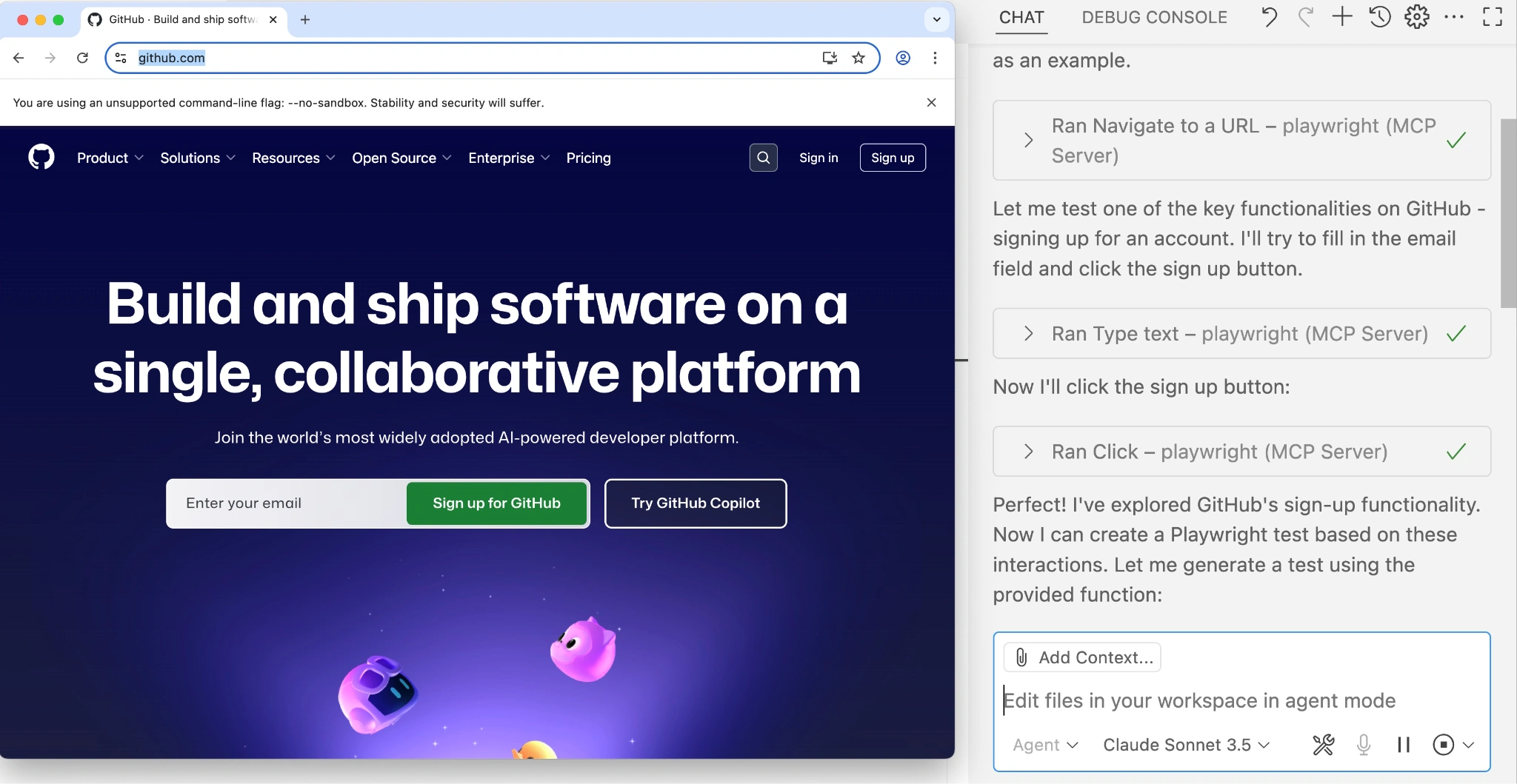
Best for: Exploring and exercising a web interface.
Microsoft's Playwright MCP gives an agent structured accessibility snapshots and browser actions. Its core approach needs no vision model. Use it to find controls, follow flows, and inspect page structure.
A sensible first task is to inspect a staging checkout with test data, identify missing labels, and stop before submission. Keep assertions separate from the agent's explanation.
It runs through the @playwright/mcp package and needs Node.js plus a compatible MCP client. Microsoft also recommends considering its CLI-and-skills route for coding agents that need lower context overhead. Choose MCP when persistent interaction and repeated page inspection justify the larger tool and snapshot context.
2. Chrome DevTools MCP
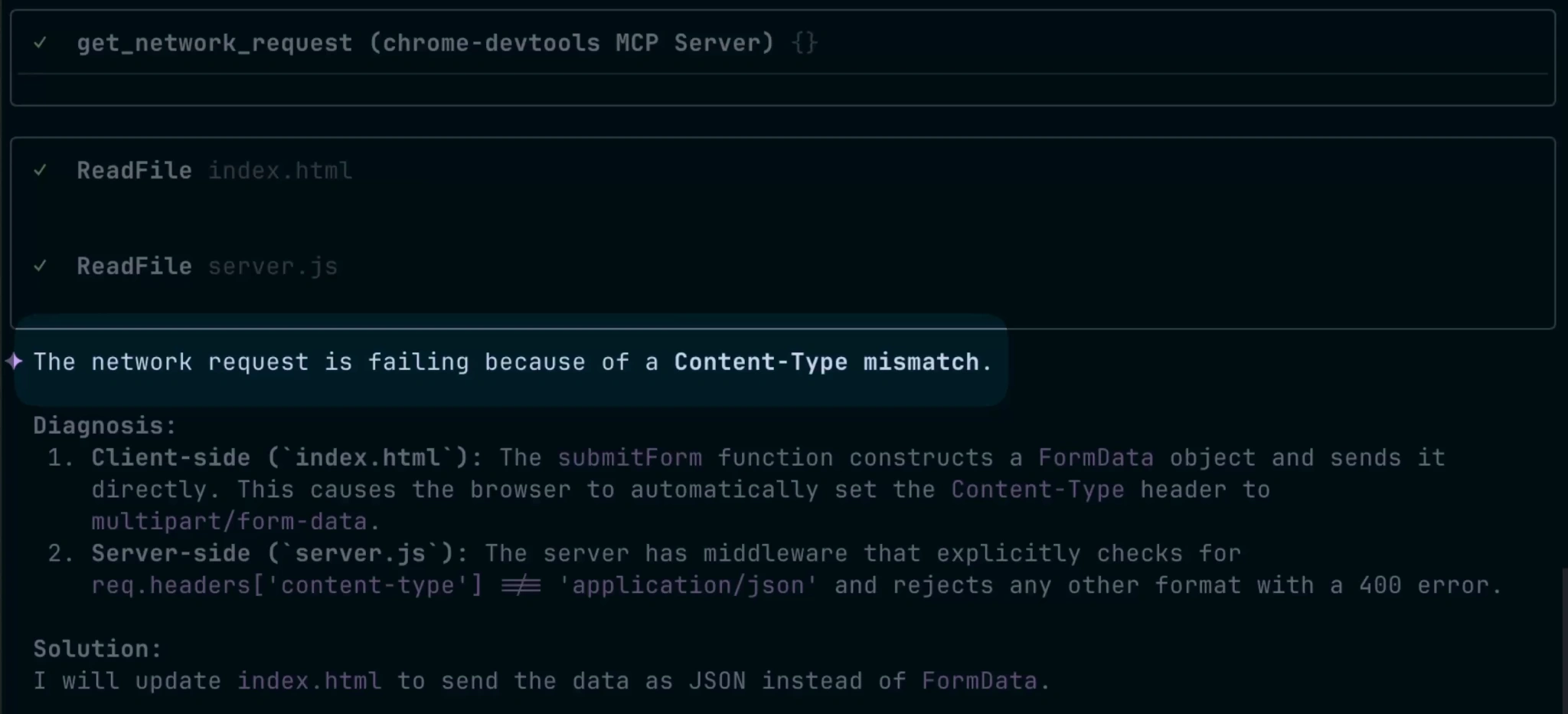
Best for: Explaining why a page is slow or broken.
Chrome DevTools MCP exposes live Chrome inspection to coding agents. It can capture performance traces, inspect network requests, read console messages, and automate interactions. An agent can investigate a failed request rather than guess from source code.
For a reproducible bug, ask it to reload the affected route, capture the console error and request status, and connect those observations to the relevant code. A performance investigation should preserve the tested page and conditions.
The server requires a current Node.js LTS environment and supports Google Chrome and Chrome for Testing. Review its data settings before using private pages: usage statistics are enabled by default, and performance tools may query CrUX. Use --no-usage-statistics and --no-performance-crux to disable them.
3. Browserbase MCP
Best for: Browser sessions that run outside your workstation.
Browserbase's hosted MCP server provides navigation, natural-language actions, element observation, and extraction through Stagehand. Session tools let the client start or attach to a browser session and close it when the job is finished.
Use it when a coding assistant needs to inspect an accessible preview deployment without depending on a browser installed on the developer's machine. The team can manage browser infrastructure centrally.
You need Browserbase credentials, and service usage follows the account's plan. Current setup documentation recommends Streamable HTTP and authorization headers. The old public MCP repository is archived, so do not treat its implementation as the current production service. Confirm how previews, authentication, and retained sessions will work before moving a local debugging workflow into the cloud.
4. Browser MCP
Best for: Controlling a browser session you already use.
Browser MCP combines an MCP server with a Chrome extension. Instead of always creating a fresh browser, it connects compatible AI applications to your existing browser profile. That reduces repeated login setup for authenticated app testing.
Try checking a staging app's user-visible flow in the session you already opened. Be explicit about the target tab and account, especially when several environments look similar.
The extension and server are both required. The public repository also warns that its core code cannot currently be built independently because some dependencies live in a separate monorepo. Use the documented installation route. Local browser control does not determine what your AI client sends to its model provider.
5. BrowserTools MCP
Best for: Bringing your current tab's debugging evidence into the editor.
BrowserTools captures console logs, failed network requests, screenshots, and selected elements through a Chrome DevTools extension. That helps reproduce authenticated-session bugs. Its Lighthouse audits launch a separate browser, so do not assume they inherit the inspected tab's login.
Open DevTools before reproducing the problem, then reload if you need the complete network sequence. Requests that finished before capture started are not part of the evidence. Ask for the specific failing request rather than dumping every log into the model.
Use the current 2.x setup: the project warns that 1.2.x has a critical vulnerability. Version 2 adds a loopback-only authenticated connector and credential scrubbing. Those controls help, but still review captured page data and keep the debugging session limited to the application you intended.
6. WebdriverIO MCP
Best for: Teams whose testing extends beyond one desktop browser.
WebdriverIO MCP exposes browser and mobile-app automation through the @wdio/mcp package. It supports desktop browsers, while Appium integration adds native mobile apps and hybrid workflows that switch between native views and embedded web content.
Consider a login bug affecting a website and an app's WebView. An agent can inspect each environment through a related tool interface rather than relying on an unrelated browser-only setup.
Mobile work still requires an Appium server, appropriate drivers, and a configured simulator, emulator, or device. Cloud-device access has its own credentials and billing. Review the mobile defaults before using real devices: autoGrantPermissions and autoAcceptAlerts are enabled. Configure those behaviors deliberately and preserve the device and platform details in your report.
7. Browser Use MCP
Best for: Direct browser tools with an optional autonomous fallback.
Browser Use can run a local MCP server through its CLI. It exposes navigation, clicking, typing, page state, tab management, screenshots, and content extraction. Its documented fallback tool can hand a difficult task to a Browser Use agent when direct control is insufficient.
This fits an application where your coding assistant should normally make small, inspectable actions, but occasionally needs help completing a longer browser sequence. Keep the fallback's goal narrow, such as finding a specific documentation section and returning the relevant text.
The local server is an open-source option that requires your own model configuration; a hosted Cloud MCP route is separate. Track which component is planning the task, and include the fallback's model usage when comparing costs. Validate that additional execution path.
Connect one server to one clear job
Choose by evidence. Playwright helps an agent interact with page structure. Chrome DevTools and BrowserTools help explain runtime behavior. Browserbase changes where the browser runs, while WebdriverIO expands the environments you can inspect.
Before enabling broad access, test a disposable page and confirm the selected tab, tool list, screenshot, and returned logs. Use a dedicated test account where possible. Browser content is untrusted input, and an MCP connection does not itself create a security boundary or authorize purchases, messages, or data deletion.
The useful outcome is a reproducible observation tied to a code change, followed by a check that the change actually fixed it.
Frequently Asked Questions
Does an MCP server replace the AI model?
No. It exposes tools that an MCP-compatible client and its model can use.
Which server is best for performance debugging?
Start with Chrome DevTools MCP for traces and runtime diagnostics. BrowserTools also offers Lighthouse audits.
Can these servers use an existing login?
Some can. Browser MCP and BrowserTools connect to existing browser sessions; check their setup and access boundaries.
Should I connect all seven at once?
Start with one. Overlapping tools add context, permissions, and ambiguity without necessarily improving the task.