

ChatGPT plugins let you work with files, messages, designs, and customer records from the conversation. Their directory pages show what each connection includes, how to install it, and examples of useful requests. The best starting point is a task you repeat every week.
A Drive brief, Slack recap, or CRM follow-up needs different access and instructions. In this article, we cover 10 most used ChatGPT plugins for work, their direct install pages, practical prompts, and the setup details to check first.
How to install a ChatGPT plugin
- Open the plugin’s ChatGPT listing using a link below.
- Select Install plugin and sign in to ChatGPT if prompted.
- Connect the relevant service account and review the requested permissions.
- Return to your conversation, select the plugin with an
@namemention, and describe the task.
Before you start: Check the listing’s included apps, skills, and account requirements. A listed capability still depends on your connected account and available permissions.
1. Google Drive for document and spreadsheet work
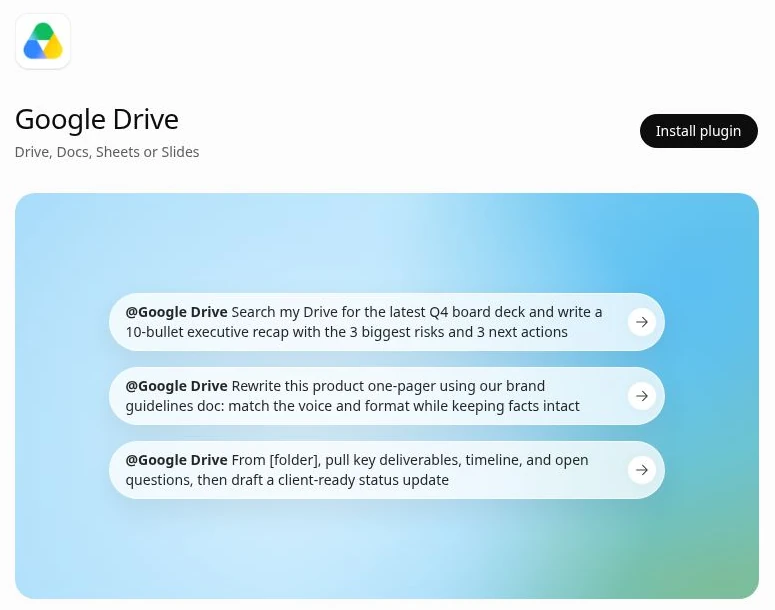
Best for: Turning existing Workspace files into briefs, reports, and updates.
The Google Drive plugin brings Docs, Sheets, Slides, and file search into ChatGPT. Its listing includes dedicated skills for those formats and Drive comments. Use a folder or document link to give ChatGPT a clear starting point, then ask for an output grounded in those files.
- Find the latest project deck and extract its decisions and risks.
- Rewrite a draft using a named brand guide stored in Drive.
Try this prompt: @Google Drive Use [folder link] to draft a 200-word client update. Include completed work, upcoming deadlines, and unresolved questions. Link each source file.
Try this Plugin: Google Drive
2. Slack for channel recaps and follow ups
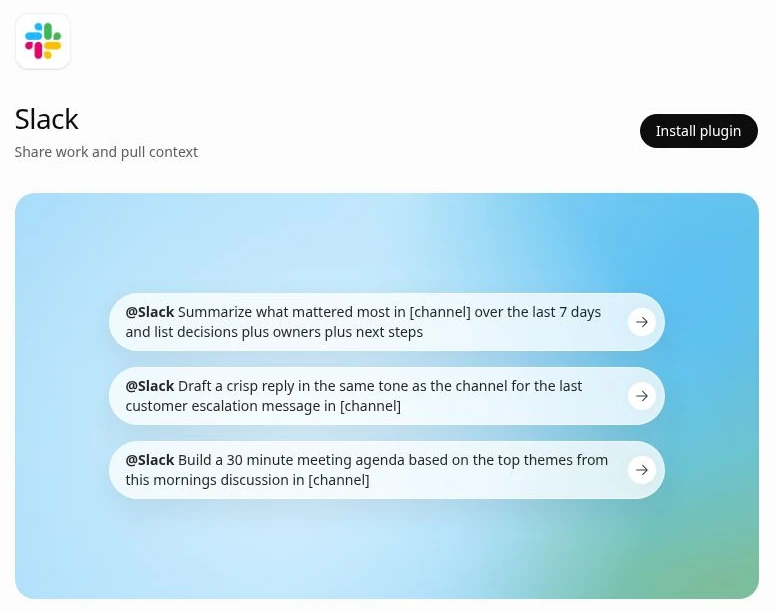
Best for: Recovering decisions and preparing replies from team conversations.
Slack’s ChatGPT listing focuses on channel summaries, reply drafts, and meeting agendas. Give it a channel and time window to narrow the search. For a project handoff, ask it to separate confirmed decisions from suggestions and attach the relevant message links.
- Build a weekly recap with decisions, owners, and next steps.
- Draft a response using the context of a customer escalation thread.
Try this prompt: @Slack Review [channel] from Monday through Friday. List confirmed decisions, blockers, and assigned owners with message links. Draft a follow-up for unanswered questions.
Try this Plugin: Slack
3. Notion for knowledge and project databases
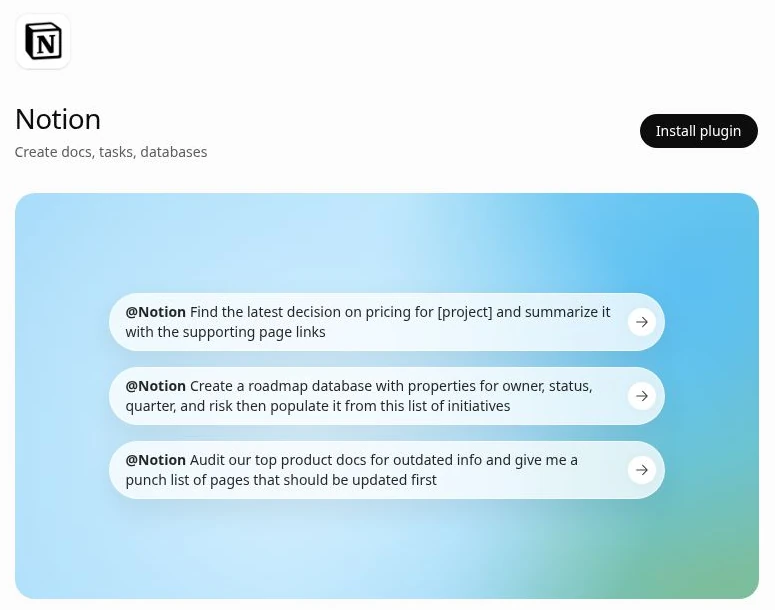
Best for: Working with team documentation and structured plans.
The Notion plugin combines workspace access with skills for knowledge capture, meeting preparation, research, and moving from specs to implementation. Its listing includes finding documented decisions, creating roadmap databases, and auditing outdated pages. Name the destination page or database when requesting changes.
- Find the latest project decision and return supporting page links.
- Create a roadmap with owner, status, quarter, and risk properties.
Try this prompt: @Notion Find the current [project] specification. Turn its unresolved requirements into a proposed task table with owner, status, and source links. Show me the table before creating pages.
Try this Plugin: Notion
4. GitHub for repository and pull request context
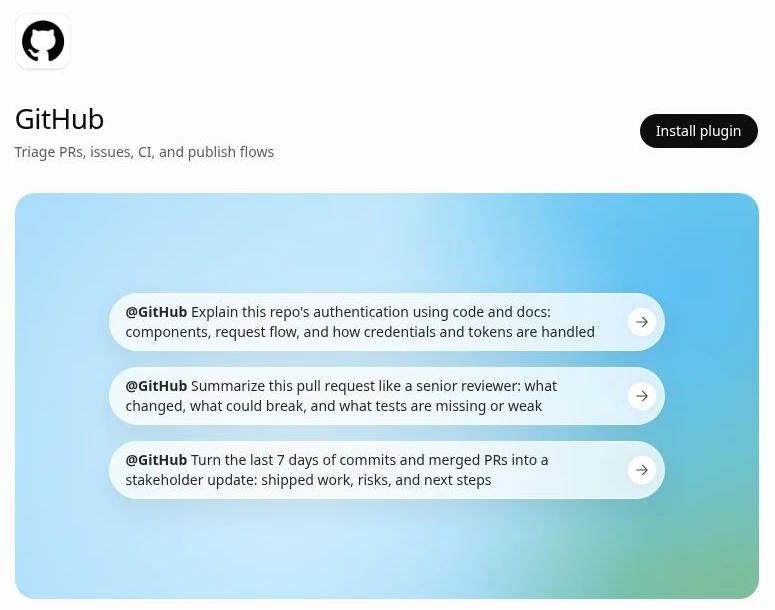
Best for: Explaining code and preparing review or release summaries.
GitHub’s ChatGPT page lists repository, issue, and pull request access. Its examples cover authentication flows, PR review, and weekly development updates. Supply the repository or PR URL so the response can refer to actual code, commits, and discussions.
- Explain a code path with file references and request flow.
- Summarize a PR’s changes, likely breakages, and missing tests.
Try this prompt: @GitHub Review [PR URL]. Explain the behavior change, identify regression risks, and list test gaps. Cite relevant files and lines. Do not merge or modify the PR.
Try this Plugin: GitHub
5. Linear for issues and project updates
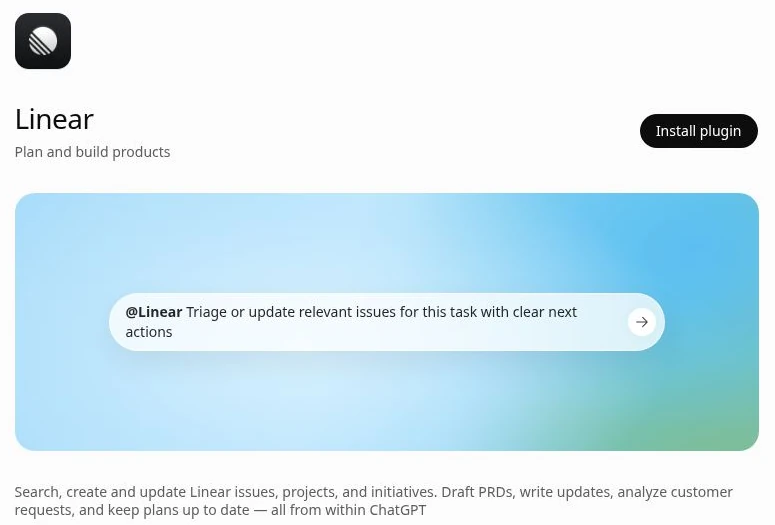
Best for: Turning a scoped request into tracked product work.
Linear’s listing explicitly supports searching, creating, and updating issues, projects, and initiatives from ChatGPT. It also covers PRD drafts and customer-request analysis. Start with an existing project so issue descriptions, ownership, and status updates stay tied to the right work.
- Triage related issues and identify the next action for each.
- Turn a feature brief into proposed issues with acceptance criteria.
Try this prompt: @Linear Check [project] for issues covering this feature brief. Show matches first, then draft only the missing issues with acceptance criteria. Wait for my review before creating them.
Try this Plugin: Linear
6. Canva for design editing and campaign assets
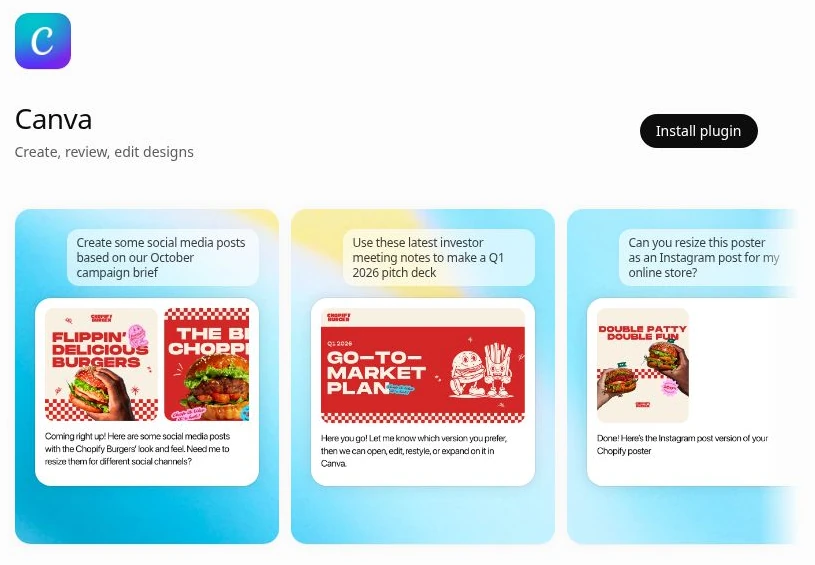
Best for: Adapting an approved design or brief for several channels.
Canva’s plugin page shows ChatGPT examples for campaign posts, pitch decks, and resizing. It also lists skills for editing designs, checking brand consistency, reviewing layouts, and applying comments. Its detailed workflow description refers to Codex, so check which capabilities your ChatGPT surface exposes.
- Resize an existing design for social channels.
- Check a design against a Brand Kit and apply specific feedback.
Try this prompt: @Canva Adapt [design link] for a LinkedIn post and an Instagram post. Preserve the approved copy and logo, check text readability, and return editable design links.
Try this Plugin: Canva
7. Figma for diagrams and design handoffs
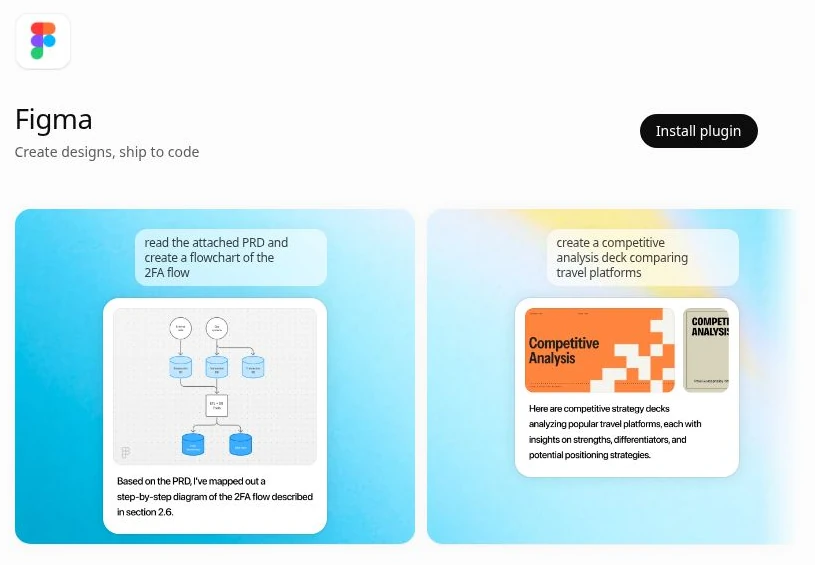
Best for: Turning product requirements into visual structure.
Figma’s ChatGPT listing shows a PRD becoming a two-factor authentication flowchart and a brief becoming a competitive-analysis deck. Its bundled skills also cover diagrams, design generation, Code Connect, and design-to-code work. Choose the artifact you need before describing its contents.
- Map a requirements document into an editable process diagram.
- Use a Figma design as context for an implementation task.
Try this prompt: @Figma Turn the attached login requirements into a FigJam flowchart. Include successful login, invalid credentials, password reset, and failed two-factor verification. Mark any unspecified behavior.
Try this Plugin: Figma
8. HubSpot for CRM analysis and follow up tasks
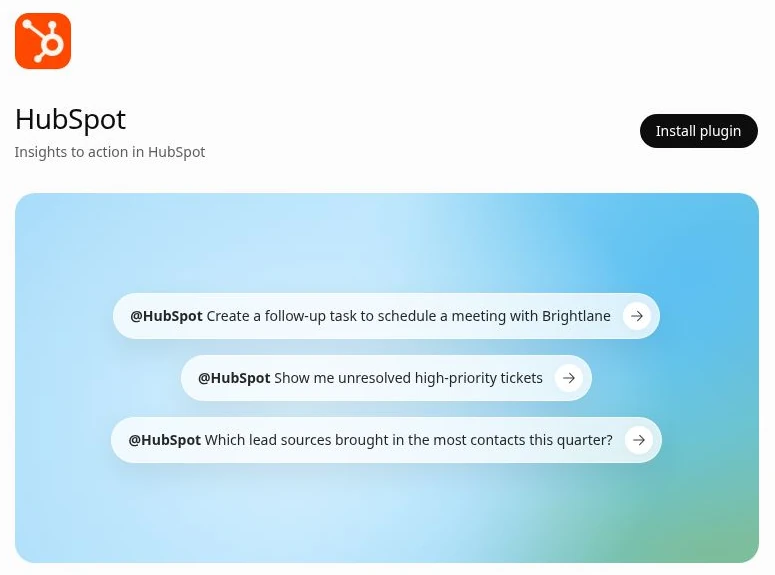
Best for: Finding pipeline issues and acting on customer records.
HubSpot’s plugin supports reading and updating accessible CRM records, including deals, contacts, companies, and tickets. The page lists skills for data hygiene, customer preparation, and pipeline health. Its sample prompts include creating follow-up tasks and inspecting unresolved high-priority tickets.
- Compare lead sources and inspect pipeline details.
- Prepare customer context or create a task tied to a record.
Try this prompt: @HubSpot Find open deals with no recent activity in the past 14 days. Return the owner, stage, last activity, and record link. Propose a follow-up task for each without creating it yet.
Try this Plugin: HubSpot
9. SharePoint for Microsoft document research
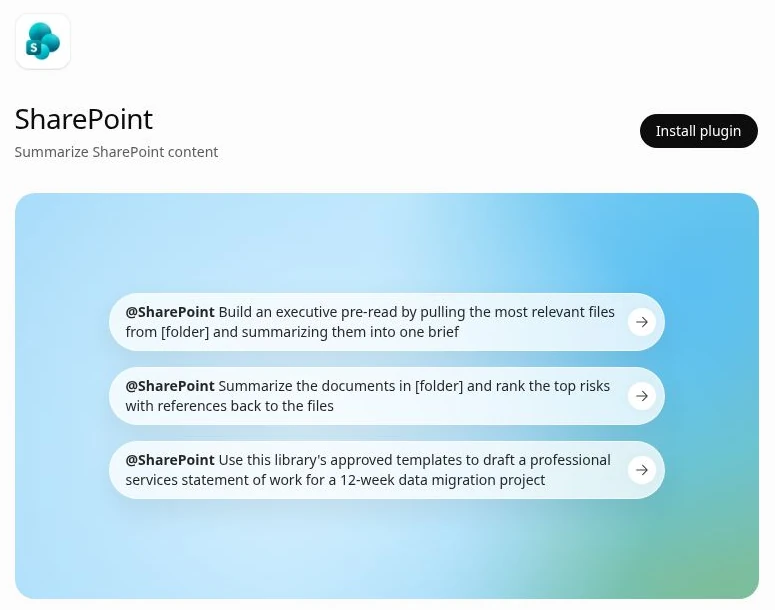
Best for: Building briefs from organizational files and approved templates.
SharePoint’s ChatGPT page covers document sites and OneDrive files, with examples for executive briefs, document risk summaries, and statements of work. It also lists folder management and resource sharing. Give ChatGPT a specific folder or document collection to keep the task focused.
- Combine relevant project files into a referenced executive brief.
- Draft from an approved template and supporting documents.
Try this prompt: @SharePoint Use [folder link] to prepare a one-page project brief. Cover scope, milestones, and the five largest documented risks. Link the evidence and flag conflicting document versions.
Try this Plugin: SharePoint
10. Gmail for email summaries and reply drafts
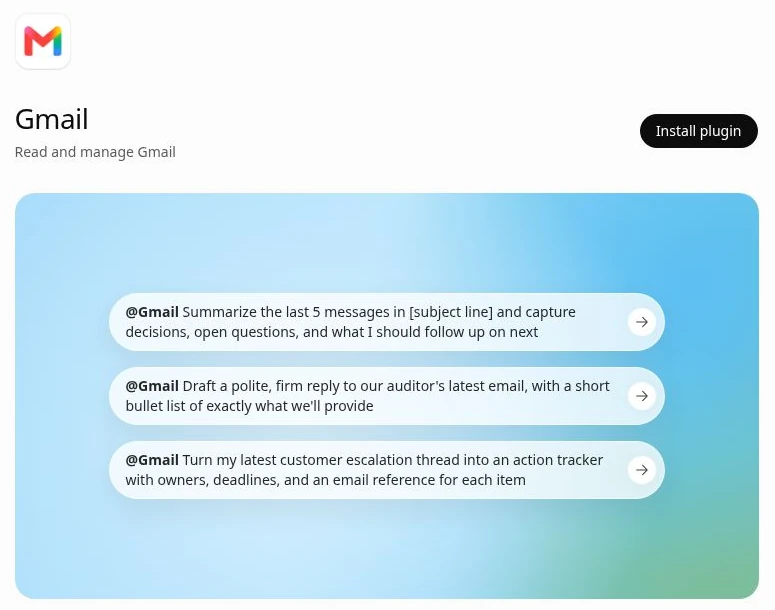
Best for: Turning long email threads into clear next actions.
The Gmail plugin’s examples cover thread summaries, reply drafting, and action trackers built from customer escalations. Its description also includes inbox activity and thread organization. Use a subject, sender, or date range to point ChatGPT at the conversation you mean.
- Summarize a thread’s decisions and unanswered questions.
- Draft a reply or extract a referenced action tracker.
Try this prompt: @Gmail Find the latest thread about [subject] from [sender]. Summarize what they need and draft a concise reply. Flag missing information and leave the message unsent.
Try this Plugin: Gmail
Where Oasis fits
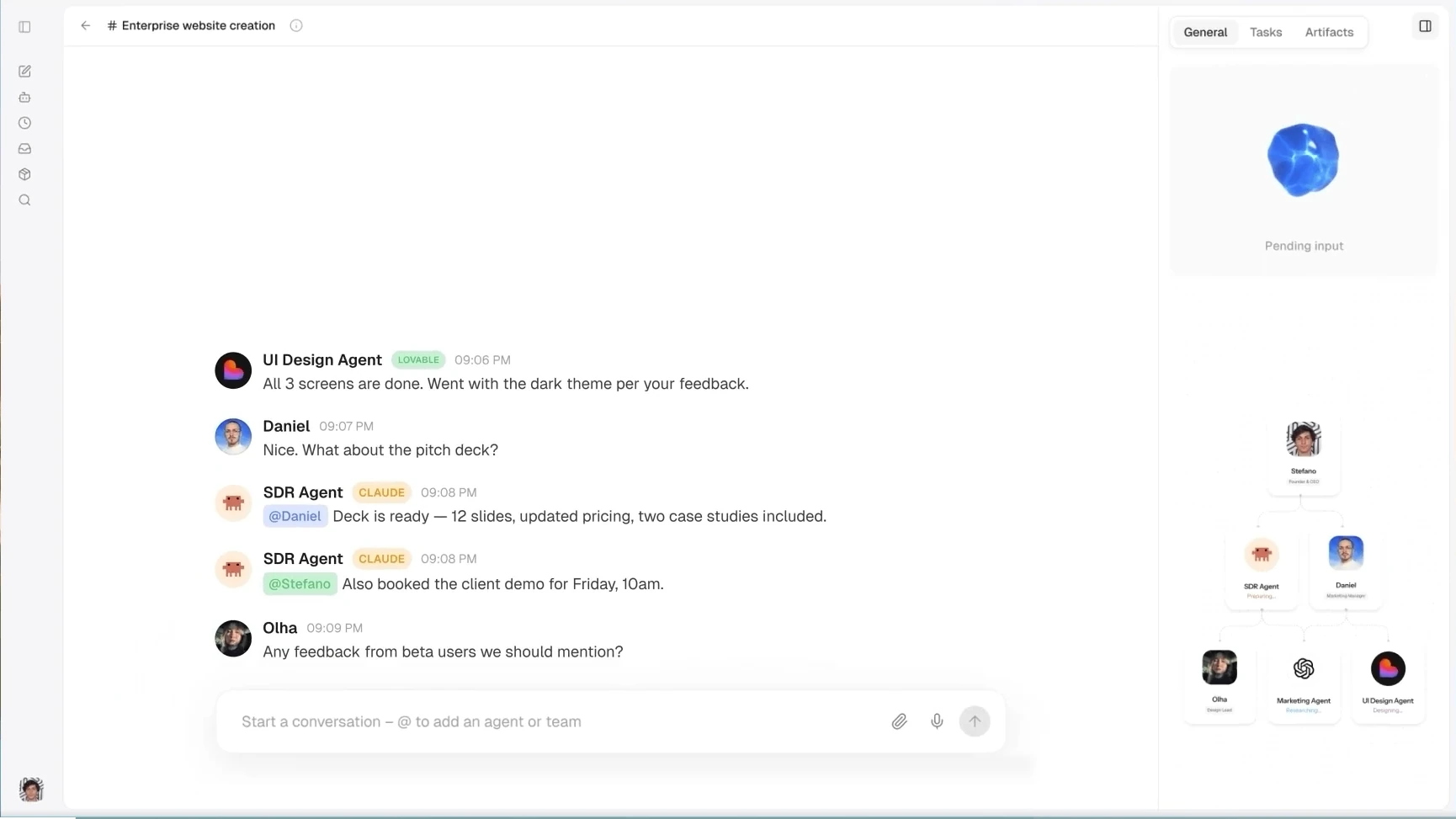
Once the work involves several teammates and agents, shared context matters. Oasis brings them into a room where they can work on the same files and keep decisions, tasks, and project context together. A useful next step is to bring a plugin-assisted brief or plan into that shared workflow for review and follow-through.
Final take
Start with the plugin connected to your daily work. Give it a specific source, a clear output, and a review point before changes are applied. Keep the connection if it consistently saves time on that task.
Frequently Asked Questions
What is a ChatGPT plugin?
A plugin adds capabilities to ChatGPT, such as connected apps and reusable skills. Its directory page lists what is included.
How do I install one?
Open its ChatGPT listing, select Install plugin, and complete the account connection. Then select the plugin in your conversation.
Does installing a plugin include a paid app subscription?
Do not assume so. Provider requirements still apply; Canva’s listing, for example, requires an eligible Enterprise plan for Bulk Create.
Can plugins change my data?
Some can create or update files, messages, tasks, and records. Check the listing and connected permissions, and review consequential changes.