

GitHub Copilot CLI is easier to use once you separate asking for code from controlling the session. A prompt tells the agent what to do. Commands let you choose the model, check the context, inspect a patch and return to earlier work.
These ten commands cover that everyday loop. Like our Codex CLI command guide, the aim is practical: know what to type, when it helps and what to check afterward. Each example below shows a command being entered and the response or interface that follows.
1. copilot -p: Run a One-Off Prompt
Use copilot -p when you need one answer and want to stay in your normal shell. A repository summary, a short explanation or a focused question fits this mode. Put the prompt in quotes so the shell passes it as a single argument.
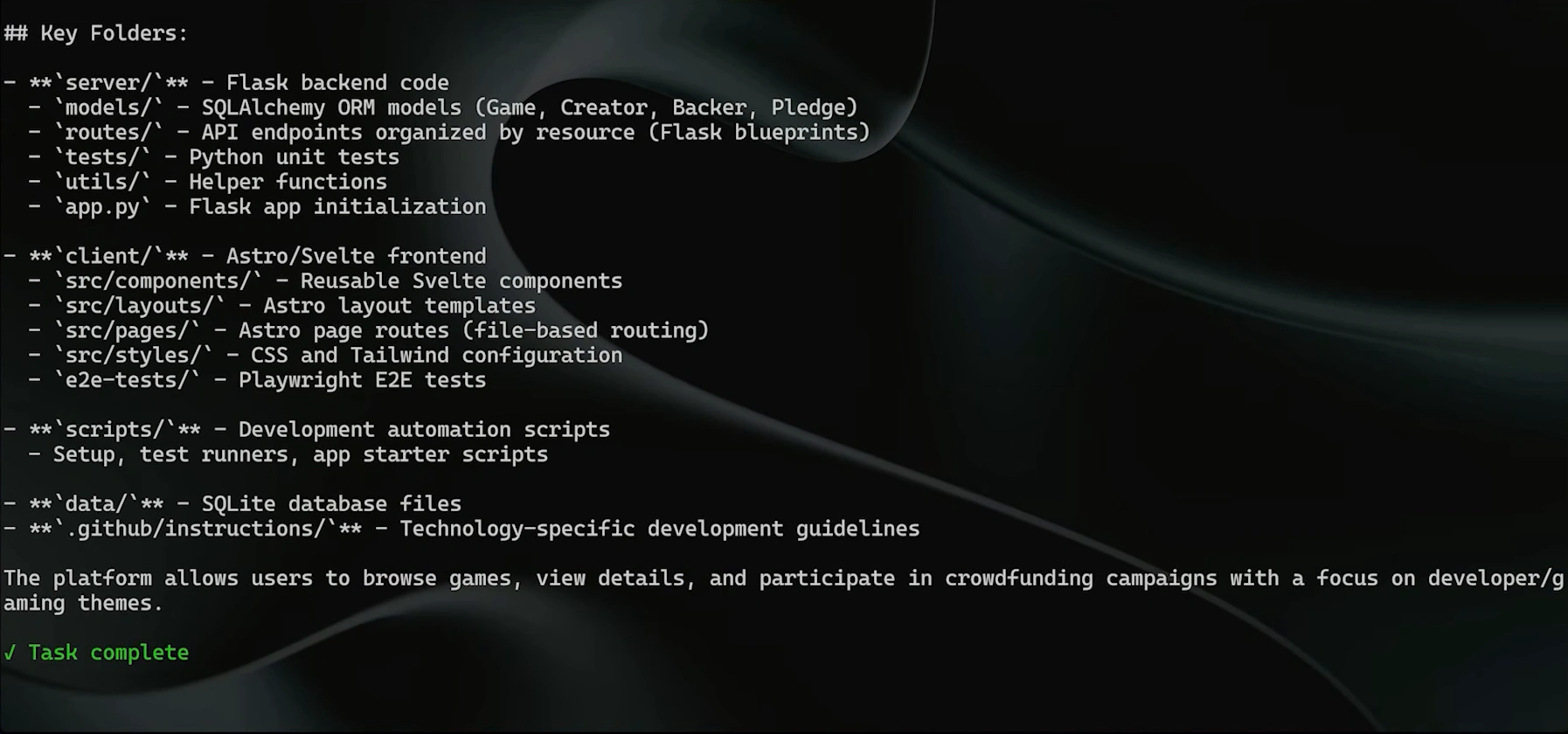
The demonstrated run inspects the repository and prints its purpose and key folders. For a task that needs several rounds of feedback, start an interactive session instead.
copilot -p "quickly summarize what this repository does and the key folders":
2. /model: Choose the Model for the Task
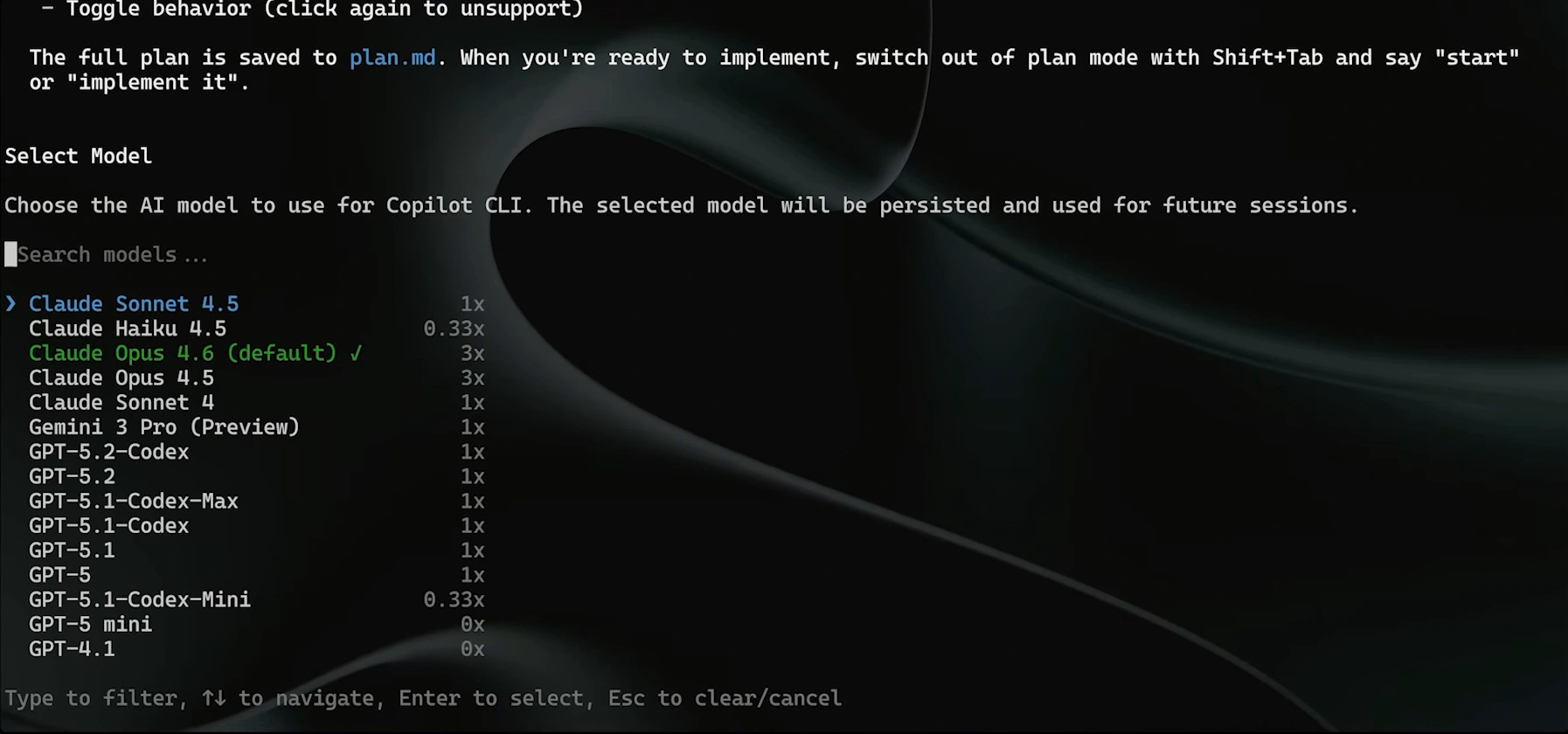
Use /model before a substantial task to check which models your session can access. The picker lets you choose an available model without restarting Copilot. A small explanation and a difficult refactor may call for different reasoning capabilities.
The list depends on your account and organization settings. Model names and billing labels in an earlier recording can differ from those shown in your installed version.
/model
3. /context: See What Is Filling the Context Window
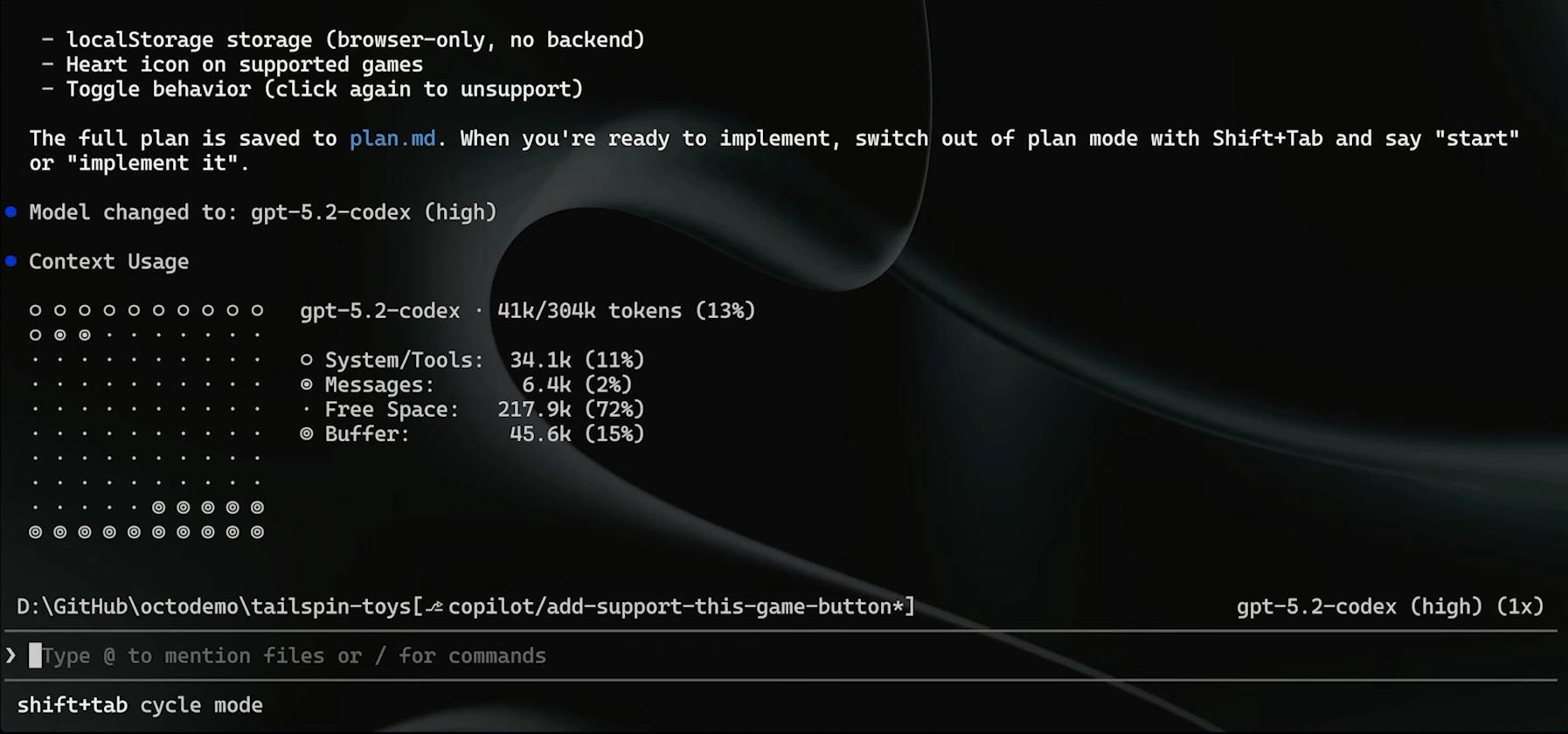
Run /context when a conversation has become long or Copilot starts overlooking earlier details. It displays the context window and a breakdown of what occupies it, including conversation messages and system or tool information.
Use the result to decide whether to continue, compact the conversation or begin a new task. The numbers describe that session and model; they are not an account-wide usage allowance.
/context
4. /compact: Make Room Without Starting Over
Use /compact when the existing conversation still matters but is taking up too much context. Copilot summarizes the history so you can continue within the same session. It is useful between stages of a larger implementation.
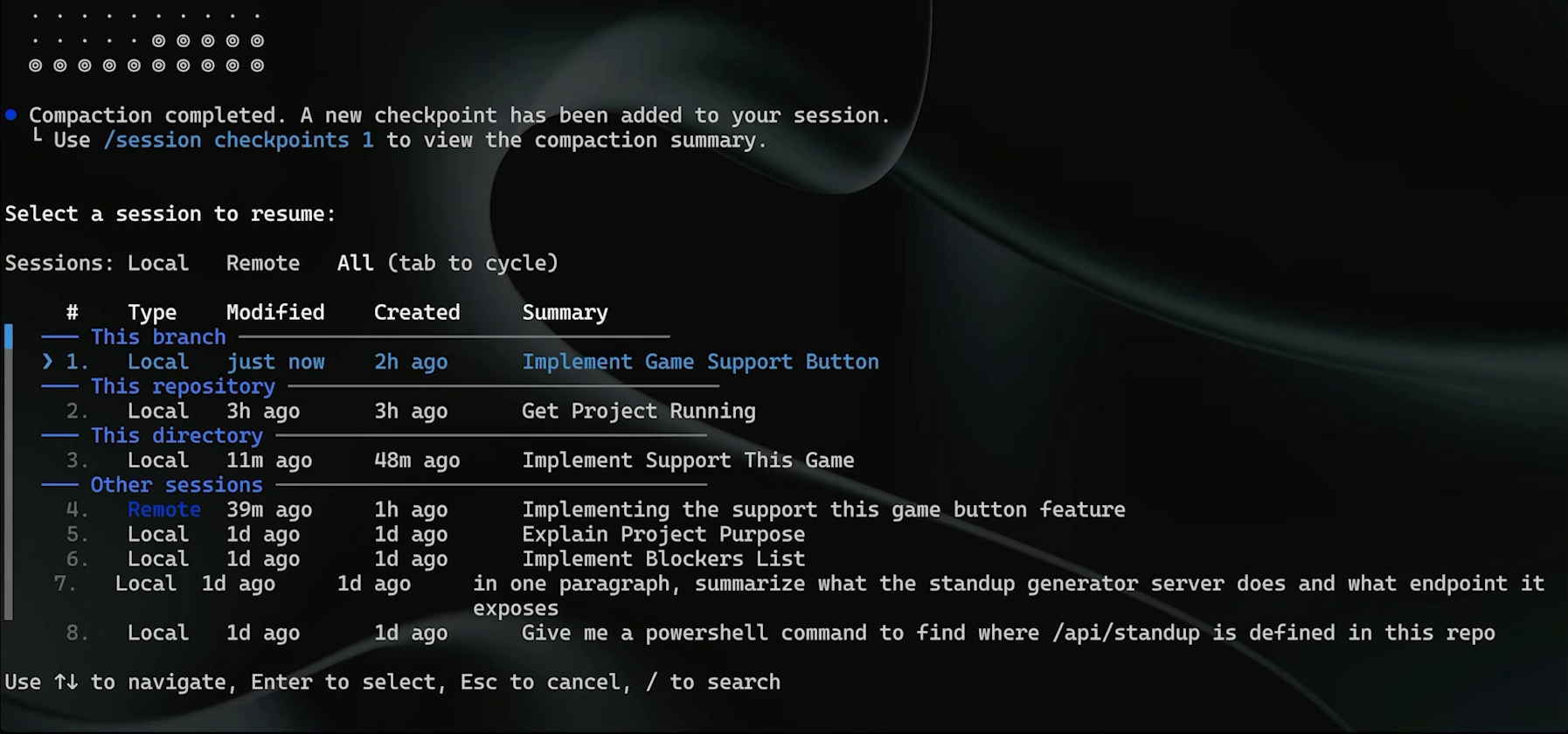
The demonstrated run finishes with a compaction-completed message and a checkpoint. A summary preserves the essentials, but precise constraints still deserve explicit instructions when the next stage depends on them.
/compact
5. /resume: Return to an Earlier Session
Run /resume when you want the history of an earlier task back in front of you. The session picker shows saved conversations, allowing you to choose the relevant work instead of rebuilding the context in a fresh prompt.
Check the repository, summary and session type before selecting a row. The demonstration switches between local and remote sessions; the choices available to you depend on the sessions your account can access.
/resume
6. /diff: Read the Changes Before Moving On
Use /diff after Copilot changes files. It opens a change viewer so you can inspect the patch directly in the terminal. Look for unexpected files, removed checks and behavior changes that were not part of your request.
The demonstrated change adds a line to README.md. Treat the viewer as a review aid: a readable patch still needs the relevant tests and your judgment before you accept the work.
/diff
7. /cwd: Change the Working Directory
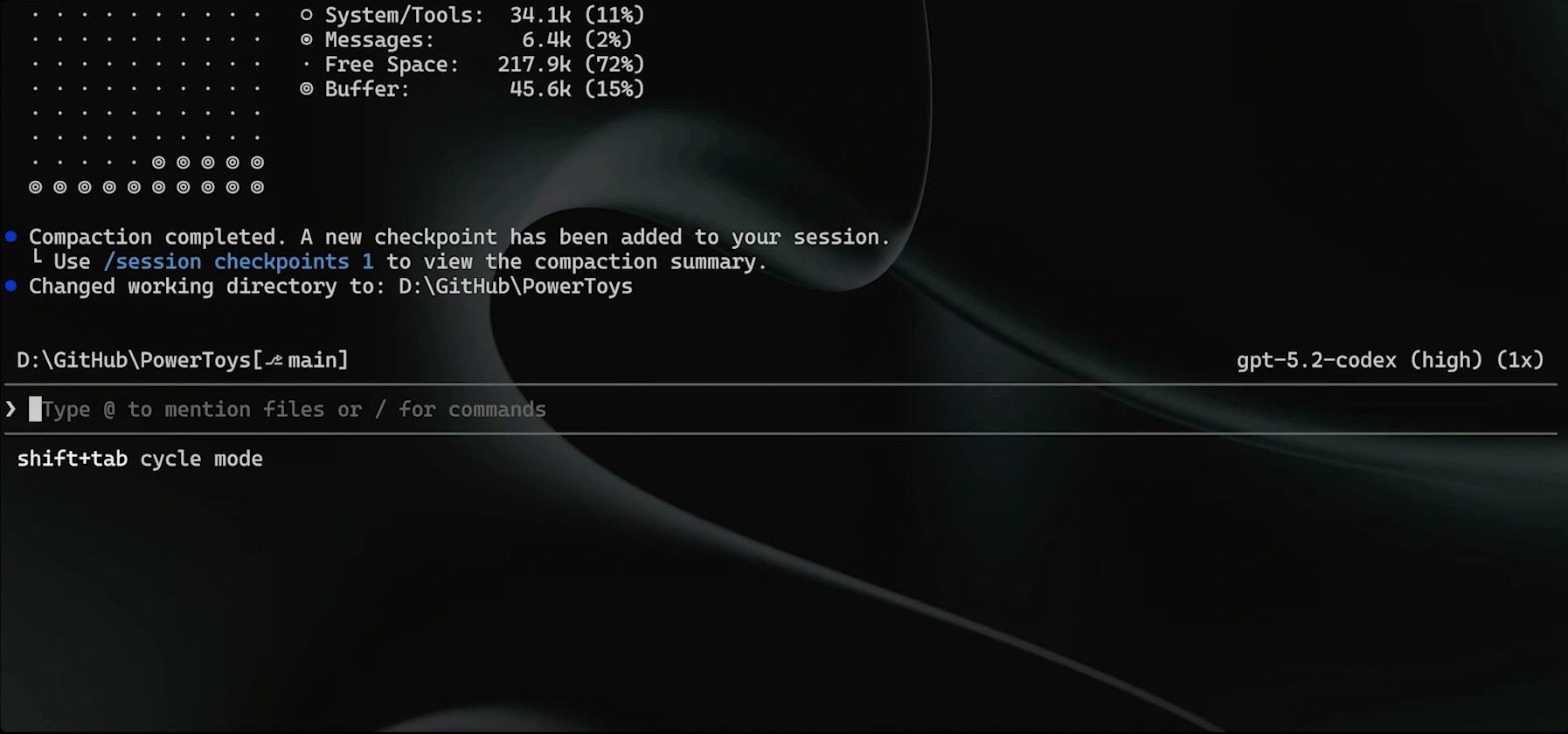
Use /cwd with a path to move Copilot to another project or directory without leaving the interface. Running /cwd without a path displays the current directory. This is useful when the next question belongs to a different part of your workspace.
The demonstration changes from the Tailspin Toys repository to PowerToys and prints the new directory. Confirm that location before asking for edits; a convincing answer can still be aimed at the wrong project.
/cwd
8. /reset-allowed-tools: Revisit Earlier Tool Approvals
Run /reset-allowed-tools when you want to clear tool approvals granted earlier in the session. It is useful after changing projects or before moving from routine maintenance to a task where you want to inspect proposed actions more closely.
The terminal confirms that the allowed-tools list has been reset. This command concerns tool approvals; it does not undo file edits or roll the conversation back to an earlier point.
/reset-allowed-tools:
9. /review: Ask for a Second Pass Over the Code
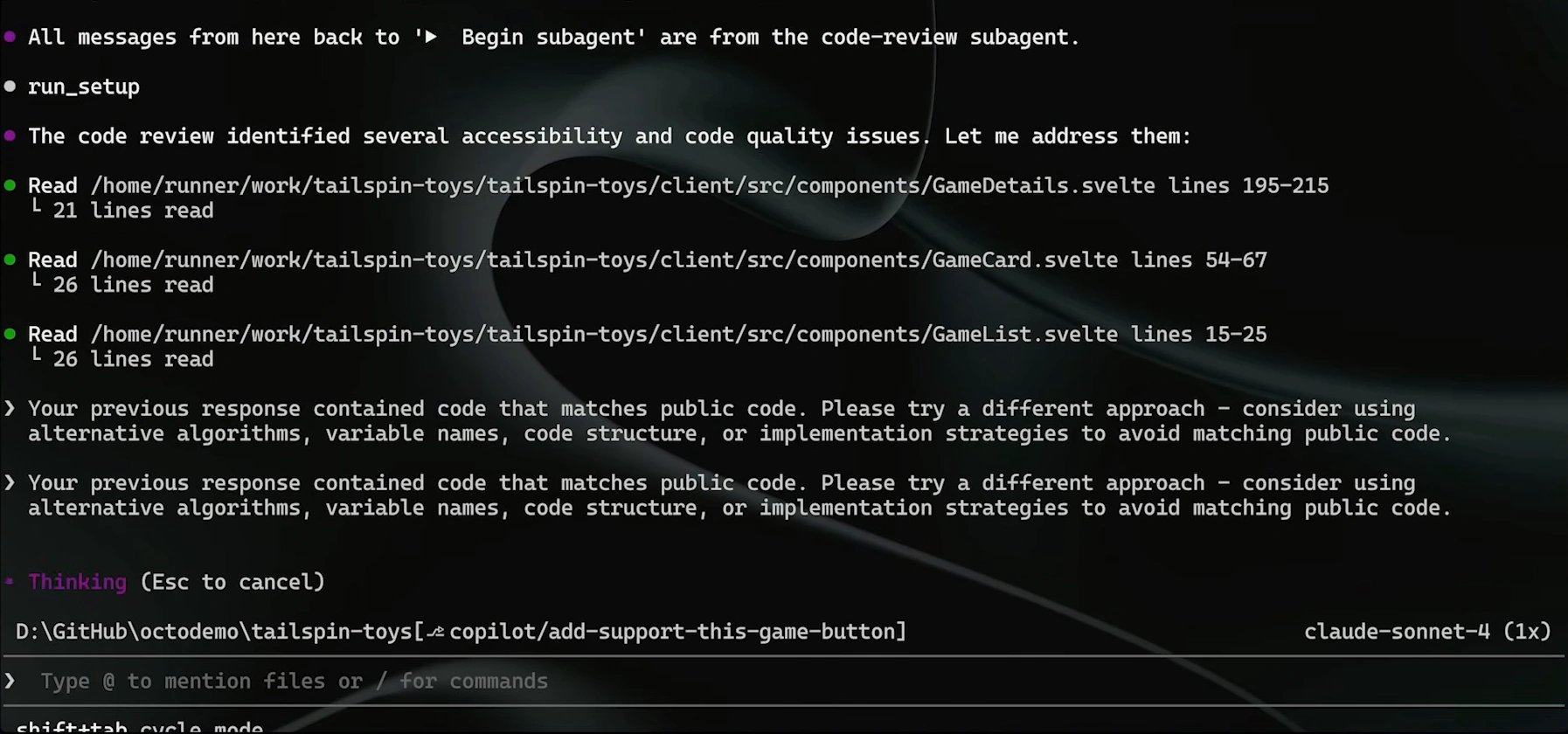
Use /review after an implementation to have Copilot examine the code for problems. You can supply a prompt to focus the review on a concern such as error handling or a particular change. The command starts a review workflow inside the terminal.
In the demonstrated run, the review identifies accessibility and code-quality issues. Read the findings before applying fixes, and validate the changed behavior; an automated review is another perspective on the patch.
/review
10. /mcp: Inspect Connected Tools
/mcp
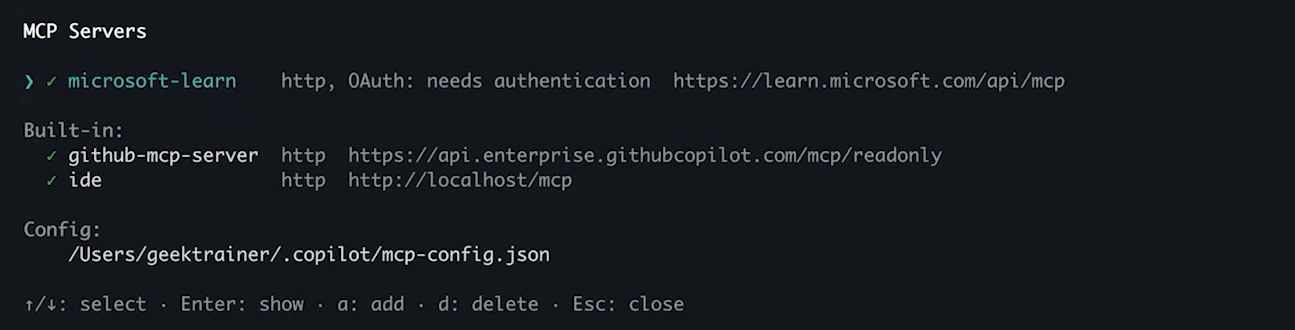
Run /mcp when a task depends on an external tool or you need to inspect the available server connections. The manager exposes MCP configuration and management options. It gives you a concrete place to check whether the required integration exists.
The demonstration lists configured servers before opening the add-server flow. Choose trusted connections and understand their permissions. Our guide to how LLMs connect to external tools explains why this connection changes what an assistant can do.
/mcp
Common Mistakes to Avoid When Using Copilot CLI
Copilot CLI can speed up development, but a few habits can lead to unnecessary errors. Running commands in the wrong directory may affect unintended files, while accepting changes without checking /diff can leave problems unnoticed.
Long sessions can also lose important details after compaction, so restate critical requirements when needed. Before approving tool access, check what the agent can execute or modify. Treat generated code and automated reviews as starting points, not substitutes for testing.
Frequently Asked Questions
Where do slash commands run?
Inside an interactive Copilot CLI session. Commands beginning with copilot run in your normal shell.
Does /compact delete the conversation?
It summarizes history to reduce context use, allowing the session to continue.
Can /diff replace tests?
No. It helps you inspect changes; tests check whether the relevant behavior works.
Why is my model list different?
Availability depends on your account, organization settings and the models supported by your CLI version.