

Save a recurring task as a ChatGPT skill, then reuse it with fresh input. We built Meeting Follow-up to turn notes into decisions, action items, and an email draft. This visual walkthrough shows the setup and actual results.
Before you start: ChatGPT Skills cannot be created or used on a free personal account, as the feature is restricted to paid work or business tiers (such as Business, Enterprise, Healthcare, and Edu plans).
Method 1: Create Skills conversationally
1. Open the creator. Go to Plugins → Skills.
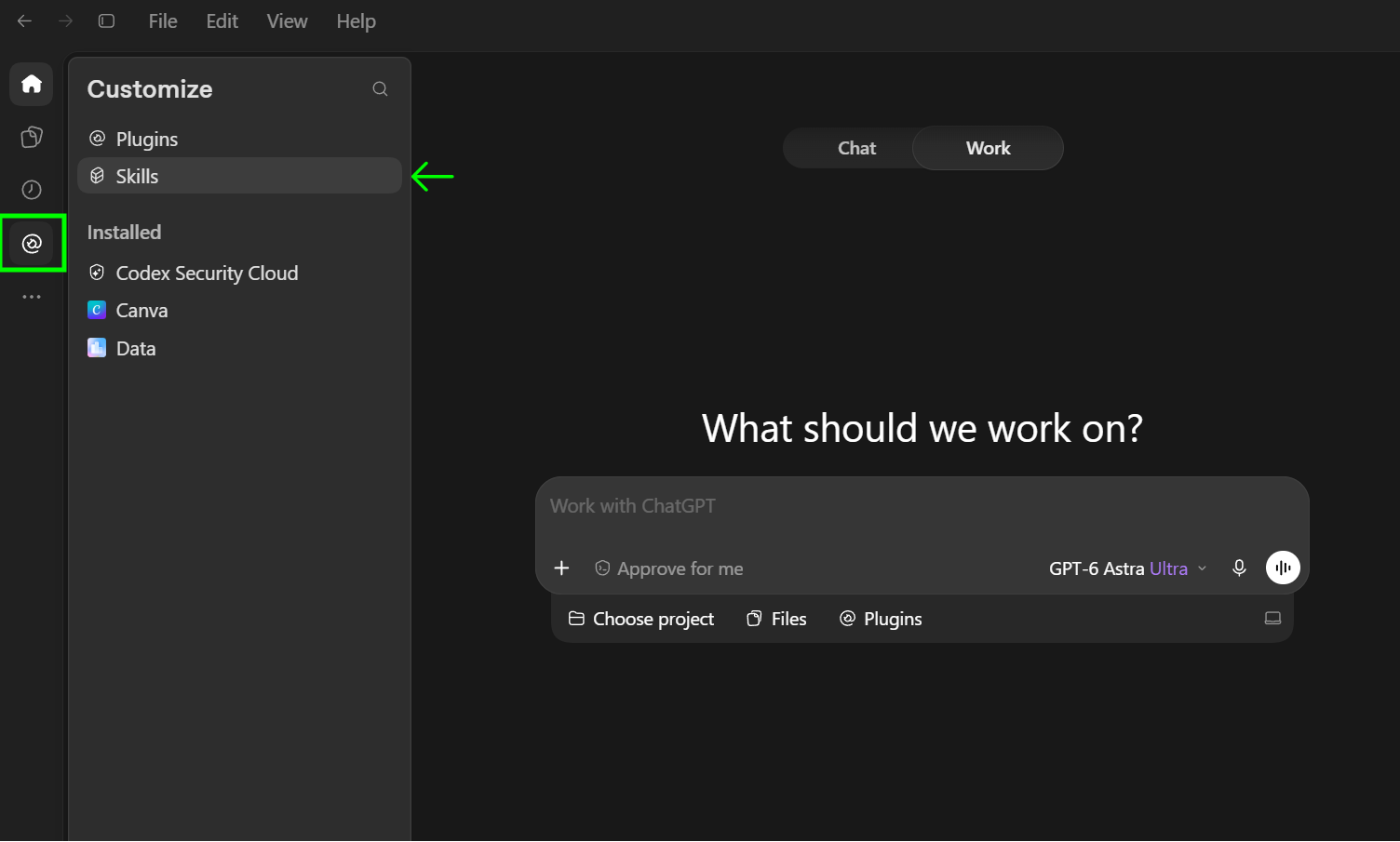
Get to the skills page
- Click on Add to add a skill.
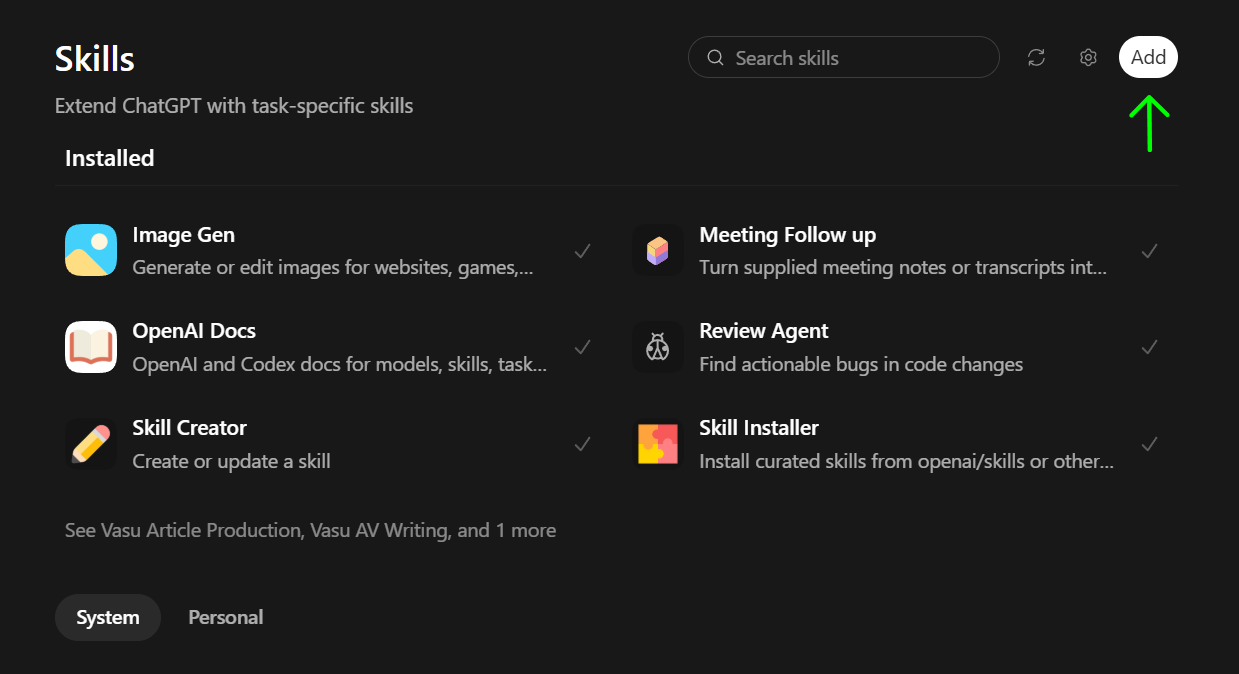
- The skill creator module would be loaded (underlined in green). Now you can describe the type of skill that you want, what it is supposed to do and all that.
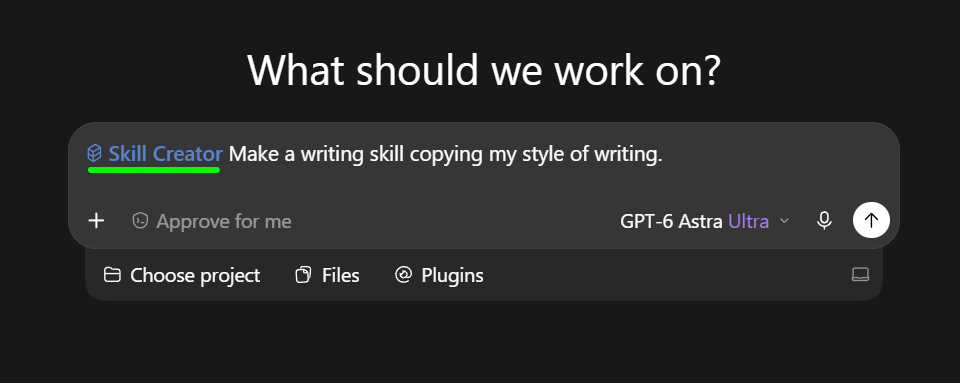
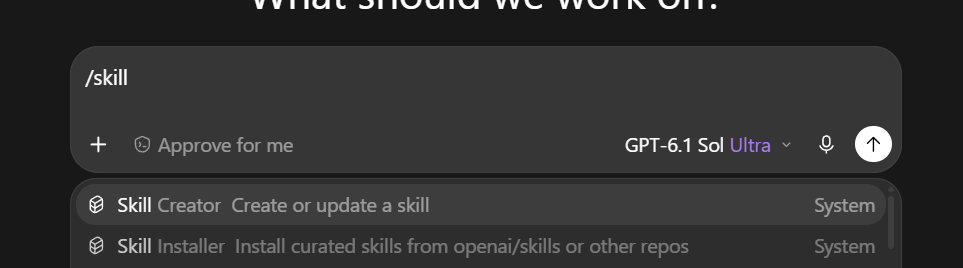
Desktop shortcut: Type /skill, then select Skill Creator if it appears. This command works only if you’re running it on the desktop app.
Method 2: Build Skills in the editor
Here’s the more comprehensive method of building a skill from scratch.
- Open the skill builder
Open Plugins → Skills from ChatGPT’s sidebar. Select + Add skill → Create with editor. The Create with chat option returned an error in our test; the editor worked.
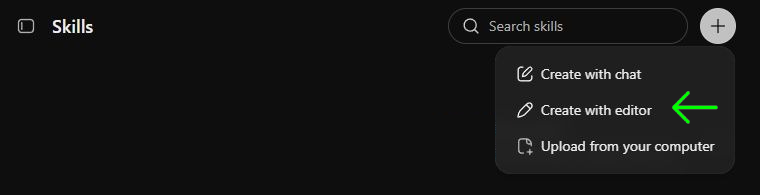
Select Create with editor from the menu beside the search field.
The following window opens up
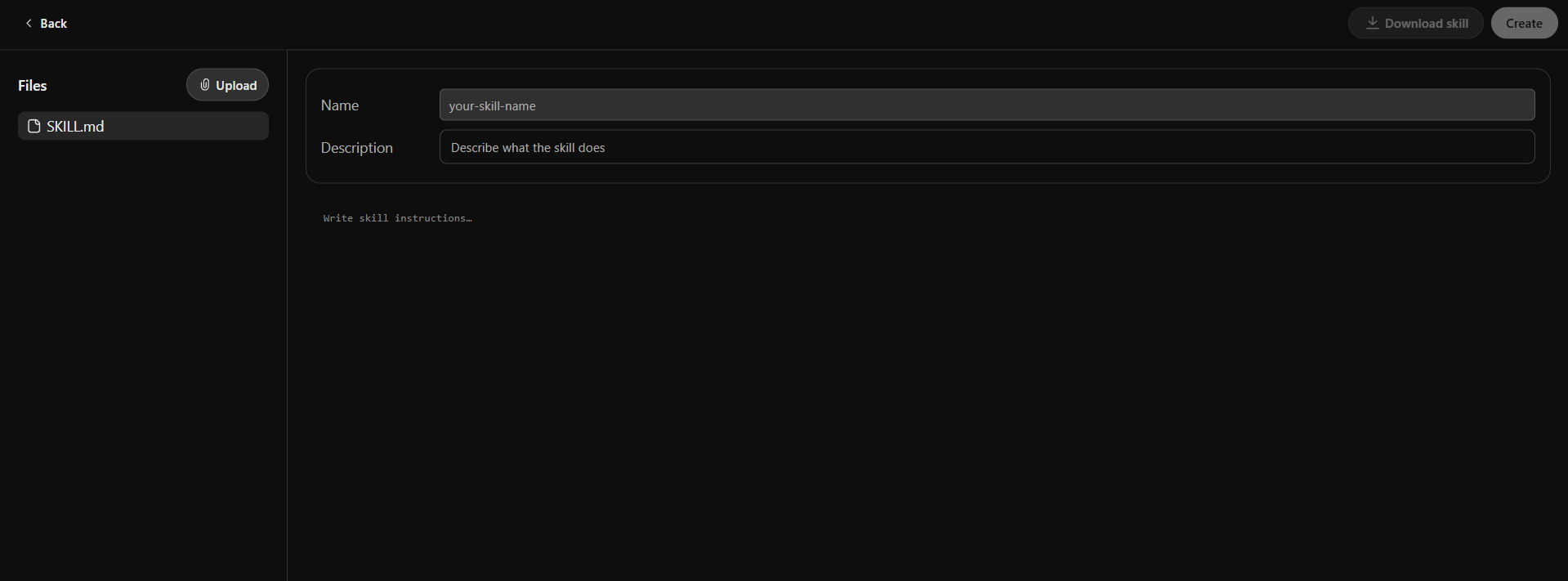
- Name the workflow
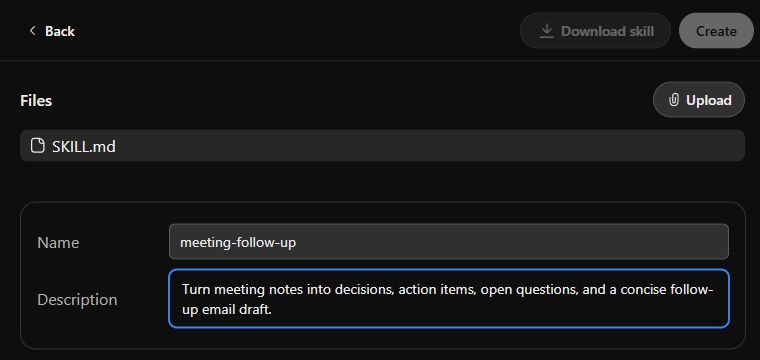
Fill in the two fields:
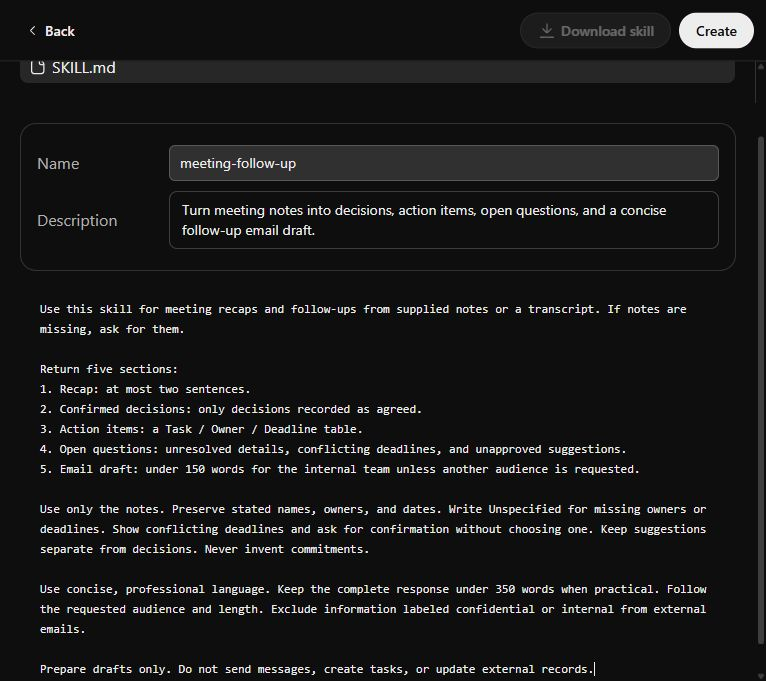
Name: meeting-follow-up

Description: Turn meeting notes into decisions, action items, open questions, and a concise follow-up email draft.
- Add the instructions
Add detailed instruction about what to do and how to do it. Here are the instructions for my meeting skill:
Use this skill for meeting recaps and follow-ups from supplied notes or a transcript. If notes are missing, ask for them.

Return five sections:

1. Recap: at most two sentences.
2. Confirmed decisions: only decisions recorded as agreed.
3. Action items: a Task / Owner / Deadline table.
4. Open questions: unresolved details, conflicting deadlines, and unapproved suggestions.
5. Email draft: under 150 words for the internal team unless another audience is requested.

Use only the notes. Preserve stated names, owners, and dates. Write Unspecified for missing owners or deadlines. Show conflicting deadlines and ask for confirmation without choosing one. Keep suggestions separate from decisions. Never invent commitments.

Use concise, professional language. Keep the complete response under 350 words when practical. Follow the requested audience and length. Exclude information labeled confidential or internal from external emails.

Prepare drafts only. Do not send messages, create tasks, or update external records.
- Confirm installation and open the skill
After creation, select Back. Our skill appeared under Installed, with its display name shown as “meeting follow up.”
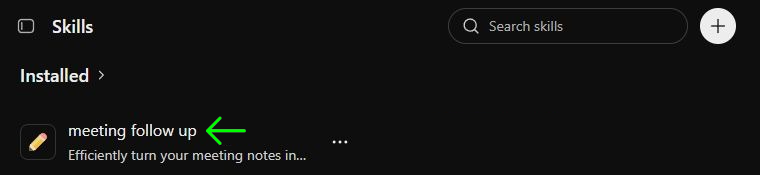
Check Installed tab to confirm the skill is ready to use.
Open its card, then select Try in chat. ChatGPT starts a conversation with the skill selected.
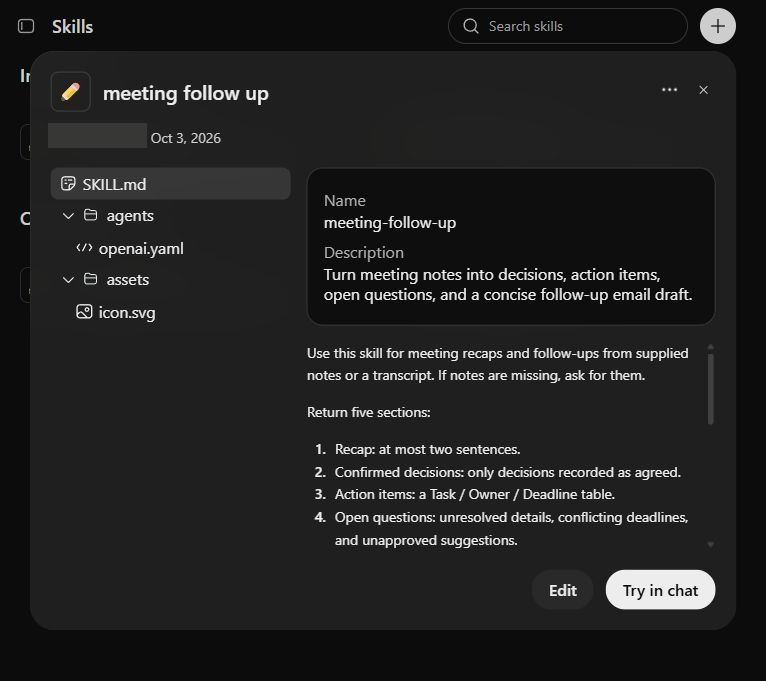
Try in chat is at the bottom right of the skill’s detail view.
Using Skills in ChatGPT
Now that our skills has been made, let’s try it on a task:
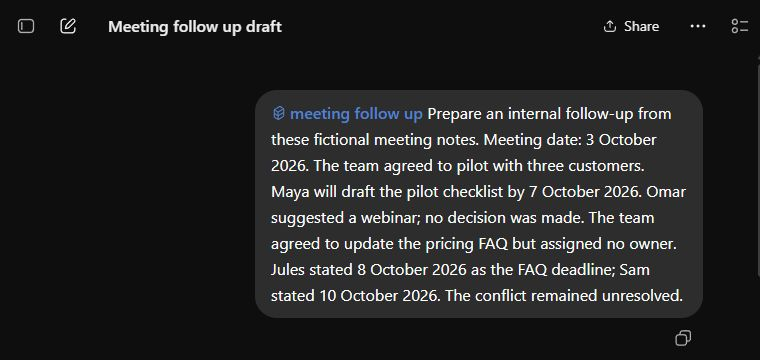
The blue skill label confirms which workflow the test used.
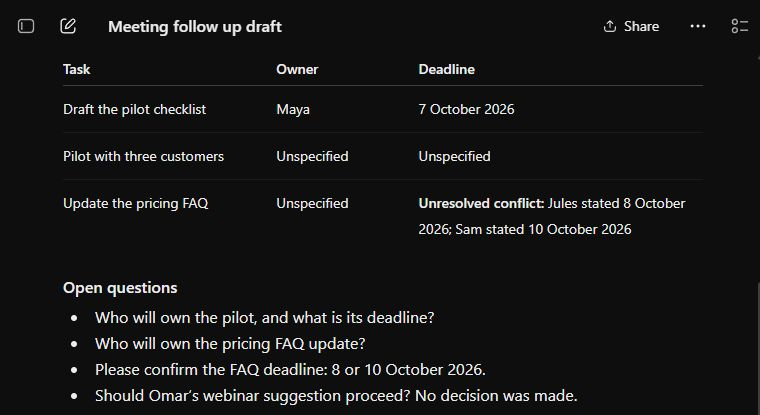
The skill also produced an email under 150 words. It retained the unresolved details for the team to clarify.
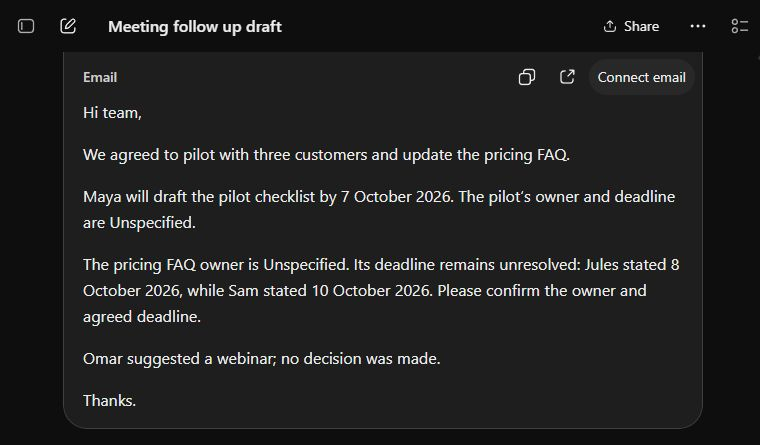
The email is ready to review.
This shows that the skill was made according to requirements and performed the task intended. To confirm this, you can try giving ChatGPT the same task without activating the skill. The difference in response quality would be recognizable.
Conclusion
ChatGPT Skills allow you to automate multi-step workflows by encapsulating tailored system prompts and operational logic into reusable modules. By replacing manual prompt engineering with defined instruction sets, you ensure consistent outputs across complex tasks like meeting recaps. In this blog, we explored how to build, configure, and test custom skills using the editor. Try setting up your own recurring task to streamline daily operations.
Frequently Asked Questions
What are ChatGPT Skills and how do they work?
ChatGPT Skills are modular, custom instruction sets that standardise routine workflows. They package prompts and formatting rules so you can trigger structured tasks consistently without re-entering instructions.
Who can access ChatGPT Skills?
Skills are available to eligible ChatGPT Business, Enterprise, Healthcare, and Edu workspace accounts, depending on workspace settings and admin permissions enabled by OpenAI.
How do I edit an existing ChatGPT Skill?
Navigate to Plugins → Skills, select your skill under Installed, click Edit, update the instructions or parameters, and click Save changes.
Can ChatGPT Skills execute external tasks or send emails automatically?
No, skills generate structured draft responses within the chat window. They do not execute external actions like sending emails or updating databases without separate API integration.