

Want to run AI models directly on your computer without relying on an internet connection? Whether you're rewriting drafts, summarizing documents, or experimenting with local AI, tools like LM Studio make the process surprisingly accessible. The key is choosing a model that works with your hardware.
In this article, we'll walk you through installing LM Studio, downloading and running your first AI model, and testing its capabilities. We'll also cover common troubleshooting steps and explore Ollama as an alternative for those who prefer the terminal.
TLDR: Install LM Studio, download a supported instruction model in a suitable quantization, open it in the Chat tab and send a prompt. Finish the downloads before going offline. The walkthrough below uses Qwen3 4B Instruct 2507 as a modest starting example.
What runs on your computer
A local AI setup has a few separate jobs. The model supplies the learned parameters, usually called weights. A runtime loads those weights and performs the calculations that generate an answer. The app gives you a place to type, manage conversations and choose settings.
LM Studio brings those pieces together. Its supported runtimes include llama.cpp, which can work with GGUF model files. You do not have to build an inference engine to use the chat interface. LM Studio explains the setup here, and the llama.cpp project documents its hardware and model-format support.
Your hardware now carries the workload. Storage holds the downloaded files. RAM holds data while the model runs; a dedicated GPU has its own memory, called VRAM. On Apple Silicon, the CPU and GPU share unified memory. Available memory affects what you can load, while the hardware and settings affect how quickly it answers.
The useful question is whether a model gives acceptable results at a speed you can live with. A bigger model that makes your laptop struggle is a poor starting point.
Check your computer before downloading
Look up your RAM, processor and operating system. If you have a dedicated graphics card, also check its VRAM. Then compare your machine with LM Studio's current requirements.
| Computer | What to check |
|---|---|
| Apple Silicon Mac | macOS 14 or newer; 16 GB or more RAM is recommended |
| Windows x64 PC | AVX2 CPU support is required; 16 GB RAM and 4 GB dedicated VRAM are recommended |
| Linux computer | Check the supported architecture and distribution; the app is distributed as an AppImage |
The recommended memory figures are starting guidance, not a promise that every model will fit. LM Studio says an 8 GB Mac may work with a small model and modest context. Intel Macs are currently unsupported by this app.
Leave memory for your operating system and other apps. Also leave disk space beyond the model download so you can install the runtime and keep working normally.
Start small: Get one model working before buying hardware or filling your drive with downloads. For this walkthrough, try a 4B instruction model at Q4_K_M, provided the app's compatibility guidance and your available memory allow it.
Set up your first model in LM Studio
The video frames below show LM Studio 0.4.21 and different models. Use them to locate the controls, then follow the exact Qwen3 4B repository and settings in this walkthrough. The download-page screenshot shows the current desktop installer.
Step 1: Install the desktop app
Open the official LM Studio download page and find the Download LM Studio section. Choose your operating system and processor architecture, then download the desktop installer. The same page also offers Bionic and llmster; the interface used in this walkthrough is the LM Studio desktop app.
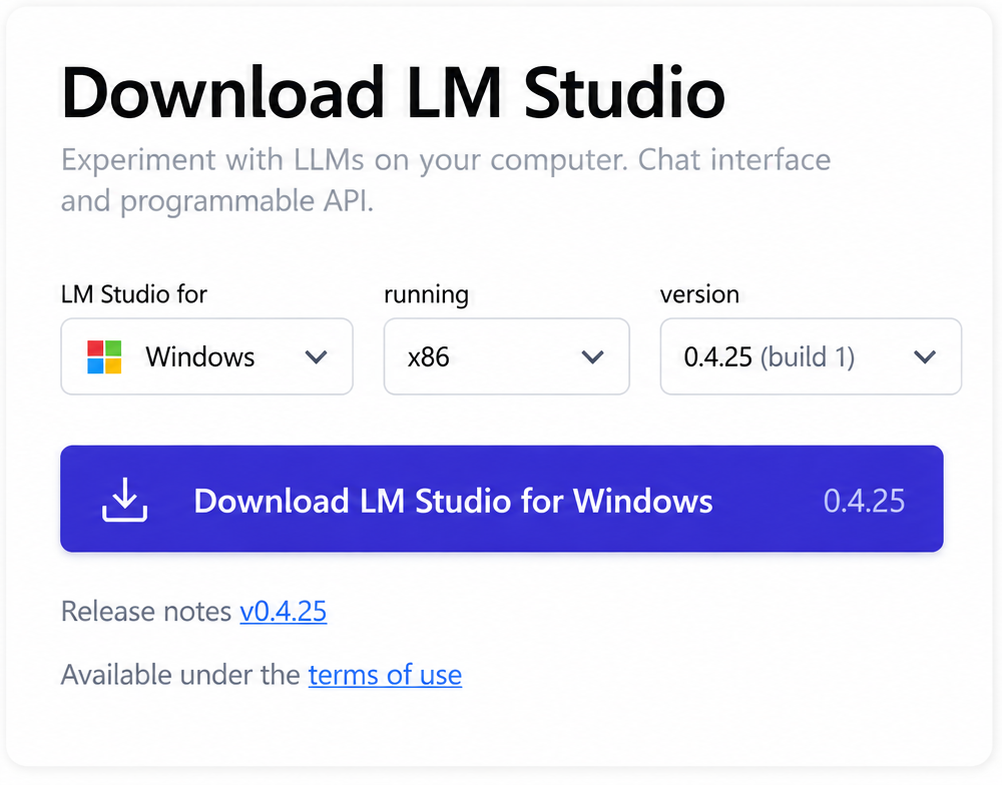
Install it, open the app and finish any required runtime downloads while you still have internet access.
Step 2: Find the exact model
Open Discover. LM Studio lets you search by keyword, a repository name or a full Hugging Face URL, as its download guide explains.
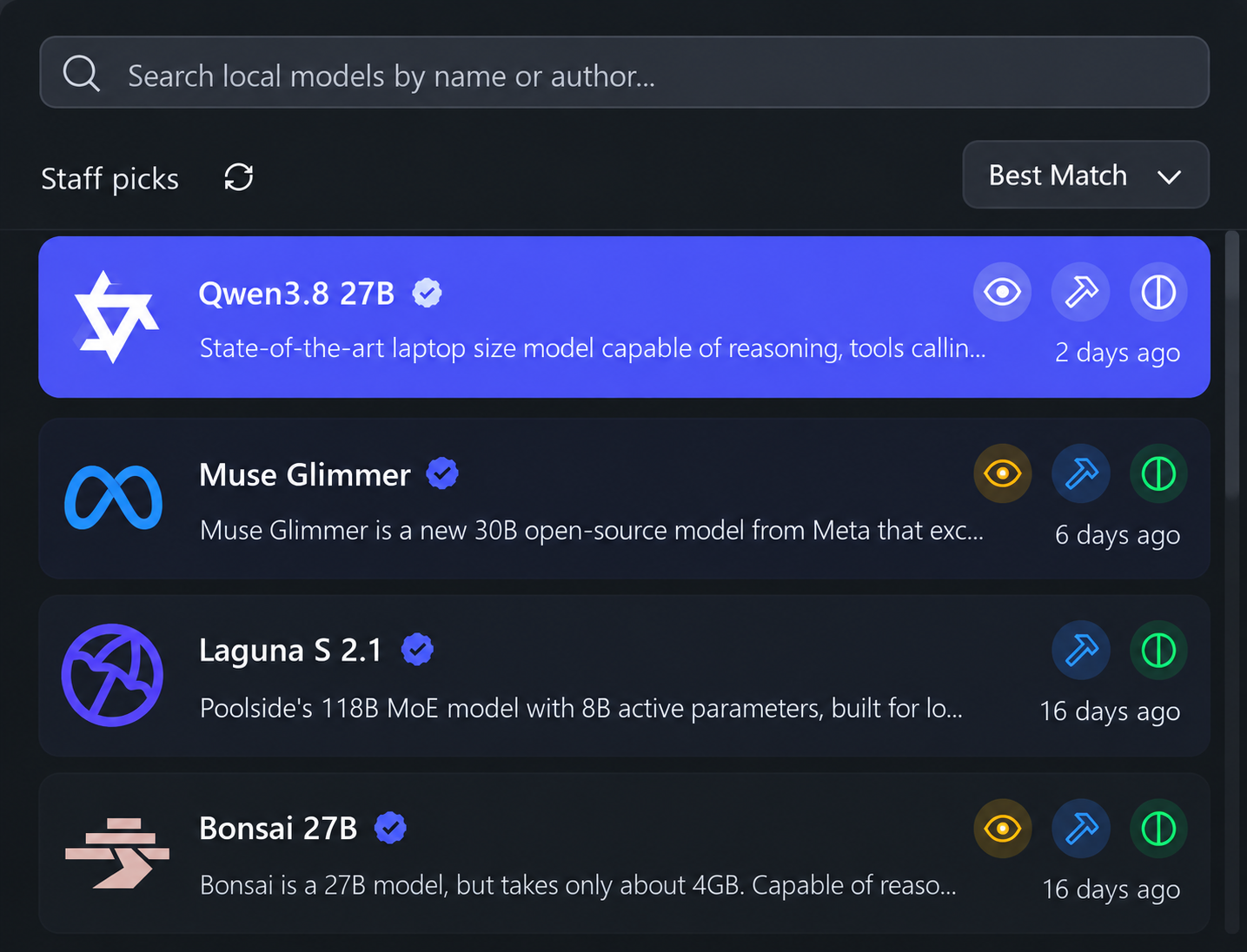
Paste this repository URL into the search field:
https://huggingface.co/lmstudio-community/Qwen3-4B-Instruct-2507-GGUF
This is an LM Studio community distribution of Qwen's model. Check that the result says Qwen3-4B-Instruct-2507-GGUF before downloading. The repository page is also useful if several similarly named options appear.
We are using it as a manageable example for learning the workflow. You can evaluate newer or larger models once you have a working baseline.
Step 3: Choose the download size
Select the Q4_K_M version. The repository lists this download at about 2.5 GB. That is the file size, not the complete amount of memory the running model will use.
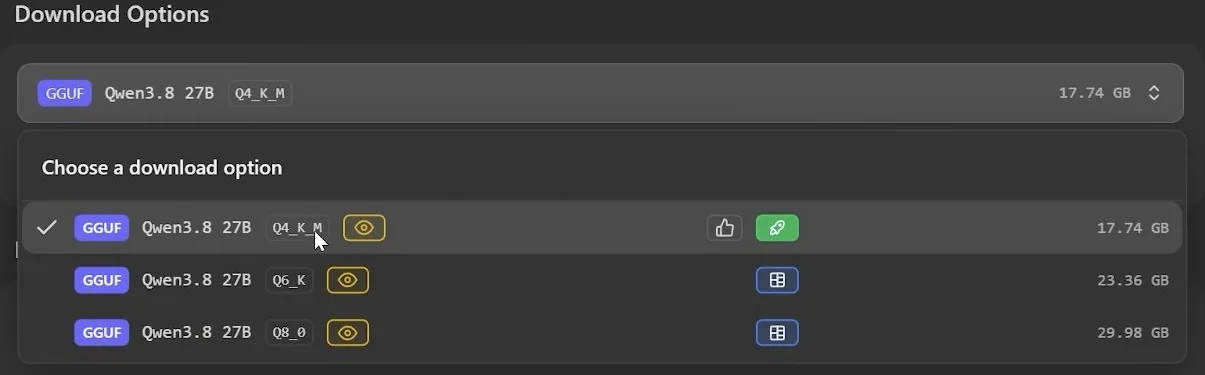
Here is what the name tells you:
| Name component | What it means for this setup |
|---|---|
| Qwen3 | The model family |
| 4B | Roughly four billion parameters |
| Instruct 2507 | This particular instruction-following release |
| GGUF | A file format supported by the llama.cpp runtime |
| Q4_K_M | A quantized version using roughly 4-bit weight precision |
Quantization stores weights at lower precision to reduce the model's size and memory needs. It can affect answer quality, so the smallest download is not automatically the best choice. Q4_K_M is the starting option here; check the available variants before choosing something else.
Qwen's original model card identifies this release as a non-thinking model. Choosing the exact Instruct release keeps the first exercise straightforward.
Start the download and let it finish. If the app indicates that the model is unsuitable for your machine, choose a smaller supported instruction model instead of forcing the load.
Step 4: Load it into memory
Go to Chat, open the model loader and select the downloaded model. Downloading puts the files on disk; loading makes the model available to generate answers.
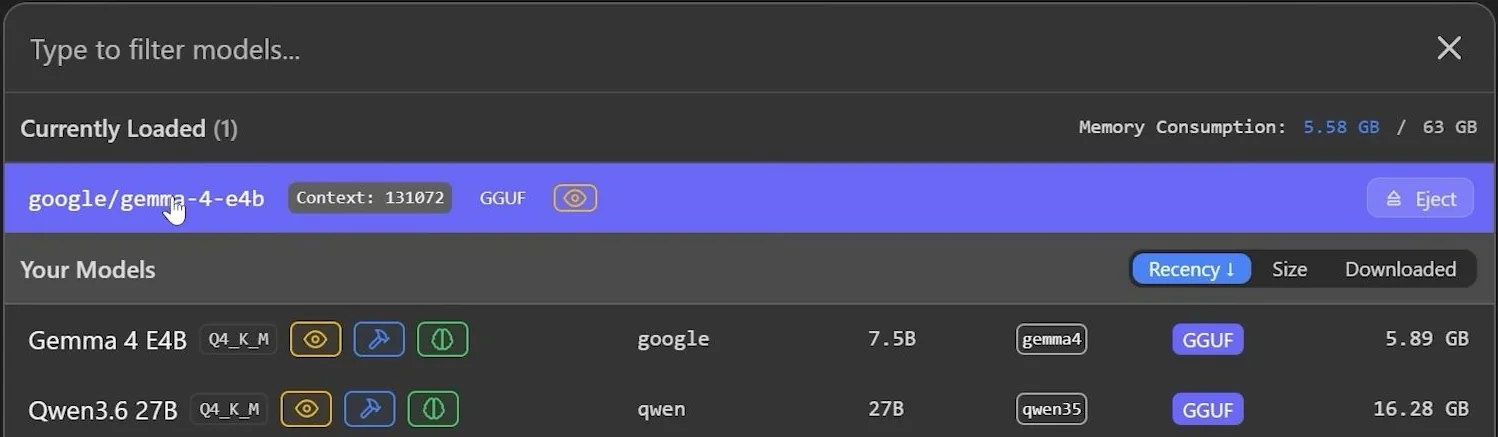
Keep the default load settings for the first attempt. If you need to reduce memory use, open My Models, click the gear icon for this model, open its Load tab and set Context Length to 4,096 tokens. Load the model again to apply the change. LM Studio documents this path in its per-model settings guide.
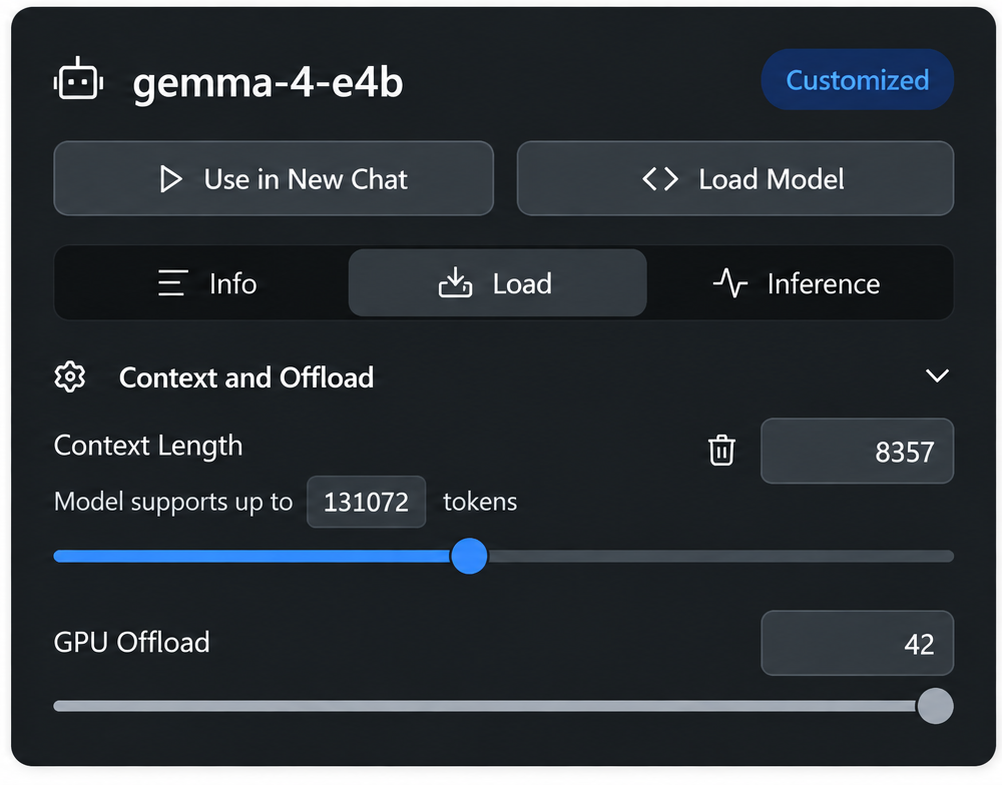
That context size is a modest tutorial starting point, not the model's maximum capacity.
Context is the amount of text the model can consider during a response, including conversation history and supplied material. Larger context settings can require more memory. LM Studio's loading documentation covers context length, GPU allocation and resource estimates.
Wait for loading to complete, then check that the selected model appears in Chat. Give it one short request before opening a long document or changing several settings.
Step 5: Send a prompt you can verify
Start a new conversation using the new-chat control in the Chats sidebar. Depending on your app version, it appears as a compose icon or +. Confirm that your model is selected.
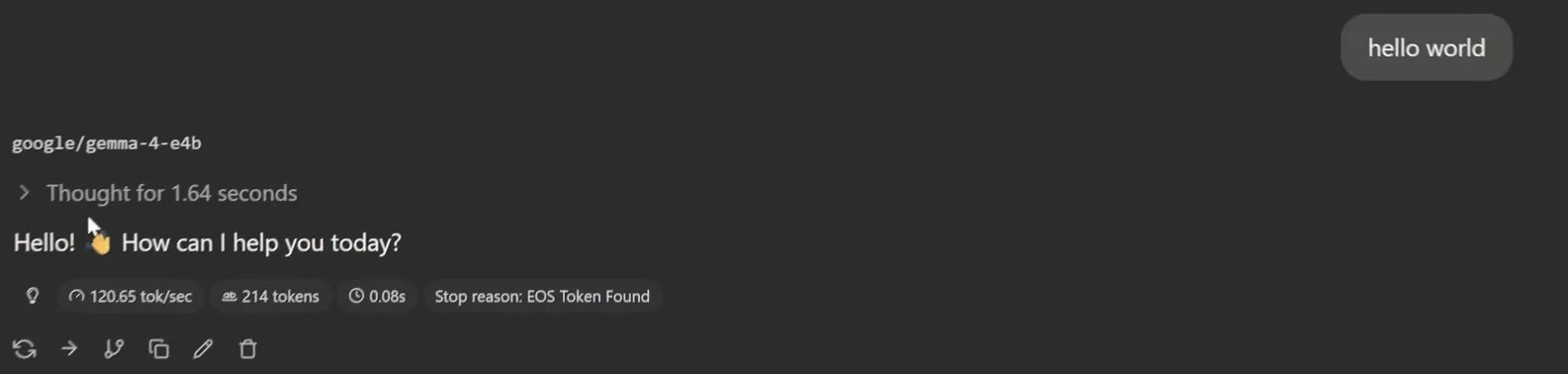
Paste this exercise into the message composer and send it:
Turn these notes into a client update of no more than 80 words.
Preserve every date and number. Do not add commitments.
The website draft is ready. The client review is on 12 November.
Two pages still need photographs. We need feedback by 15 November.
The launch date has not been confirmed.
The answer should preserve both dates, mention the two pages and keep the launch date unconfirmed. Count the words and check whether it invents a promise.
A response confirms that the model has loaded and can generate text. Passing this exercise gives you a small, useful quality check. It does not establish how well the model will handle every task.
If the answer misses a detail, ask for a correction. If it repeatedly fails your actual work, compare another model using the same input. Keep the test consistent so you can see what improves.
Step 6: Check that it works offline
After the app, runtime and model downloads have finished, open the model loader and confirm that your downloaded model appears under Currently Loaded.

Disconnect your internet connection, including Ethernet if you use it. Start another chat with the downloaded model and send a short prompt.
You should still get an answer. According to LM Studio's offline documentation, local chat and document processing can work without internet access. Searching for new models, downloading runtimes and checking for updates require connectivity.
This verifies that your chat can operate offline. It does not audit everything the app might do when connected. Keep cloud features and external tools outside this exercise; those can make their own network requests.
Step 7: Give it a short document
Create a small text file containing notes you already understand. Use the chat's attachment control, or drag the file into the message composer. The paperclip in the screenshot below shows where attachments enter the conversation.

Use the paperclip in the message composer to attach your notes. This official screenshot shows an earlier LM Studio interface. Screenshot: LM Studio chat documentation.
After attaching the file, try this prompt:
Using only the attached notes, list the decisions, unresolved questions
and next actions. Support each decision with a short exact quotation.
If an owner or deadline is missing, say it is not specified.
Compare the answer with the file. Check the quotations, owners and deadlines rather than judging it by how polished it sounds.
LM Studio supports TXT, PDF and DOCX attachments. Its document guide explains that short files can be included in full, while longer files may use retrieval to select relevant passages. Begin with a short, readable file so you can check the whole result.
Attaching a file supplies context for the conversation. It does not train the model or make it permanently learn your notes, as the chat documentation clarifies.
Fix the common problems
Change one thing at a time. If you switch the model, context length and hardware settings together, you will have a harder time finding the cause.
| Problem | First thing to try |
|---|---|
| The model will not load | Close memory-heavy apps, lower context length or choose a smaller model |
| Answers arrive too slowly | Try a smaller model and check whether the supported GPU is being used |
| A download is missing from Chat | Confirm the download finished, then select it in the model loader |
| The model loses earlier details | Start a focused chat and supply the relevant text again |
| Document answers miss information | Try a shorter readable file and ask about a specific passage |
| The model invents facts | Require supporting text and verify it against the source |
For load problems, return to the resource and GPU settings guidance. A downloaded file can fit on disk while the running model still needs more memory than you have available.
Avoid judging speed from the first moment alone: loading and answering are separate stages. Once the model is ready, try a few short prompts before deciding whether the setup is usable.
Use Ollama if you prefer the terminal
Ollama is another route, particularly if you want to call a local model from scripts or an application. Its desktop app also offers chat, but you can do this exercise through the terminal.
Install it from the official download page. On Windows or macOS, keep the app running. On Linux, if the server is not already running, enter ollama serve in one terminal and leave it open, as the quickstart explains.
Open PowerShell on Windows or Terminal on macOS or Linux. Use a second terminal if you started the Linux server manually, then enter:
ollama run qwen3:4b-instruct-2507-q4_K_M

This exact local model tag is listed in Ollama's registry. The first run downloads it if needed, then opens a chat. Use the same client-update prompt from above to compare the result. For multiline input, put three double quotes before the prompt and another three after it, following the CLI guide:
Enter /bye to leave the chat. These commands help you check what is downloaded and release the loaded model:
ollama ls
ollama ps
ollama stop qwen3:4b-instruct-2507-q4\_K\_M
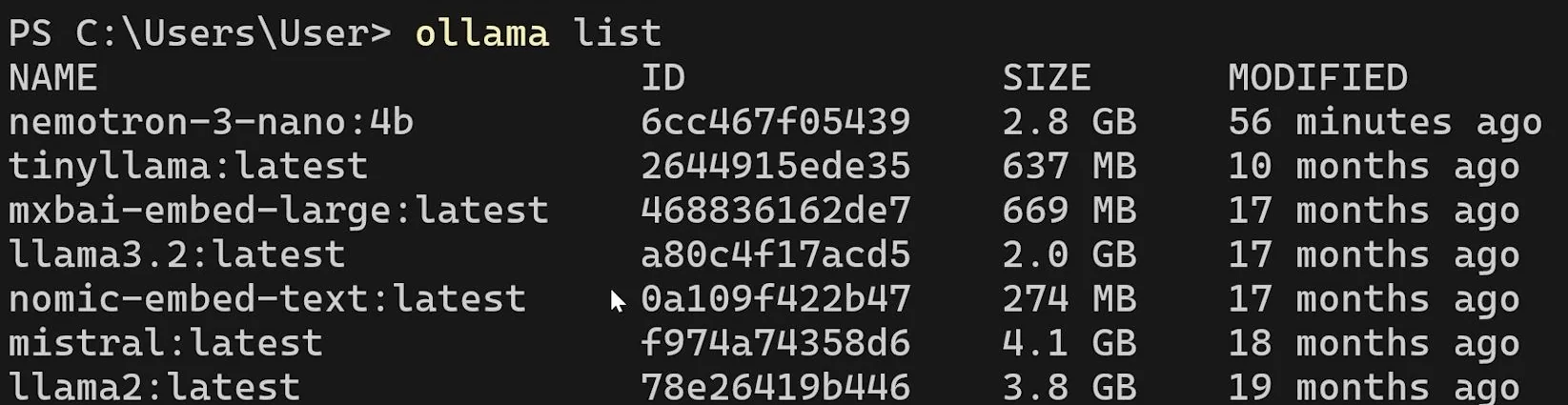
The first lists downloaded models, the second lists models in memory, and the third stops this model. See the CLI reference for the command details. If the terminal cannot find Ollama after installation, reopen the terminal and confirm the app is running.
Developers can send requests to the local API at http://localhost:11434/api, documented in Ollama's API introduction. You can explore that after terminal chat works.
Check the model location: Ollama now offers cloud models too. A local app can still send a request to a remote model. Use the local tag above for this tutorial; the Ollama FAQ explains the cloud distinction and how to disable cloud features when needed.
Decide whether local AI fits your work
Local models are worth trying for tasks you can inspect: rewriting supplied text, organizing notes, explaining a small code snippet or asking focused questions about a document. Evaluate them on your own examples before relying on the output.
You can avoid a cloud inference bill with this local setup, but the work still uses your hardware, storage and electricity. Model licenses also vary. Downloadable weights do not mean every model has identical usage terms.
Think about the surrounding workflow too. A model that drafts a good update has completed one part of the job. A team still needs a place to review it, track the next action and keep the approved version. Our guide to connecting LLMs to tools explains how apps and shared workspaces such as Oasis support that wider process.
For now, keep the next step small: run one model, check one representative task and confirm it works offline. If it is accurate enough and comfortable to use, keep it. If it struggles, change the model before changing your entire computer.
Frequently Asked Questions
Do I need a dedicated graphics card?
A dedicated GPU can help, but supported runtimes can also use the CPU, and Apple Silicon uses unified memory. Check the app's requirements and begin with a small model. Being able to load it and getting a comfortable response speed are separate questions.
Can the model search the web while offline?
It can answer from its learned information and the context you provide. Fresh web search needs a network connection and an appropriate tool. An offline answer about current events should not be treated as verified research.
Does chatting with the model train it?
No. In this setup, messages and attachments provide conversation context. They do not update the model's weights. Starting a fresh chat does not make it retain everything from earlier conversations.
Should I download the largest model available?
Begin with the smallest model that handles your task acceptably. Compare larger options when you have spare memory and a reason to expect a useful improvement. Parameter count alone does not tell you which model will work best for you.