

What happens when an AI video generator gets the action right but decides to change the camera angle on its own? Google's new Gemini Omni 1.2 Flash promises longer clips, better continuity, and more natural dialogue. But can it follow a director's instructions without adding unexpected creative choices?
To find out, we tested Omni 1.2 Flash with a jumping frog and a scripted museum conversation, alongside Google's official demos. In this article, we'll explore what worked, what went wrong, and whether the upgrade to Gemini Omni 1.2 delivers.
The opening frame of the 10-second pond clip, generated from text.
What Is Gemini Omni 1.2 Flash?
Gemini Omni 1.2 Flash is Google’s AI model for generating and editing videos with sound. It accepts text, images and video, so you can describe a scene, supply reference photos or ask it to change an existing clip.
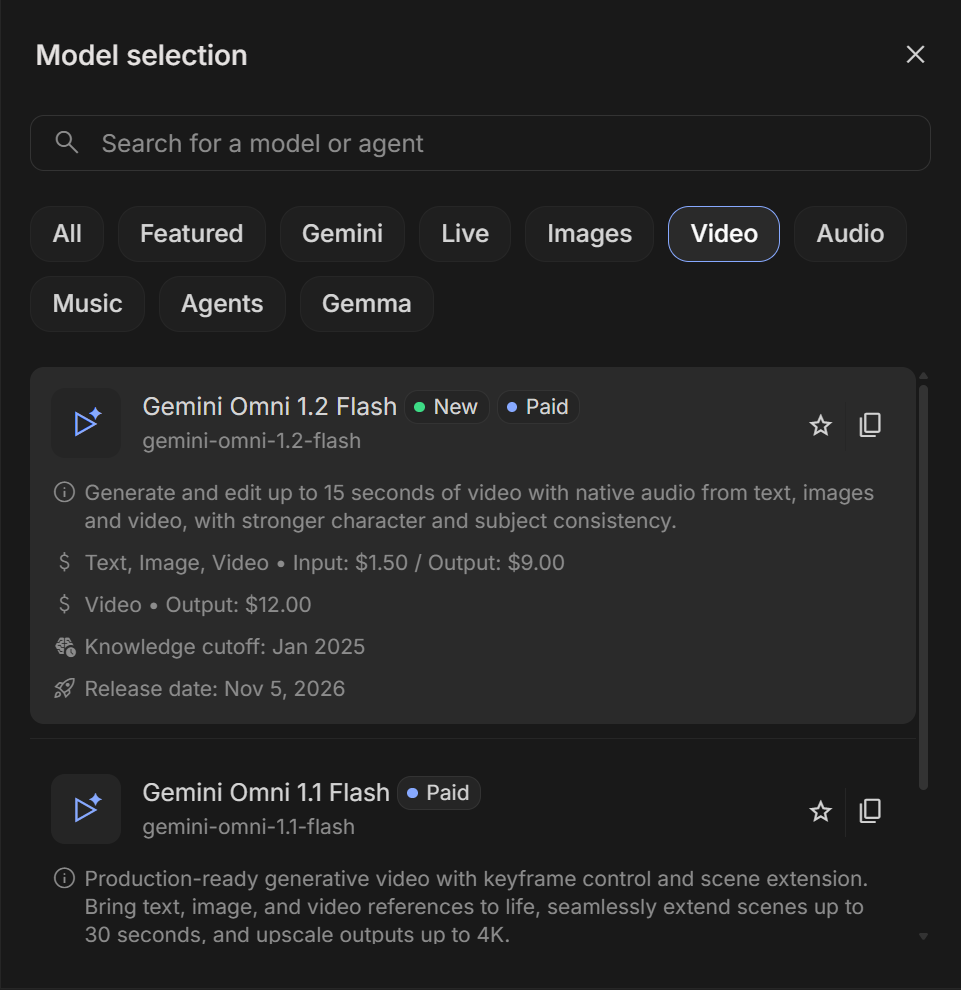
Version 1.2 increases the maximum length of a new generation from 10 to 15 seconds. It generates audio alongside the visuals, including dialogue and environmental sounds. Follow-up requests can extend a scene to 30 seconds in total.
The main appeal is conversational editing. Once you have a result, you can ask for a different background, another camera move or the next action in the scene. You can also provide up to six reference images to guide the appearance of characters and objects. That makes it useful for short scripted scenes, product videos and visual concepts you want to revise through several takes.
Gemini Omni 1.2 Flash: Key Specifications
| Feature | Details |
|---|---|
| Model ID | <br>gemini-omni-1.2-flash<br> |
| Supported inputs | Text, images and video. |
| Video generation and editing | 3–15 seconds; first-and-last-frame generation supports 3–10 seconds. Google Cloud Documentation |
| Video extension | Adds 3–10 seconds, concatenated onto up to the last 30 seconds of the input video. Google Cloud Documentation |
| Output resolutions | 360p, 720p, 1080p and 4K; landscape (16:9) and portrait (9:16). Google Cloud Documentation |
| Audio generation | Synchronized speech, music and sound effects. Google Cloud Documentation |
| Reference inputs | Up to 10 images or three videos per prompt. Google Cloud Documentation |
| API support | Interactions API; GenerateContent API is not supported. |
An Ambiguous prompt
I'll start the tests by providing the model a deliberately ambiguous prompt.
Prompt
create a video of smoke boy.
Response
Considering how limited in information the prompt was, the video is nothing short of a masterpiece! As you'll soon find out, the more detailed your prompts are, the better the quality of the responses.
One frog, two pads and an unwanted cut
The conversational workflow in our Omni 1.1 hands-on review returns here. We started with a 10-second shot, then asked for the next action in the same chat.
Prompt:
Make a 10-second wildlife shot. A small green frog sits on a wet lily pad in a shallow garden pond. Start close at water level, then slowly pull back. The frog turns toward a second lily pad to the right and crouches near the edge, ready to jump. Show gentle ripples, light breeze and distant birds. One continuous realistic shot, with no speech, music or text. Keep the output anonymous, with no names, logos, contact details or personal signatures.
The follow-up:
Continue this shot for ten more seconds. The frog jumps onto the lily pad to its right, settles, then turns toward the camera. Continue the same slow camera pullback. Keep the frog, pond, light, plant placement and ambience consistent across the join. Add a small splash timed to the landing. Keep every output anonymous, with no speech, text, names, logos, contact details or personal signatures.
AI Studio returned a complete 20-second video. The join at ten seconds looks consistent. The frog jumps right at about 11.1 seconds, lands around 12.3, settles, then turns toward the camera around 15.3.
At 13.5 seconds, two views overlap. The next framing is closer, interrupting the requested pullback.
That dissolve is the miss. It appears roughly three seconds after the extension starts, so checking only the join would have missed it. The result could work as an edited nature insert; it doesn’t satisfy a request for one continuous camera move.
Fifteen seconds gives a joke room to breathe
For the dialogue test, we kept the scene deliberately simple: two people, one camera and a pause before the punchline. The settings were 15 seconds, 720p and 16:9.
Prompt
Make a 15-second video inside a quiet museum gallery after closing. Two anonymous adult museum workers stand beside a covered sculpture. Keep both people visible in one steady medium shot. The worker on the left says, "Did you hear that?" The worker on the right looks at the sculpture, waits a moment, then says, "If that statue moves, I am taking tomorrow off." The left worker quietly laughs. Use natural conversational voices, a dry comic pause and subtle room ambience. Match mouth movements to the correct speaker. Keep their faces and clothes consistent through the shot. Keep every input and output anonymous. Do not add music, subtitles, names, logos, contact details or personal signatures.
Six seconds into the take, both workers and the covered sculpture remain in the same steady framing.
A separate automatic transcription, run without the expected script, recovered both lines word for word. The first runs from about 1.9 to 3.0 seconds; the reply starts around 6.7 and ends around 9.6. There’s a pause of roughly 3.7 seconds between them. The statue gets plenty of time to look suspicious.
The visible speaker turns agree with those timings. The right worker glances toward the sculpture before replying, and the left worker visibly laughs afterward. Both people stay in frame, with consistent faces and clothing across all 15 seconds. No cut interrupts the exchange.
That supports a narrow success: the wording, turn-taking and staging worked in this take. An automatic transcript doesn’t establish voice naturalness or precise lip-sync.
Changing the set around the same two characters
The next official release example starts with a generated queen and knight talking inside a striped tent. The edit asks for a different setting while retaining the people already in the shot.
Prompt
Change the background behind the knight and the queen to a medieval oak forest.
Response
The retention of subjects across edits (as well as the video quality) is one of the standout features of Omin 1.2. In its previous iteration, successive edits sometimes led to a loss of quality, which is clearly not the case here.
Verdict: useful scenes, with a limit on retakes
Omni 1.2 gave the museum exchange enough time for a question, a long pause and a reaction without changing the shot. The frog landed successfully, then the video dissolved into a closer shot. For a strict continuous take, inspect the entire continuation before committing to the result.
Three requests completed in our session: the 15-second dialogue, the 10-second pond scene and a ten-second continuation returned as a 20-second file. The next request, using a product photo, hit the daily quota. Retrying at 360p produced the same error. That’s the observed sequence, not a universal three-video daily allowance; earlier account usage wasn’t measured.

The quota notice appeared after three successful requests in this testing session.
Use your first attempts on the shot that matters most, then spend remaining tries on variations. The successful runs justify trying Omni for short dialogue and scene continuation. The official demos broaden that picture to image-guided movement and editing, but don’t replace independent testing. For other options, see the best AI video generators guide.
Frequently Asked Questions
Do I need an API key in AI Studio?
Our successful runs worked without linking one. Paid API use is a separate route.
How long can an Omni 1.2 video be?
New generations reach 15 seconds. Follow-up extensions can bring a scene to 30 seconds total.
Can I supply reference images?
Yes, up to six, including up to three per character for two characters.
Is 4K output native?
No. Omni upscales to 1080p or 4K; its default output is 720p.